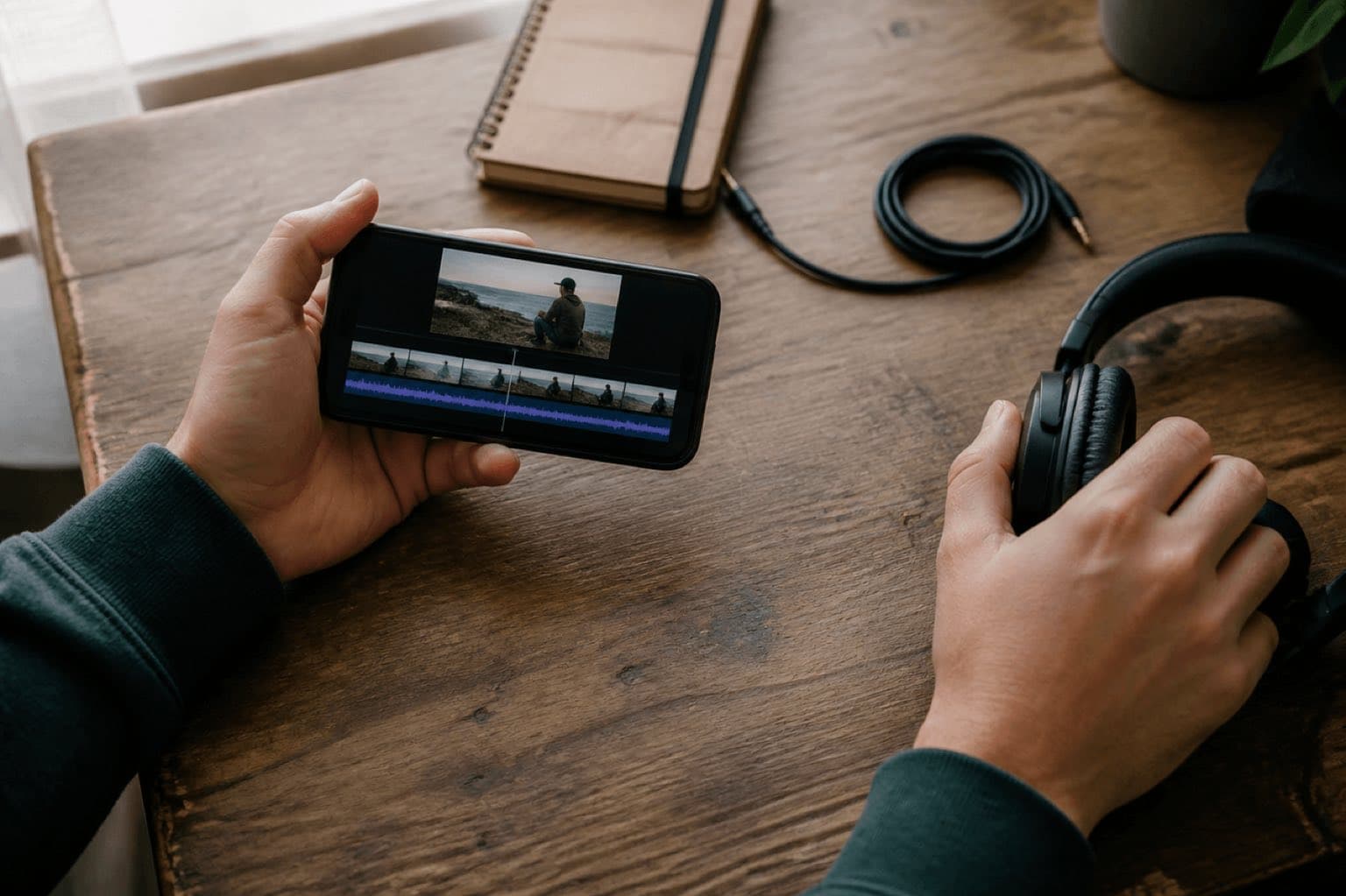
Sonilo publishes this guide and appears as one option for generating original video music. No third party sponsored or reviewed the instructions, and there are no affiliate links. Apple controls iMovie and may change its interface. Rights information is general production guidance, not legal advice.
Last verified: August 21, 2026. The current Apple iMovie for iPhone guide supports Soundtracks, My Music, and iCloud Drive imports; Apple also documents volume control, fades, and automatic background-music ducking.
Choose the route that matches the job
iMovie Soundtracks
Use an included soundtrack when speed matters and a stock musical direction is acceptable. Some tracks need a download before previewing.
My Music
Use music synced to the device only when the file is available and you hold the necessary rights for the intended release.
Files or iCloud Drive
Import an original, commissioned, licensed, or Sonilo-generated file when timing, mood, documentation, or client use matters.
The editing steps are simple; choosing the source is the consequential part. A private family clip, a monetized Short, and a paid client ad may use the same iMovie buttons but require different music rights and records.
01
How to add music to a video on iPhone with iMovie
Start a Movie project
Open iMovie, create a Movie project, select the video clips, and place them in the timeline. If the cut is still changing, make the main structural edits before finalizing music.
Open the Audio browser
Tap the Add Media button, then tap Audio. Apple currently separates audio into sources such as Soundtracks, My Music, and iCloud Drive.
Preview before adding
Tap a soundtrack or song to listen. A download icon means the soundtrack must be downloaded first. Previewing prevents a weak musical fit from becoming a timeline problem.
Add the selected track
Tap the item and then the Add Audio button. Background music normally appears as a green clip. Apple notes that imported songs under one minute behave like sound effects and appear blue.
Place and trim the music
Move the playhead and the audio clip so the first meaningful musical event supports the first visual beat. Trim the ending at a phrase boundary instead of stopping mid-note.
Balance the whole edit
Select a clip, open Audio, and adjust the volume. Use fades on an audio clip when the opening or ending needs a softer transition. Listen through every dialogue entrance and visual cut.
This guide uses the standard Movie timeline because it gives you direct control over placement and mixing. Apple's Magic Movie and storyboard workflows also expose music choices, but their editing path differs. If your screen does not match these steps, first confirm which iMovie project type you opened.
02
How to import an MP3, WAV, or original track from Files
For a custom file, save the audio somewhere the iPhone Files browser can reach. iCloud Drive is the clearest documented path in Apple's Movie-project instructions. Name the file clearly before importing—project, version, duration, and date are more useful than a generic download filename.
- Open the Movie project and move the white playhead to the intended starting area.
- Tap Add Media, then Audio.
- Tap iCloud Drive and browse to the folder containing the audio.
- Tap the track, then tap Add Audio.
- Move the audio clip if necessary, then trim and mix it against the picture.
If a song is dimmed or marked unavailable, download it to the device first. If it remains unavailable, the format may not be supported or the song may be protected by digital rights management. Converting or screen-recording a protected song does not create synchronization permission; choose music you can lawfully use.
03
Create music around the iPhone video instead of forcing a track to fit
Stock music can work, but it often makes the editor conform the cut to an existing song. Sonilo's Video-to-Music generator reverses that order: start with the video, describe the musical direction, generate options, and bring the selected audio back to the iPhone. Use Text-to-Music when the picture is not locked yet and you mainly know the genre, mood, instrumentation, or energy curve.
Lock enough of the cut
Remove obvious dead space and decide the delivery aspect ratio. A stable duration gives the music a useful target.
Describe function, not only genre
State what the music must do: hold under speech, reveal a product at 12 seconds, lift at the final title, or leave room for natural sound.
Generate and compare directions
Judge the relationship to picture, not the track in isolation. Reject options that compete with dialogue or overstate the scene.
Download to an accessible folder
Save the chosen export to Files or iCloud Drive with a useful version name, then import it into iMovie using the workflow above.
Warm understated indie instrumental for a 24-second coastal travel video; light picked guitar and soft hand percussion; curious opening, gentle lift at 8 seconds, wider final phrase from 18 seconds, clean ending at 24 seconds; no vocals, no dramatic trailer hits, leave room for wind and one spoken line.
Minimal modern electronic bed for a 15-second vertical product reveal; dry pulse, restrained bass, small bright accent at 6.5 seconds, confident lift at 11 seconds, resolved final hit at 14.7 seconds; no vocals, no riser, no heavy sub, space for voiceover.
Sonilo does not replace iMovie's editing controls, and this page does not claim a direct iMovie plug-in. The practical bridge is an exported audio file. For videos with speech, Automatic Audio Ducking is a related workflow, but always review the final balance manually.
04
Trim, mix, and fade music so it supports the video
Start on a visual reason
Music may begin at frame one, after a cold open, or on a reveal. Make the entrance answer the picture rather than filling silence automatically.
Protect dialogue and useful location sound
Lower the bed before words begin and keep enough ambience to preserve place. iMovie applies ducking when video-clip audio is active, but the automatic result still needs listening.
End on a phrase
Shorten from a musically sensible boundary, move the final visual beat when appropriate, or use a controlled fade. Avoid a hard cut through a sustained note unless the abruptness is intentional.
Test outside headphones
Phone speakers expose thin dialogue, aggressive upper frequencies, and music that disappears at low level. Check both headphones and the built-in speaker at a comfortable volume.
Apple documents that iMovie can automatically loop background music to fit the movie. Looping is convenient, but it can repeat an obvious build or place the strongest moment under the wrong shot. For a polished edit, listen across every loop boundary and prefer a track whose structure already resembles the cut.
05
Run a 60-second export check before posting
Picture and timing
- Correct aspect ratio and framing
- No accidental black frames
- Music changes support actual cuts
- Ending does not truncate the last beat
Audio
- Dialogue remains intelligible
- No clipped or startling peaks
- Fade starts at the intended point
- Phone-speaker playback still works
Rights record
- Source and license are identifiable
- Plan or purchase status is saved
- Client and channel are documented
- Final exported version is retained
Delivery
- Watch the saved file, not only the timeline
- Confirm captions and titles remain readable
- Check platform preview after upload
- Keep the editable project until approval
When the edit is ready, return to the project browser, use Share, and save or send the video through the delivery option appropriate to the project. Watch the exported file from beginning to end. A timeline preview does not prove the encoded file, upload, and platform playback are correct.
06
Why music will not add—or does not sound right
| Problem | Likely cause | What to do |
|---|---|---|
| Song is dimmed or unavailable | Not downloaded, unsupported, or DRM-protected | Download the file; if still unavailable, use a supported, unprotected file you are authorized to use |
| Music starts in the wrong place | Playhead or clip position | Move the audio clip and align its first useful event to the picture |
| Music repeats awkwardly | Automatic looping exposes the structure | Use a longer or deliberately timed track; inspect every loop boundary |
| Dialogue disappears | Music level or dense arrangement | Lower the bed, use ducking, or choose a sparser arrangement |
| Ending feels cut off | Trim falls inside a phrase | Move the edit point, choose another ending, or add a short fade |
| Export sounds different | Speaker, encoding, or upload playback | Check the saved file and platform preview on more than one playback system |
07
Music rights matter before the upload, not after a claim
Technical access to a song does not establish the right to synchronize it with video. Apple explicitly notes that using an iTunes Store purchase in a project requires you to be the copyright holder or have express permission. Public, monetized, branded, client, paid-media, and broadcast uses can require different review, so preserve the source, applicable terms, account or plan, generation or purchase date, project, client, territory, channel, and final export.
Sources
Sources
- Apple: Add music and soundtracks in iMovie on iPhone
- Apple: Adjust audio in iMovie on iPhone
- Sonilo: Video-to-Music, Text-to-Music, Audio Ducking, and Commercial Use
Human review needed for publication: an experienced iPhone/iMovie editor should re-run the steps on the current app version, and a qualified music-rights reviewer should verify licensing language for the intended markets and release channels.
FAQ
Frequently asked questions
Use iMovie. Open or create a Movie project, add the video, tap Add Media, choose Audio, then select Soundtracks, My Music, or iCloud Drive. Add the track, adjust its position and volume, apply fades if needed, preview with headphones and the phone speaker, then share the finished video.
No. A song may be unavailable because it is not downloaded or because digital rights management prevents iMovie from using it. Availability inside the Music app is not the same as permission to synchronize a song with a public, client, or commercial video.
Save the audio file in iCloud Drive or another location available through Files. In an iMovie Movie project, place the playhead, tap Add Media, tap Audio, choose iCloud Drive, find the file, then tap the file and Add Audio.
iMovie applies audio ducking when a video clip has audible sound, reducing background music so the clip audio can be heard. If that balance is not right, select the relevant clip, open Audio, and adjust the volume while listening to the whole sequence.
Start with the finished or nearly finished cut. Generate or choose a track near the target duration, place musical changes near important visual moments, trim on a musical phrase, and fade the ending. iMovie can loop background music, but a deliberately timed track usually sounds more intentional.
Sonilo is not presented here as an iMovie plug-in. Use Sonilo to generate a soundtrack from a video or text direction, download the audio to Files or iCloud Drive, then import that file into iMovie and complete the mix there.
Related
Keep reading
From finished cut to usable soundtrack
Generate music around the timing of your iPhone video.
Upload the edit, describe the musical job, compare original directions, then import the selected audio into iMovie through Files.