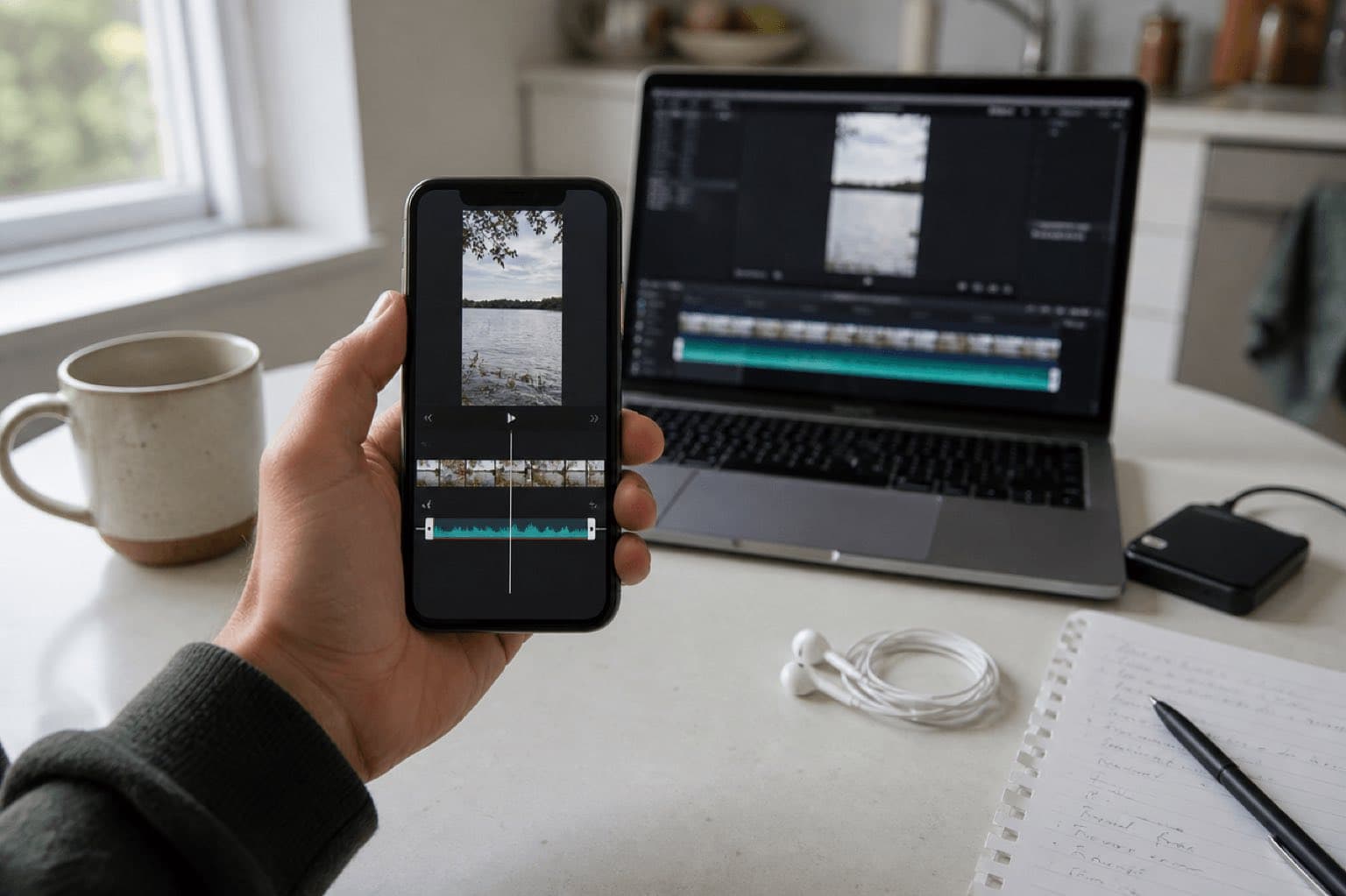
This article provides general editorial and production information; it is not legal advice and is not itself a license. An audio file appearing in a library, being accepted on upload, or remaining live does not by itself grant or confirm permission. Check the exact asset, source, account type, region, placement, territory, term, edits, monetization, and current platform or vendor agreement before release.
For Sonilo, commercial use applies only to eligible output generated under an eligible plan or written API agreement and remains subject to the current licensing page and Terms of Service. Do not infer commercial permission from a plan name alone; verify the current Terms and the plan-specific or written agreement that applied when the output was generated. Users must have the necessary rights to every input and remain responsible for third-party rights. No wording on this page promises exclusivity, copyrightability, platform approval, monetization, or freedom from claims.
Policy-source review: August 28, 2026. CapCut is a trademark of its respective owner; this independent guide is not sponsored, endorsed, or approved by CapCut.
- The exact audio source and asset, generation, purchase, or download record.
- The account and plan plus the terms that applied on the acquisition or generation date.
- The intended platforms, territories, client or brand use, paid media, monetization, editing, and delivery scope.
- Clearance for every relevant input, composition, recording, sample, voice, likeness, and third-party element.
If any item cannot be evidenced, replace the audio or obtain written clearance before publication.
Sonilo publishes this guide and appears as an option for generating original music before import into CapCut. CapCut did not sponsor or review the page, and there are no affiliate links. CapCut controls its interfaces and license terms, which may differ by product, account, region, material, and date. This is production guidance, not legal advice.
Last verified: August 21, 2026. CapCut's current official pages document mobile, desktop, and online music workflows, while its Materials License Agreement distinguishes personal Sounds from Commercial Sounds and limits where some commercial material may be used.
Use the shortest correct route for your CapCut version
New project, Audio, Sounds
Add the video, open Audio, choose library music or import from the device, then place the audio layer.
Import, Audio, Music
Import media, drag the video to the timeline, browse Audio or add a local file, then drag the track below the picture.
Upload, Audio, timeline
Upload the source, choose or import audio, customize the clip, then export through the browser workflow.
CapCut changes labels and feature placement across releases and regions. If one label differs, follow the functional sequence—project, media, audio source, timeline, clip controls, export—rather than searching for an outdated screenshot.
01
How to add music to CapCut on iPhone or Android
Create the project
Open CapCut, tap New project, select one or more video clips from the device, and tap Add. Arrange the main cut before committing to exact musical timing.
Open Audio
Tap Audio in the bottom toolbar. CapCut's current official mobile instructions route library choices through Audio and Sounds; a device import option may appear inside that area depending on version.
Choose library music or import a file
Preview a library item before adding it. For your own track, use the import path exposed in the current app and choose a file from the device. Technical availability is separate from permission to use it.
Add and position the music
Tap Add or the equivalent control, then drag the audio layer so its first useful beat lands where the picture needs it. Zoom in for precise placement.
Trim and shape the clip
Shorten the start or end, split at a deliberate point, set volume, and apply fade-in or fade-out. Do not cut a sustained note accidentally.
Preview and export
Listen through every line of speech and every edit, then use Export. Check the saved file or upload preview rather than trusting only timeline playback.
Inspect the existing music before replacing it. A template can contain timing built around a particular track or Platform Material. Replace the audio, recheck every beat-dependent cut, and verify that the new source is permitted for your intended channel.
02
How to add music in CapCut Desktop or the Web editor
CapCut Desktop
- Create a project and import the video through Import, drag and drop, or the current File menu.
- Place the video on the timeline.
- Open Audio and Music to browse the library, or import a local audio file.
- Drag the chosen track to an audio lane beneath the video.
- Select the audio and adjust position, trim, volume, speed, fade, or other available controls.
- Preview the full sequence, choose Export, and review the output settings and saved file.
CapCut Web
Sign in, create a new video, upload the source, and put it on the timeline. CapCut's online workflow supports choosing audio from the library or uploading media. Select the audio clip to access controls such as volume, speed, fade-in, fade-out, and noise reduction where available. Then export or share using the current browser interface.
A desktop or Web timeline provides more screen space, but it does not make the music fit automatically. The editorial questions remain: where should the cue start, what must remain audible, how should the track end, and what rights apply after export?
03
Choose the music source before you build the edit around it
Personal-first library
Convenient for permitted personal, non-commercial uses. Do not assume every Sound covers brand or paid work.
Defined commercial scope
Review the current material label and agreement, including allowed platforms, territory, license term, and restrictions.
Original or separately licensed
Import music you created, commissioned, or licensed only when you hold all necessary recording and composition rights.
Generate for the picture
Create a new direction from the video or a text brief, then document the plan, terms, file, project, and release channel.
“Royalty-free” is not a complete license description. A track can be free to access yet restricted by user type, platform, territory, term, editability, advertising use, or redistribution. Treat the label on each piece of music and the current agreement as the evidence, not a generic marketing sentence.
04
Generate a soundtrack for the CapCut timeline with Sonilo
CapCut is the editor in this workflow; Sonilo supplies an original soundtrack direction before import. Use Video-to-Music when a rough or finished cut already exists, and Text-to-Music when the brief is clear but picture timing is still flexible. The connection is a downloaded audio file, not a claimed plug-in or account integration.
Export or prepare the reference cut
Remove obvious dead space and note the exact duration, dialogue zones, reveals, transitions, and closing frame.
Describe the musical job
Specify duration, mood, instrumentation, pace, cue points, dialogue space, ending behavior, and elements to avoid.
Compare with the picture
Reject a strong standalone track if it overstates the video, masks speech, or places musical changes under the wrong visuals.
Download and label the selected file
Use a filename containing project, version, duration, and date, then import it into CapCut through the device or desktop media path.
Finish in CapCut
Place the track, trim if needed, create quieter zones for speech, add fades, test export, and retain the source and rights record.
Light tactile instrumental for a 20-second vertical cooking edit; brushed percussion, muted plucks, warm bass; clean accent at 3.8 seconds for ingredients, small lift at 10 seconds for the pan shot, resolved ending at 19.7 seconds; no vocals, no heavy sub, space for narration and natural kitchen sound.
Minimal polished electronic cue for a 12-second seamless product loop; soft pulse, glassy detail, restrained low end; reveal accent at 4.1 seconds and a final phrase that can return smoothly to the opening; no vocals, no trailer riser, no oversized impact.
05
Sync, trim, and mix music instead of merely placing it
Start on a visual cause
Place the first meaningful beat on an action, reveal, transition, or change of thought. Starting at frame zero is an option, not a rule.
Protect speech and useful ambience
Lower the music before voice begins and preserve enough location sound to keep the scene believable. A sparse arrangement often works better than aggressive reduction.
Trim by phrase
Move the edit or select a better section before cutting through a held note. Use fades to shape a transition, not to hide every structural mismatch.
Check vertical-platform playback
Test headphones and a phone speaker, then inspect the platform preview after upload. Encoding and loudness processing can change the perceived balance.
If the music level needs to move repeatedly, create a deliberate automation pattern with the volume controls available in your version. For a separate preprocessing workflow, Sonilo Audio Ducking can reduce a background bed around foreground speech, but this page does not claim it controls CapCut's timeline.
CapCut can also extract audio from a video. Use that feature only when you own or are authorized to reuse both the recording and the underlying material. Extracting a viral clip's audio changes the container, not the rights.
06
Export checks for TikTok, Reels, Shorts, ads, and client work
Timeline and mix
- Opening is not accidentally silent
- Music accents support actual visuals
- Speech remains intelligible
- Fades and ending sound deliberate
File and playback
- Resolution and frame rate are intentional
- Saved file watched end to end
- Phone speaker and headphones checked
- Upload preview reviewed
Rights record
- Exact music source identified
- Material label and current terms saved
- User, platform, territory, and term checked
- Client and campaign approval retained
Version control
- Correct soundtrack version imported
- CapCut project kept through approval
- Final master archived
- Replacement plan exists if rights change
If the final destination is TikTok, confirm that the selected music is permitted for the account type, placement, territory, and promotional use you intend. Editing access alone does not establish broader usage rights.
07
Troubleshooting and the CapCut music-license boundary
| Problem | Likely cause | What to do |
|---|---|---|
| Import option is missing | Version, platform, or menu difference | Update the app and follow project, Audio, device-media sequence |
| Track will not import | File access or unsupported media | Move it to accessible storage and use a supported export |
| Music and cuts drift | Clip or speed changes after sync | Lock the picture structure, then realign cue points |
| Dialogue is buried | Music level or dense midrange | Lower the bed, create quieter zones, or choose a sparser cue |
| Commercial use is unclear | Wrong material class or destination | Check the exact label and current agreement; obtain separate rights when needed |
| Upload receives a claim | Platform recognition or incomplete rights | Pause release, collect records, follow the platform dispute process, and seek qualified advice |
CapCut's Materials License Agreement states that ordinary Sounds are for personal entertainment and non-commercial use, while Commercial Sounds are available to Commercial Users within a defined scope. The agreement identifies CapCut, TikTok, and TikTok for Business as permitted platforms for the cited Commercial Sounds provision and says use outside those permitted platforms requires separate permission. Check the live agreement and the specific material because terms, labels, territories, and license periods can change.
For Sonilo output, the current Commercial Use page states that output covered by an eligible plan or written API agreement has commercial-use rights under current terms, while Do not infer commercial permission from a plan name alone; verify the current Terms and the plan-specific or written agreement that applied when the output was generated. That does not remove every platform, client, territory, broadcast, trademark, or other clearance review.
Sources
Sources
- CapCut: Add background music on desktop and mobile
- CapCut: Add music to video online
- CapCut Materials License Agreement
- CapCut Terms of Service
- Sonilo: Video-to-Music, Text-to-Music, Audio Ducking, and Commercial Use
Editorial verification: The linked primary sources were reviewed on August 28, 2026. Interface steps can change and this article does not approve any particular track, sound, upload, campaign, or account. Recheck the current official terms for the exact asset and release. Refer unclear client, paid-media, broadcast, sublicensing, exclusivity, sample, voice, or likeness questions to a qualified rights professional.
FAQ
Frequently asked questions
Open CapCut, tap New project, choose the video, and tap Add. In the timeline, tap Audio, then choose a sound from the library or import audio from your device. Add the music, drag it into position, trim it, adjust volume and fades, preview the full video, then export.
On mobile, open Audio and use the available device-import option under Sounds; labels can vary by version. On desktop or Web, import the audio file like other media, then drag it onto an audio track in the timeline. Use only files you have permission to upload and synchronize.
Create or open a project, import the video, and place it on the timeline. Open Audio and Music to browse CapCut material, or import a local audio file. Drag the selected music onto the timeline, then trim, position, set volume and fades, and export after reviewing the mix.
No. CapCut distinguishes ordinary Sounds from Commercial Sounds, and its Materials License Agreement defines use, platform, territory, and term limits. Check the label and current agreement for the exact material and destination; obtain separate permission when the planned use is outside the granted scope.
Select the music clip, reduce its volume, and create quieter sections around speech using the controls available in your current CapCut version. Use fades at transitions and listen on headphones and a phone speaker. Sonilo Audio Ducking is a separate preprocessing option, not a CapCut plug-in.
This guide does not claim a direct CapCut integration. Generate a track from the video or a text brief in Sonilo, download the selected audio, import it into CapCut as a local file, and complete placement, trimming, and mixing in the CapCut timeline.
Related
Keep reading
Original music for a specific cut
Create the soundtrack first, then finish the timing in CapCut.
Upload the edit or write a precise music brief, compare original directions, and import the chosen audio into the CapCut timeline.