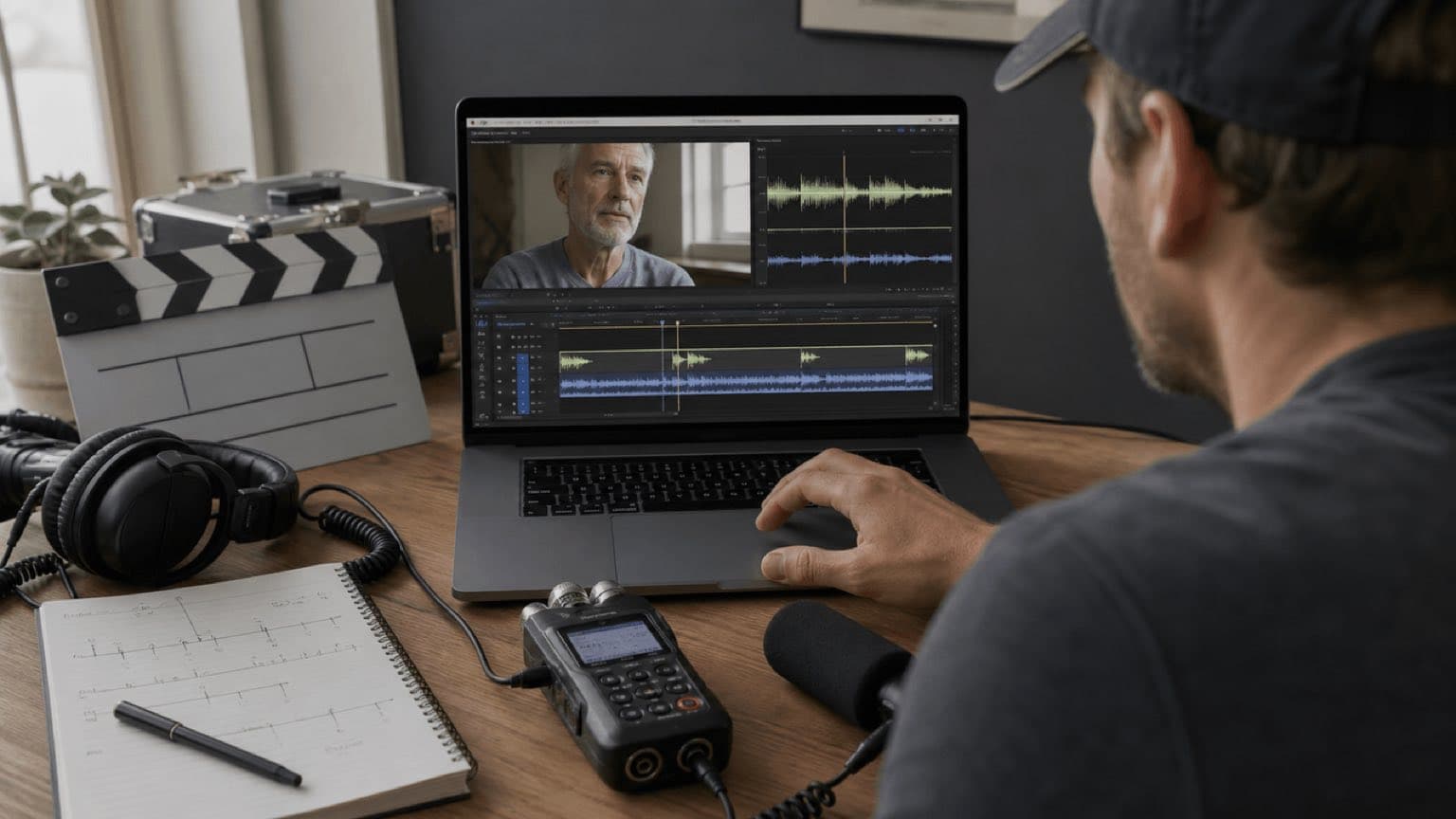
Sonilo publishes this guide and appears in the music-to-picture section. Adobe, Apple, Blackmagic Design, camera/recorder makers, and post-production professionals did not sponsor or review it. Menu names and capabilities change by version. The exact repair depends on source media, hardware clocks, timecode, frame rate, sample rate, edit history, export settings, and delivery system. Preserve originals and work on duplicates. This is production guidance—not a guarantee that automatic sync or time-stretching will repair damaged media.
Last verified: August 21, 2026. Adobe’s current Premiere documentation lists Clip Start/End, Timecode, Clip Marker, and audio-channel synchronization; Apple’s current Final Cut Pro guide documents markers, timecode, creation date, and audio-content analysis; Blackmagic Design’s Resolve 20.1 guide documents timecode, waveform, In, Out, and Marker options. Sonilo’s frame-synced guide describes music shaped around cuts, speech, reveals, and final frames.
Diagnose before moving or stretching anything
Wrong start position
Lips and sound are separated by roughly the same amount throughout. Align one reliable event, then check start, middle and end.
Clocks or interpretation diverge
The beginning is correct but the end is increasingly wrong. Measure the change and inspect duration, sample rate, frame rate and device clock behavior.
A discontinuity occurred
Sync is correct, then changes at one point. Look for an edit, dropped/duplicated frames, missing samples, a speed change, pause/resume, transcode or corrupt media.
Technically aligned, creatively late
Dialogue is in sync but the soundtrack peak, transition or ending misses picture. Re-edit or create music against story timing rather than sliding production audio.
Play a visible consonant, hand clap, door close or slate one frame at a time and listen without Bluetooth. Wireless playback latency can make synchronized media appear late. If the file is correct in the editor but wrong in one player, test another local player and the exported file on a second device before changing the timeline.
01
Record production audio so synchronization has evidence
| Production control | What to do | Why it helps |
|---|---|---|
| Scratch audio | Record usable reference audio in camera even when a separate recorder captures the primary sound | Gives waveform tools a common signal and editors an audible reference |
| Slate/clap | Record a clear visual closure and sharp sound for every take; call scene/take | Creates an independent frame-and-transient sync point |
| Timecode | Jam or distribute timecode correctly and recheck after power cycles, battery changes and long breaks | Scales to many clips and cameras when configuration is consistent |
| Clock/sample rate | Set and document the intended production audio sample rate; avoid casual setting changes | Reduces interpretation mistakes and helps diagnose duration mismatch |
| Frame rate | Record actual and intended frame rates, including variable-frame-rate phone/screen footage | Prevents a metadata or conversion problem from masquerading as audio drift |
| File naming/log | Log camera, recorder, scene, take, timecode, file, start/stop and anomalies | Stops similar takes from being paired by guesswork |
| Tail check | Capture a tail slate/clap or another known event on long takes when practical | Shows whether devices drifted between beginning and end |
A loud hand clap works for a small shoot, but it is not a substitute for consistent media management. Do not rename or discard originals until clips are backed up and linked to production records. If a camera has no scratch audio, preserve slate, timecode and log information rather than asking waveform sync to match silence.
02
A universal waveform, marker, or manual sync workflow
- Back up and inspect originals. Record file durations, frame rates, audio sample rates/channels, creation metadata and camera/recorder IDs. Note variable-frame-rate sources or transcodes.
- Pair the correct take. Use scene/take calls, slate image, filenames, timecode and content. Similar interviews can produce convincing but wrong waveform matches.
- Choose the strongest reference. Prefer validated common timecode for volume work; otherwise use slate/marker; use waveforms when both sources share clear reference audio.
- Place both sources in a sequence. Keep camera audio and external audio visible on separate tracks. Expand waveforms and zoom to frames or samples as the editor allows.
- Align the event. Run the editor’s synchronization command or manually line up the slate transient with the frame where sticks meet. For speech, check a visible plosive or hard consonant.
- Monitor the primary recording. Mute or disable the scratch track after alignment, but retain it in the source or synced container where practical for audit and emergency comparison.
- Link, nest, merge or create a synchronized clip. Use the application’s nondestructive organization so picture and sound move together. Do not overwrite originals.
- Verify three points. Check a clear event near the beginning, middle and end. For long takes, add more checks after pauses, camera restarts, speed changes or edits.
- Label and log. Record method, offset, drift correction, audio source, muted channels, reviewer and exceptions. Then edit from the verified synchronized clip.
Room tone, repeated questions, playback music, applause, or similar camera/reference audio can create false matches. Confirm scene/take identity, slate/timecode and visible lip sync. Automatic success is a candidate alignment, not final quality control.
03
Use the editor’s sync method, then verify it independently
| Editor | Documented routes | Practical verification |
|---|---|---|
| Adobe Premiere | Synchronize by Clip Start, Clip End, Timecode, numbered Clip Marker or selected audio channel; Merge Clips can also use sync points/timecode | Open the result, mute camera reference, inspect slate/lips and check the tail |
| Final Cut Pro | Synchronize Clips can analyze markers, timecode, content creation date and audio; “Use audio for synchronization” refines using waveforms | Keep originals available, inspect the synchronized clip and confirm automatic assumptions |
| DaVinci Resolve | Current documentation includes timecode, waveform, In, Out and Marker options for Media Pool sync; waveform channel selection helps noisy multichannel sources | Choose the clean reference channel and compare at multiple timeline points |
| Other NLE/mobile editor | Look for synchronize, align by waveform, multicam sync, marker or timecode; otherwise align manually | Do not infer precision from a single “auto” button; verify the exported result |
Linking is not synchronization: it makes clips move together after their relationship is correct. Likewise, merging or nesting organizes media but does not prove that the selected sync point was right. Keep source files, recording channels and metadata accessible until delivery.
04
Fix drift by measuring the pattern—not by guessing a speed percentage
1. Prove the drift
Align the start, then place markers on equivalent audio/visual events near the middle and end. Record the timeline time and the error at each marker. A steadily growing error suggests a duration or clock relationship; one jump suggests a discontinuity; alternating errors may indicate edits, variable-frame-rate conversion, playback or more than one problem.
2. Inspect the pipeline
Compare source duration and metadata, expected frame rate, variable versus constant frame rate, audio sample-rate declaration, transcodes, proxies, speed effects, pause/resume behavior and export settings. Test original media in a new sequence before repairing an edit built from an incorrect transcode.
3. Choose the least destructive repair
| Pattern | Possible repair | Caution |
|---|---|---|
| Constant offset | Slip/nudge the external audio to the verified sync point | Check linked edits and handles before moving |
| Small steady drift across uninterrupted take | Correct interpretation/transcode first; if source clocks truly differ, use high-quality duration adjustment against measured endpoints | Preserve pitch where appropriate and audition artifacts; keep an untouched source |
| One or more jumps | Split at each discontinuity and resync sections, or replace damaged media | Do not stretch the entire take to hide a missing event |
| Variable-frame-rate source | Create a verified constant-frame-rate intermediate with correct audio mapping, then relink/rebuild | Validate duration and every cut; retain original |
| Only export is wrong | Check export frame rate, sample rate, channel mapping, player and mux; render a short test | Do not damage a correct timeline to compensate for one playback path |
| Bluetooth-only offset | Monitor wired and test local playback | Device latency is not file sync |
Long-form repair should be reviewed on real dialogue, impacts and room tone, not only waveform endpoints. Aggressive time-stretching can alter voice quality or ambience. If the cause is uncertain, preserve a diagnostic copy and involve an experienced editor or audio-post professional.
05
Synchronizing music to picture is a separate creative workflow
Production-sync tools align sound that was recorded with the event. Background music usually has no “correct” original position; the editor or composer chooses a relationship between musical phrasing and story. Sliding a stock track until one beat hits a cut can make the opening, speech and ending worse.
Map the picture
- Opening hook
- Speech zones
- Transitions and motion
- Reveal, CTA and final frame
Map the music
- Phrase starts and cadences
- Build, peak and release
- Dense and sparse sections
- Editable stems/versions
Choose the method
- Edit picture to a chosen beat
- Edit music to locked picture
- Commission a score
- Generate around the video
Verify the result
- Dialogue remains clear
- Hits feel motivated
- No awkward phrase cuts
- Ending resolves intentionally
Sonilo Video to Music starts from an authorized cut and can create soundtrack candidates around its duration, pacing, transitions, speech space, reveal and final frame. This is closer to timing-aware scoring than to aligning an external recorder. The frame-synced soundtrack guide explains that every beat need not hit every visual event; useful synchronization respects the story arc.
- Lock the picture and repair dialogue sync first.
- Mark hook, speech, transitions, reveal and final frame.
- Write a production brief without asking to copy a named artist, song or recording.
- Generate multiple directions and compare under the complete dialogue/effects mix.
- Edit or regenerate for phrasing, cut-downs, localization and clean ending.
- Verify current licensing, input authority, paid/client/distribution scope, output record, similarity and approvals.
06
A synchronization quality-control pass
- Verify source identity, scene/take, camera, recorder and recording channels.
- Inspect a slate or visible transient frame by frame with wired monitoring.
- Check lips and sharp events near the beginning, middle and end.
- Check every edit, speed change, proxy/relink, multicam switch and discontinuity.
- Mute scratch audio without deleting the reference; confirm primary audio channel mapping.
- Listen for phase/flanging that indicates both reference and primary recordings are playing together.
- Export a short middle/tail test with delivery settings and play it outside the editor.
- Render the full master, then spot-check the same markers on two playback systems.
- Archive source, synchronized container/timeline, correction notes, export settings and approved master.
07
Troubleshoot common sync failures
| Symptom | Likely cause | Next check |
|---|---|---|
| Auto-sync finds no match | No/poor scratch audio, silence, noise or different takes | Use slate, marker, timecode or manual alignment |
| Auto-sync picks wrong position | Repeated waveform or wrong take | Confirm slate, scene/take and visible event |
| Echo or flanging | Camera and external audio both active with offset | Solo primary; retain but mute reference |
| Lips correct at start, wrong at end | Clock/duration/VFR/interpretation problem | Measure drift and inspect pipeline |
| Sync jumps after one cut | Slip edit, missing frames/samples or discontinuity | Check cut boundary and resync sections |
| Correct in NLE, wrong after export | Export/mux/player/device issue | Short test, second player, wired monitoring |
| Linked clips still out of sync | Linking preserved a wrong relationship | Unlink duplicate, realign, verify, relink |
| Music hits cut but ending fails | One-point alignment ignored phrase/arc | Re-edit/compose/generate against full picture |
Sources
Primary technical sources
- Adobe: Synchronize clips in the Timeline
- Adobe: Merge clips
- Apple: Sync audio and video in Final Cut Pro
- Blackmagic Design: Resolve 20.1 sync options
- Sonilo: Frame-synced soundtrack production
Human review: Production sound or DIT verifies recorder, camera, timecode, sample/frame rates and logs. Editor reproduces alignment and drift checks against originals; audio post reviews time adjustment and artifacts; delivery reviewer tests exports and playback. Sonilo maintains current product terms, licensing, security, corrections and output evidence.
FAQ
Frequently asked questions
Place the clips in one timeline, identify a common sync event such as a slate clap, waveform transient, marker, or shared timecode, align that event, disable or mute the camera reference track, link or nest the synchronized result, then verify lip sync at the start, middle, and end.
No. It works best when both recordings contain clear, similar reference audio. Noise, echo, automatic gain, missing scratch audio, long silence, music, multiple takes, or heavily processed audio can produce a wrong match. Verify visually and by ear.
Common causes include independent device clock drift, sample-rate interpretation, variable-frame-rate video, frame-rate conversion, dropped or duplicated media, and export or playback problems. Diagnose whether the offset grows steadily, jumps, or appears only after export before choosing a fix.
Shared, correctly configured timecode is efficient for multi-camera and high-volume work, but it still needs verification. A recorded slate/clap and usable scratch audio provide valuable independent references.
That is a different task from dialogue sync. Mark hook, speech zones, transitions, reveal and final frame; edit, compose, or generate music around those picture events while preserving musical phrasing and dialogue space.
Sonilo can generate soundtrack candidates around an authorized video cut and its timing. Verify current plan and licensing, inputs, output records, creative and similarity review, client and distribution scope, then inspect the final mix and export.
Related
Keep reading
When the soundtrack—not the dialogue—needs to follow the edit
Generate music around cuts, speech, motion, reveal and final frame.
Start from an authorized locked video and compare timing-aware directions.