Guides
How to Add MP3 to MP4 and Make It Fit the Video
- Written by
- Sonilo Team
- Published
I dragged an MP3 onto an MP4 timeline last Tuesday. The track was three minutes forty-two. My cut was one minute eight. The music just kept playing into black frames — the video had ended, the song hadn't. That's the part most "add MP3 to MP4" tutorials skip past, and it's the part that actually decides whether your video feels finished or feels like you stapled two files together.
Here's what actually happens when you add MP3 to MP4 — and how to make the track fit instead of fight your edit. Fellow editors, this one's for the moment when the file goes in but something feels off.
What it means to add MP3 to MP4
Audio file, video file, and final export
MP3 is an audio container. MP4 is a video container that can also hold audio tracks — that's the whole reason this works at all. When you "add MP3 to MP4," you're really telling your editor to take the audio stream from the MP3 and mux it into the MP4 alongside (or replacing) whatever audio is already there. The technical side of this is well-documented in MDN's media container formats reference, which is worth a skim if you've ever wondered why some MP4s play sound and some don't.
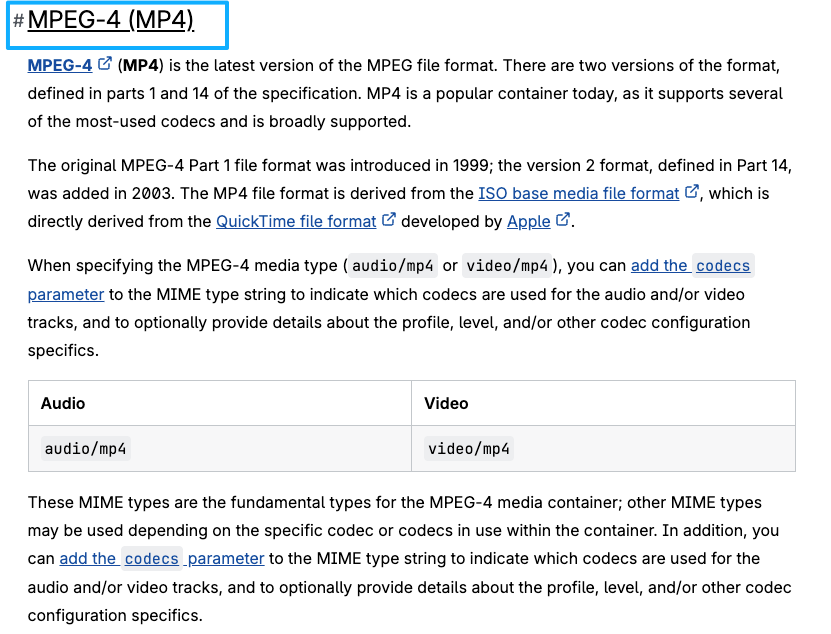
The distinction matters more than it sounds. MP4 is a wrapper. Inside that wrapper, you can have one video stream and zero, one, or several audio streams. When you add an MP3, you're adding another stream into the wrapper — not converting one file into another. This is why some "add MP3 to MP4" online tools produce files that play in one app and stay silent in another: they technically muxed the audio in, but with codec or container settings the destination player doesn't recognize.
Why adding a track is only part of the job
Here's the thing nobody mentions: the import is the easy part. Three clicks. Where it gets complicated is everything that comes after — length, sync, balance, fade. If the MP3 is longer than your cut, you'll get music bleeding past the final frame. If it's shorter, you'll get silence in the middle of your video. Both look amateur, and both are what this guide is actually about.
The other thing nobody mentions: even when the length lines up perfectly, you can still get a bad result. A great MP3 on the wrong cut still sounds wrong. The fit problem isn't just mathematical — it's about energy curve, density, and where the music's peaks land relative to your visual peaks.
Step 1: Check the Video's Final Purpose
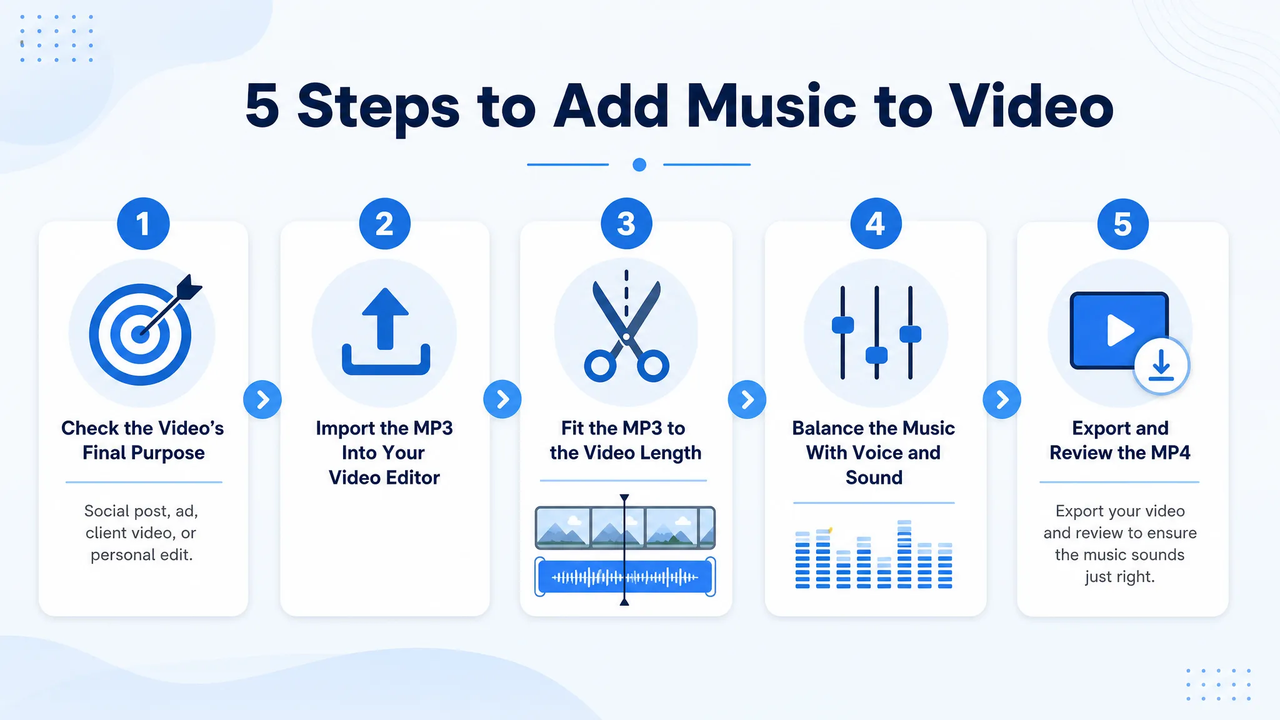
Social post, ad, client video, or personal edit
Before you touch the MP3, know where this video is going. A 15-second Reels ad needs a track that hits and resolves in 15 seconds. A 90-second client testimonial needs a soundtrack that ducks under voice for most of it. A vlog can carry a longer, looser MP3 because nobody expects surgical sync.
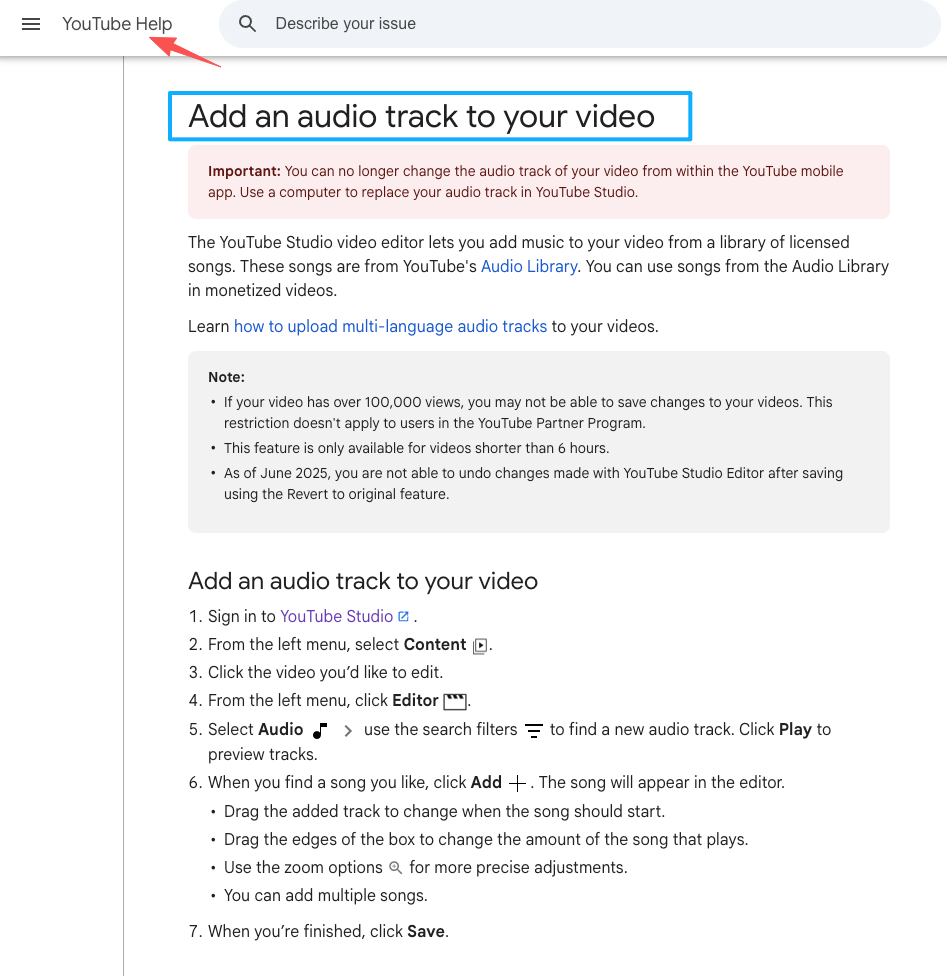
The reason this matters: the platform shapes the music decision. If you're publishing to YouTube, the official guidance on adding or replacing an audio track in YouTube Studio is worth reading before you finalize anything — whatever you mux into the MP4 is what gets scanned on upload, and the in-platform replacement options are narrower than most editors assume.
For client work and ads, there's an additional layer: the brand may have approved music libraries or restrictions you don't know about. Always ask before you score. I've had to redo a 30-second spot twice because the client's parent brand had a vendor agreement I didn't know about. That kind of rework hurts.
Why the soundtrack should follow the edit
I used to think you picked the music first and built the cut around it. After a few hundred deliveries, I flipped it. Pick the music after the rough cut is locked. The video tells you what kind of MP3 it needs — energy, density, pacing. If you guess the music first, you'll spend the next hour cutting visuals to fit it, and the cut will start to feel forced.
The exception: if the video is built around a specific song — a music video, a dance edit, a lyric-driven montage — then yes, music first. But that's a different job. For most informational, narrative, or commercial work, music comes after the cut is solid.
Step 2: Import the MP3 Into Your Video Editor
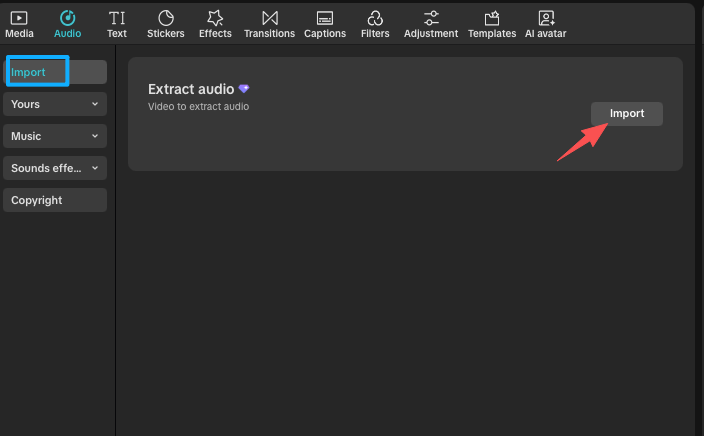
Place it under the right section of the video
Drop the MP3 onto an audio track below your existing audio. Don't replace, don't overwrite. Most editors — Premiere Pro, DaVinci Resolve, Final Cut, CapCut — let you stack multiple audio layers. You want the MP3 on A2 or A3, with dialogue and ambient sound on A1.
This way, when something doesn't sound right, you can mute one track at a time and figure out which layer is the problem. Solo-and-mute is the single most underused diagnostic move in audio editing. If something sounds off and you can't tell why, mute everything except the suspected track. The problem usually announces itself within five seconds.
Keep or mute the original audio intentionally
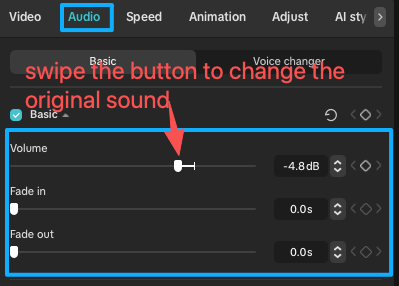
If your MP4 had ambient sound — wind, footsteps, room tone — don't blanket-mute it. That's the move that makes videos feel sterile. Lower the original audio to maybe a quarter of full volume and let it sit under the MP3. The track feels like it belongs to the scene instead of being pasted on.
When you add audio to MP4 this way, you're layering, not replacing. That distinction is the whole difference between "music on top of video" and "scored video." Scored video has dimension. Music-on-top has the flatness viewers notice without being able to name.
Step 3: Fit the MP3 to the Video Length
Trim, loop, fade, or replace the track
This is where most edits fall apart. You've got four options:
- Trim it down. Cut the MP3 to end on a musical resolution near your video's outpoint. Crossfade the cut so it doesn't sound chopped.
- Loop it. Works if the MP3 has a natural loop point. Most don't. You'll hear the seam.
- Fade out. The default lazy answer. Fine for vlogs, weak for ads.
- Replace the MP3 entirely. If the track was longer than the cut by more than 30 seconds, this is usually faster than trying to surgery it.
I didn't expect that to matter as much as it does in practice — but the trim-vs-replace decision is where I lose the most time on any given edit. The honest test: if you've spent more than five minutes trying to trim the MP3 to fit, you've already lost. Replace it with something closer to the right length and move on.
When a custom-length soundtrack saves editing time
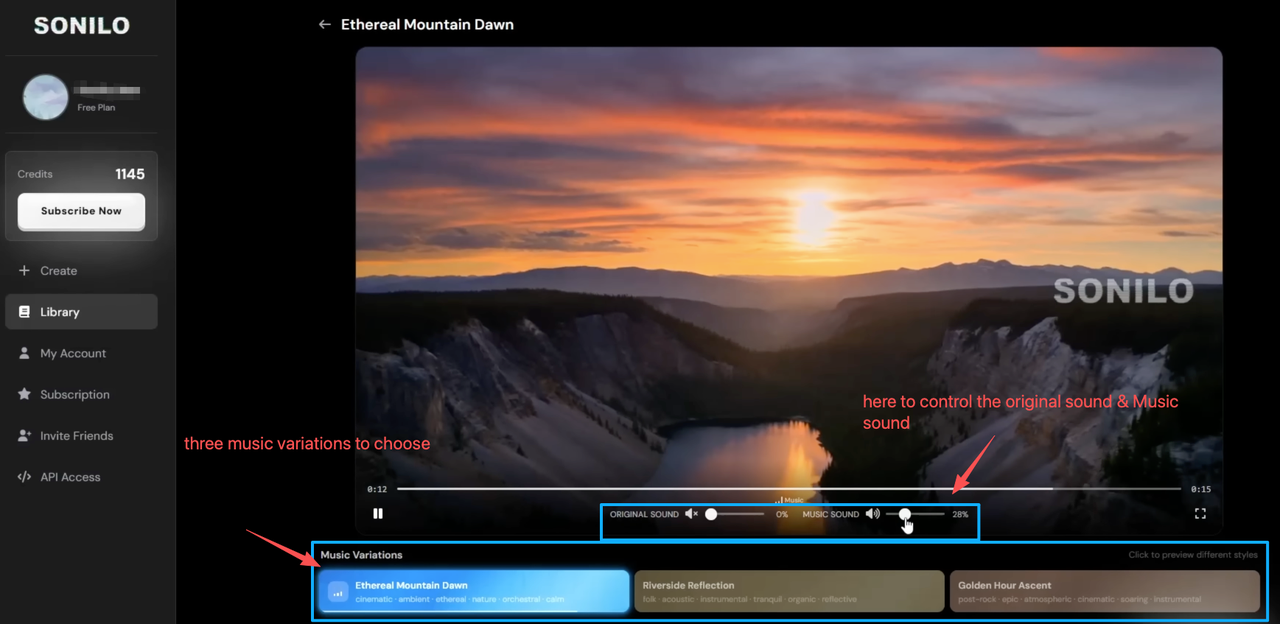
Here's the workflow shift I've been testing for a while. Instead of forcing an existing MP3 into a cut it wasn't made for, generate a soundtrack that already matches the video's length. This is the angle Sonilo is built around — custom music for your video, fitted to the cut. I've run a few of my own cuts through it over the past couple of weeks. The framing is what caught my attention: upload the video, let the tool read the length, and what comes back is already shaped to fit your edit. No timeline surgery on a track that wasn't made for you.
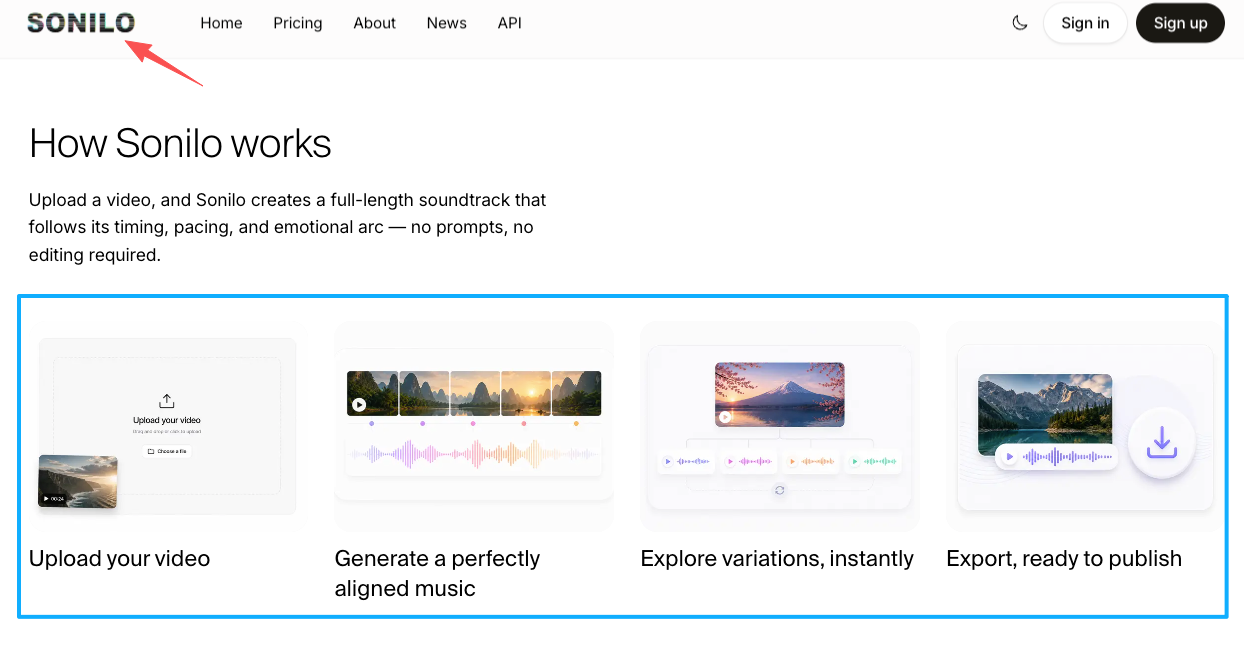
Worth knowing before you commit: it's not magic on the first try. I've gone two or three rounds on some cuts before landing on a result I'd actually publish. But each round takes minutes, not the half-hour you'd otherwise spend digging through a stock library for something that almost fits. The math is roughly: if you produce three or more short videos a week and each one currently eats 20+ minutes of music-fitting time, the workflow change has real weight. If you publish one polished piece a month, the existing trim-and-fade rhythm probably still works fine.
Step 4: Balance the Music With Voice and Sound
Avoid overpowering dialogue or product sounds
Quick reality check here: most "the music's too loud" problems aren't volume problems. They're frequency problems. The MP3 is competing with voice in the same range — somewhere between 250 Hz and 4 kHz — so even when the dialogue is technically louder, you can't hear it clearly. The fix isn't pulling the music fader down. It's carving out that frequency range from the music with a gentle EQ cut so the voice has room to sit.
But before EQ, fix the dynamics. The bigger fix is ducking — automatically lowering the music whenever voice is present. Adobe's documentation on Premiere Pro's automatic audio ducking walks through the Essential Sound panel setup, and Resolve and Final Cut have equivalent one-click features now. Use it. Set the music to drop by something like 6–12 dB whenever the voice track has signal, and let it come back up between lines.
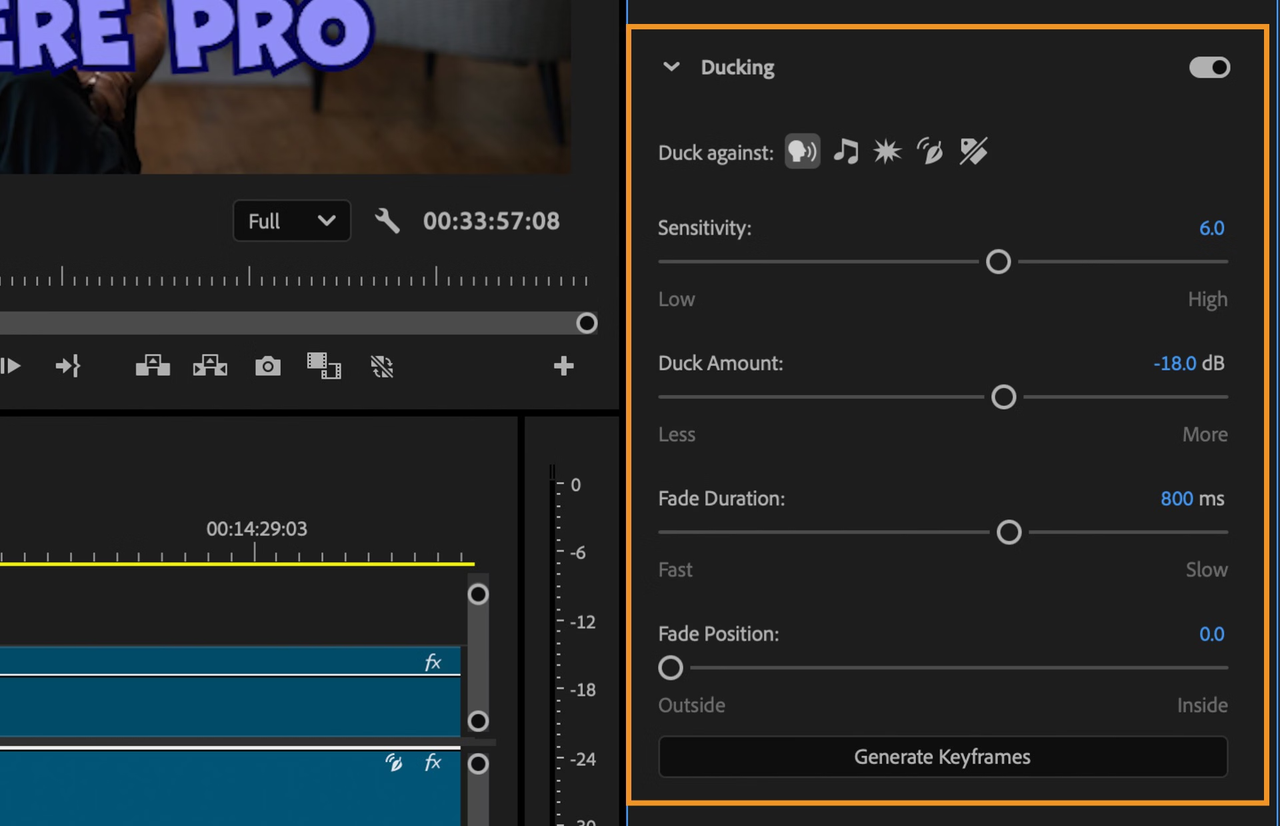
Ducking is the one technique I wish I'd learned five years earlier than I did. Before I used it, I was riding the music fader manually, frame by frame, on every dialogue clip. It worked, technically. It also took forever.
Use fade points to make the ending feel finished
The last second of your video is the one viewers remember. If the MP3 just cuts off when the video does, it sounds unfinished. Add a fade — even a half-second one — and the whole video lands better. This is one of those details where you add MP3 to MP4 correctly on the technical side but the emotional side still feels wrong.
The same principle applies to the start. A music cue that begins on frame one with full volume feels jarring unless you specifically want that punch. A 100ms ramp-up gives the audio room to breathe in.
Step 5: Export and Review the MP4
Check sync, sound balance, and playback quality
Export at the highest bitrate your platform accepts. Then watch the whole thing back. Not skip-through — actually watch it. Listen for:
- Music starting before the first visual cut
- Sync drift between voice and lip movement
- Audio popping at edit points
- The music ending awkwardly relative to the video
- Sudden volume jumps between scenes
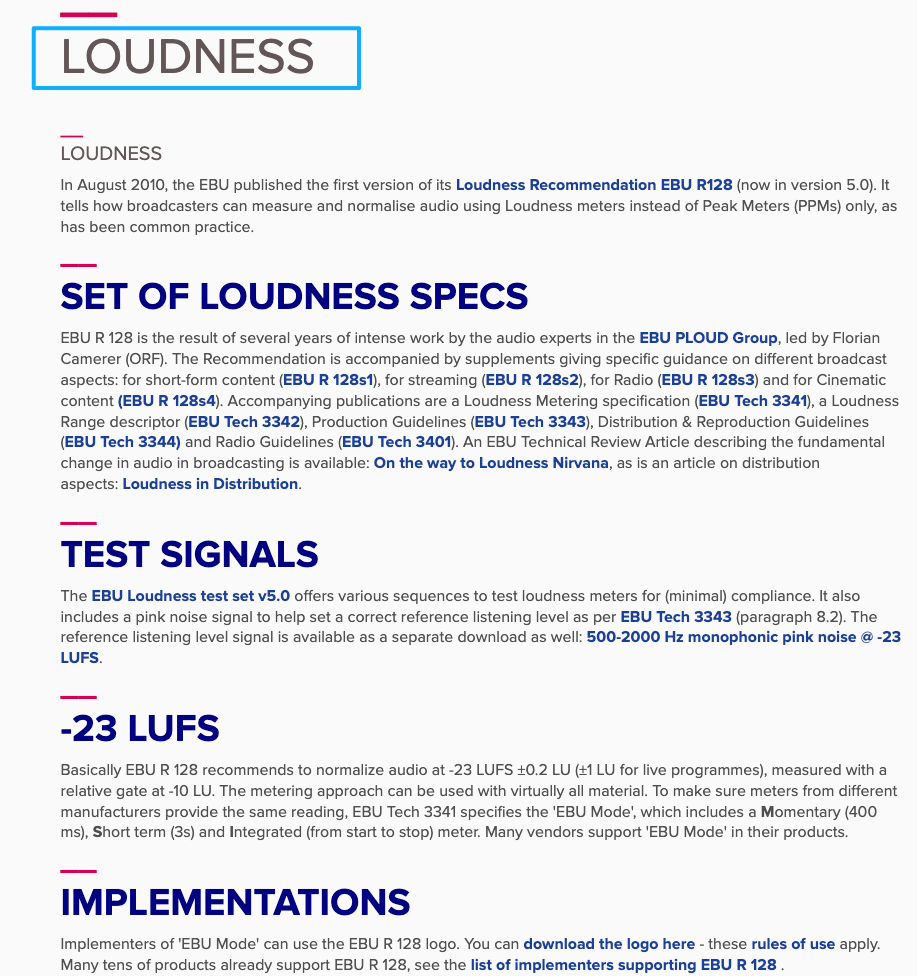
If you want to go one level deeper than "sounds about right," the EBU R128 loudness recommendation is the international reference for measuring how loud your final mix actually plays back. It's the standard streaming platforms quietly normalize against — knowing it exists changes how you set your export levels. The short version: if your export is mastered too loud, the platform will turn it down on playback, and the relative balance you so carefully set will shift. Master in the right range from the start and the playback experience matches what you heard while editing.
Re-export if the audio shifts or feels unfinished
If something sounds off, don't ship it. The moment you upload, the platform's compression will magnify every problem the export already has. For the underlying mux behavior — useful if you ever need to merge video and audio online or batch this through the command line outside an editor — the FFmpeg multimedia processing documentation is the canonical reference. I've shipped tired and regretted it. Re-export costs ten minutes. Republishing after a viewer complains costs a lot more.
A small ritual that's saved me twice: before final export, I close my eyes and listen to the whole video without watching it. Anything that sounds wrong without the visual distraction usually is wrong, and the audience will catch it too.
FAQ
What does it mean to add MP3 to MP4?
It means muxing the audio stream from an MP3 file into an MP4 container, either as an additional audio track or replacing the existing one. The MP4 then plays your chosen music whenever it's played back.
How do I add MP3 to MP4 and make it fit the video?
Import the MP3 into your editor on a separate audio layer, then choose one of four fitting strategies: trim, loop, fade, or replace. The right choice depends on how the MP3's length compares to your cut. If the gap is large, replacing the track or generating a length-matched one is usually faster than trying to edit around the mismatch.
How do I keep the original sound when adding an MP3 track?
Don't mute the original audio. Drop its volume by roughly two-thirds and place the MP3 on a layer above it. The ambient sound from the MP4 keeps the video feeling alive while the MP3 carries the mood.
What should I check when the MP3 does not match the video length?
Check three things: where the music naturally resolves, whether a clean fade is enough, and whether the gap is small enough to bridge with editing. If you're looking at more than a 30-second mismatch in either direction, swapping the MP3 for a better-fitted one usually beats trying to force the original.
When is a custom-length soundtrack easier than editing an existing MP3?
When you're producing high volume — multiple short videos a week — or when the cut is locked and you don't have time to hunt through libraries for something that resolves at the right second. The break-even point is roughly when "time spent searching and trimming" exceeds "time spent generating a fitted track." For everything else, a regular MP3 works fine.
For platform-specific licensing and disclosure rules around added or replaced audio, please refer to the latest official documentation from your publishing platform — those policies change, and they're the part I'd never tell you to take from a blog post.
So that's the whole loop: pick the music after the cut, layer don't replace, fit before you fade, balance before you ship, and listen back before you upload. The actual test isn't whether you can add MP3 to MP4 — every editor on the planet can do that. The test is whether the result feels like one video instead of two files glued together.
What's the thing that actually slows you down most when you add music to your videos right now — finding a track that fits the mood, fitting the length, or balancing it against voice?