Comparisons
AI Translation Tools for Video Editing: 2027 Choices
- Written by
- Sonilo Team
- Published
Choose Canva when your language version still needs changes to titles, cards, or layout. Vizard's Editor handles captions and framing, while its Agent accepts requests to dub a clip and revise the voiceover. Kapwing lets you rewrite spoken lines and generate the new speech one section at a time.
The choice turns on what you will edit after translation. A longer sentence might need a shorter rewrite, a wider text box, or more time on screen. Each correction affects a different part of the video, so translation alone may leave the edit unfinished.
Sonilo publishes this guide and offers a finished-video translation service, covered below for clips whose picture edit is already approved.
Choose a Translation Route for Your 2027 Editing Plan
The best AI translator tool for video editing lets you correct the part of the clip that still needs work. A caption edit changes what viewers read. A dub revision changes what they hear. A longer shot gives the explanation more time, but also changes the pace of the scene.
Imagine a product demo where a translated instruction continues after the close-up of the relevant button has ended. Shortening the wording and generating the speech again may solve the problem without changing the picture. If the full explanation needs more time, extend the close-up and review the following cut. Fixing only the caption would leave viewers hearing the earlier line.
The choices below draw on each tool's published features. App access, speech editing, and export limits were checked on November 16, 2026, for early 2027 planning. This guide does not rank voice quality.
Compare Timeline Control, Captions, and Dub Export
The useful distinction is what remains editable once the first translation is ready. Keep spoken revisions, caption changes, and picture edits separate when comparing the tools.
| Editing need | Canva | Vizard | Kapwing |
|---|---|---|---|
| Picture changes | Revise titles, cards, and layout around the video | Trim and reframe in the Editor; request video changes through Agent | Revise video and audio layers in the editor |
| Caption correction | Edit Canva captions separately from the EasyDubbing voice track | Edit captions in the Editor or request subtitle changes through Agent | Edit translated subtitles alongside the dub |
| Spoken corrections | EasyDubbing handles dubbing; line-by-line speech revision needs confirmation | Ask Agent to revise the translated voiceover | Edit translated text and regenerate a section of speech |
| Collaboration | Share the design; collaborators also need the appropriate app access | Establish sharing access in the Editor or Agent project you use | Share a workspace for editing; paid editor seats add cost |
| Final delivery | Export the design as MP4; dubbing has separate app allowances | Export translated video, plus separate TXT text or SRT subtitle files | Download dubbed MP4 video, MP3 audio, or translated SRT subtitles |
If you expect many script changes, you need to hear each new line against the same shot. Before choosing EasyDubbing, find out whether you can replace a single line of speech. If you plan to use both Vizard's Editor and Agent, confirm that you can continue editing the same project between them.
1. Canva — Localize a Finished Design
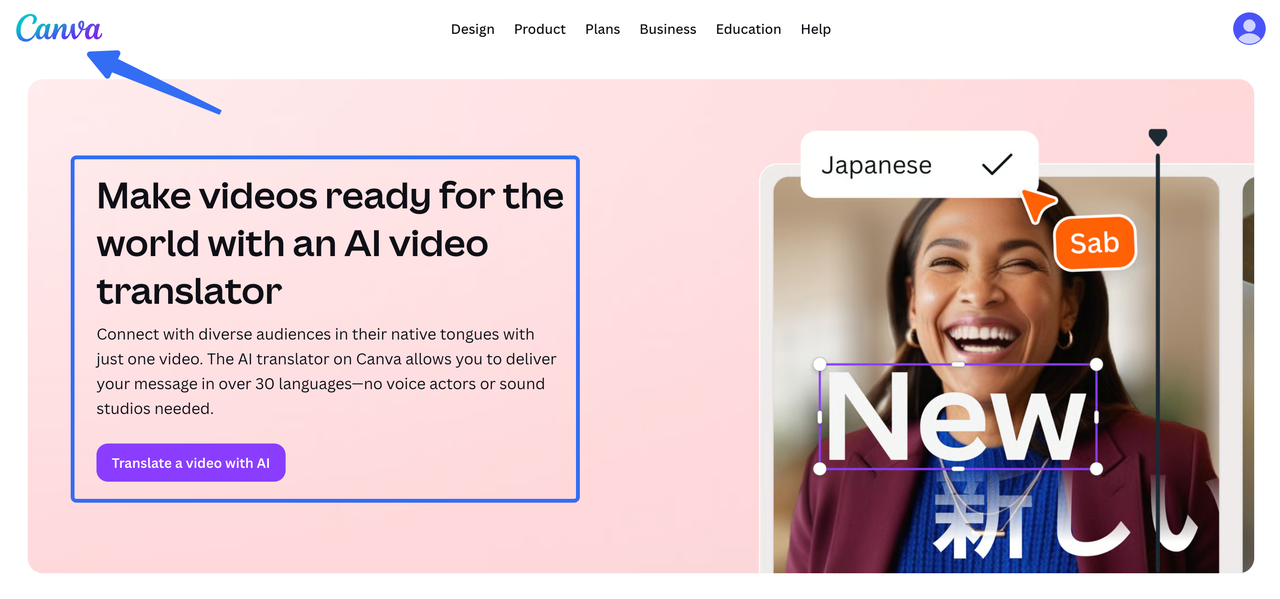
Canva makes sense when most remaining changes are visual. A translated title may need a wider text box, and an end card may need a new layout. Keeping those elements in the design lets you revise them beside the video.
To dub a video in Canva, open Apps and search for EasyDubbing. Select the video, target language, and number of speakers, then choose Dub video. EasyDubbing is a third-party app supplied by Tritech Labs Limited, with its own terms and allowances.
A dubbed clip can still sit beside an untranslated title or price card in a multi-page announcement. Those design elements need their own language edits. Canva's caption controls also work separately from the dubbed voice, so a caption correction should be followed by a listening check.
Canva offers free video translation for clips up to one minute long; longer videos need an EasyDubbing upgrade. This can suit a short announcement with an approved script, where most remaining edits affect text placement or layout.
If the spoken script is likely to change often, confirm how EasyDubbing handles a revised line before choosing it. You need to know whether you can replace that line alone or must dub more of the clip again.
2. Vizard — Translate a Short Edited Clip
Vizard gives you two ways to approach the edit. The Editor is useful for working directly on captions, trims, and framing. In Vizard Agent, you describe the translation and changes you want, then review what it produces.
With Vizard Agent's video translation, you can request subtitles, dubbed speech, or both. After generation, you can ask it to change the subtitles or translated voiceover. In a vertical tutorial, that might mean revising an instruction while changing the caption style so the button remains visible.
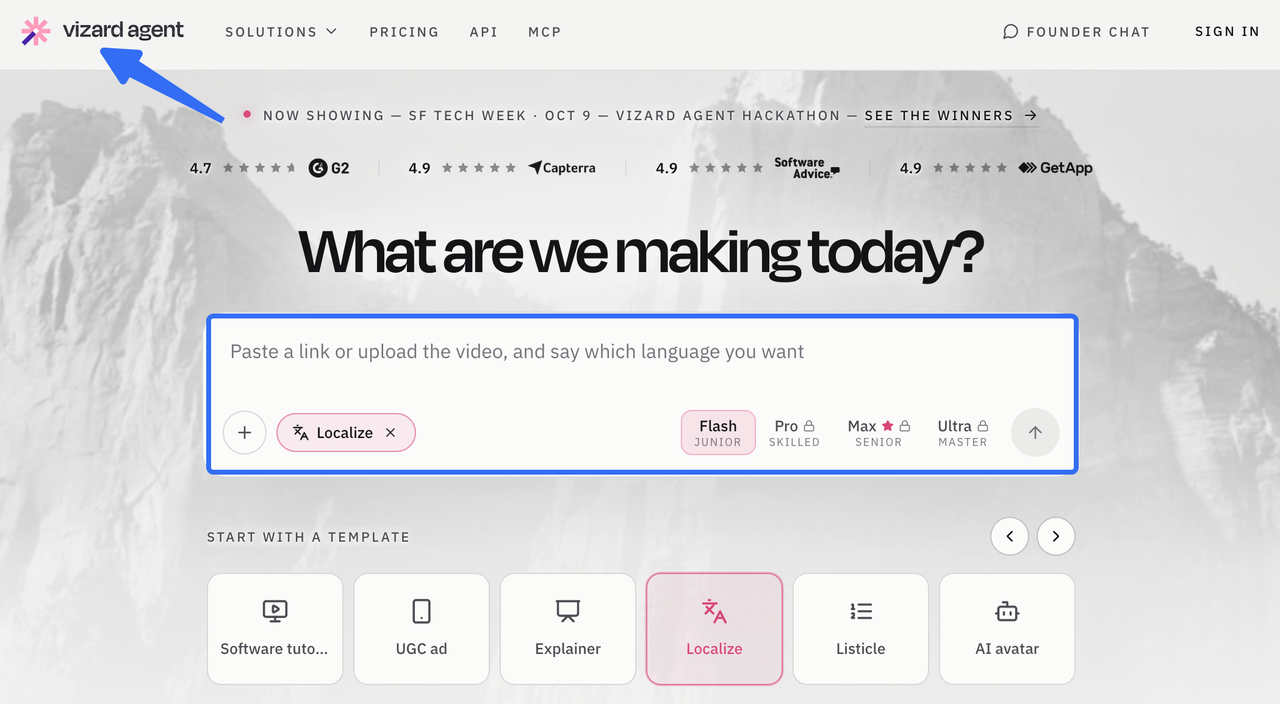
Vizard Agent's localization entry. Caption styling and voiceover revisions can be requested through instructions.
For the product-demo example, ask Agent to shorten the translated line while keeping the button name and action. The new speech still needs to finish while viewers can see that action. When exact trim points or audio timing matter, check the result against the shot as well as reading the words.
Vizard supports translated-video export and separate TXT or SRT downloads. TXT gives you the translated text; SRT includes subtitle timing for use in another editor. Neither text format contains the dubbed audio.
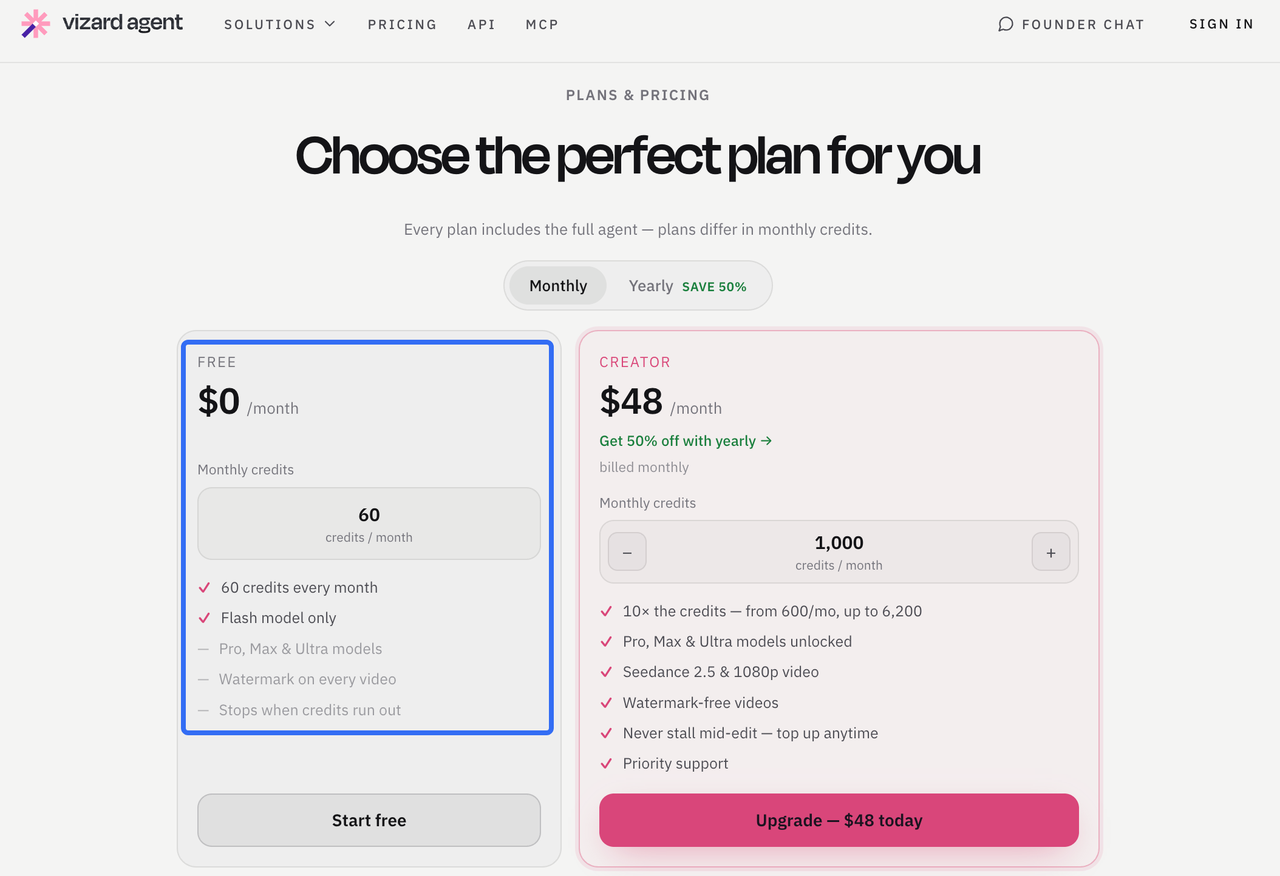
Supplied Agent plan snapshot. Use the current account offer to confirm credits and watermark conditions before purchasing.
Choose between the Editor and Agent based on how you want to make changes. Before dubbing through Agent, check its credits and watermark rules separately from your Editor subscription. The Agent plan offered to your account should cover both the speech revisions and the video download you need.
3. Kapwing — Revise a Dub in the Timeline
Kapwing suits interviews and tutorials that need several spoken corrections. You can edit the translated text and generate new speech for that section, then play it against the video. You can hear whether the new line fits before deciding to change the shot length.
To revise dubbed speech in Kapwing, open Translate, choose Dub Video, and select the source and target languages. You can review the transcript and translation before generating speech. After an edit, use Apply changes to dubbed audio or Regenerate dubbed audio beside a section.
For the demo's late instruction, revise the line and regenerate its speech before moving the picture. If the meaning still needs a longer shot, extend that shot and review the following cut. The caption timing needs another pass too, because the new speech may end at a different point.
Kapwing places the translated speech and background audio alongside the video in the timeline. You can keep or remove the separated background sound, or add another track. Listen for missing effects or altered room sound after separation; editable layers give you places to make corrections, but do not guarantee a clean mix.
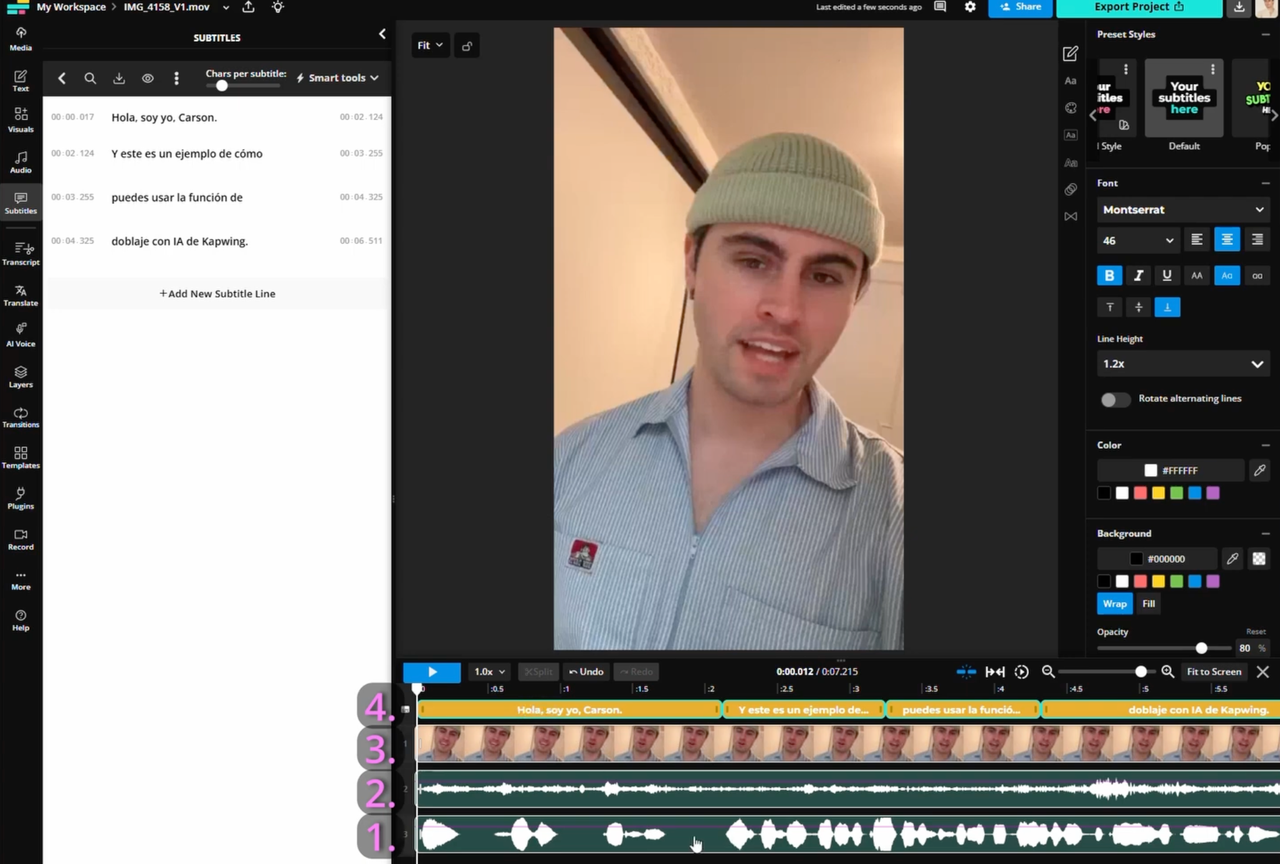
Budget for revisions as well as the first dub. Updating the translation and generating new speech use your allowances, including usage for the section you change. Download options include dubbed MP4 video, MP3 audio, and translated SRT subtitles. Those separate files let another editor work on the sound or captions.
Which Editing Workflow Fits Your Clip?
A translated title that no longer fits is a good reason to stay with Canva's design controls. A short tutorial that needs caption placement and reframing brings Vizard's Editor into the comparison. If you prefer describing changes to a translated voiceover, Vizard Agent offers that approach.
For repeated spoken rewrites, Kapwing lets you replace a section and hear whether it fits the shot. EasyDubbing remains an option for Canva projects. Before using it for a script that will change often, confirm how you can edit and replace the speech.
Before paying, try the correction you expect to make most often and download the file you must deliver. A voice preview alone will not tell you whether the next editor receives usable audio or subtitles. Our online translator comparison covers upload and export choices in more detail.
When to Translate After the Final Cut
Once the shot order, length, and layout are approved, translating a complete export can be simpler than continuing inside the picture editor. Keep the editable source in case the translated speech needs more time. A later trim may otherwise separate an instruction from the action it describes.
Sonilo's video translator accepts MP4, MOV, or M4V clips up to five minutes and 400 MB. You can proofread the translated script before speech is generated and choose whether to apply lip sync. Sonilo says it preserves the original music and effects; downloading translated videos and subtitles requires a paid plan.
This route fits a short clip whose picture edit is settled and whose remaining task is a new spoken language. Titles and layout changes still belong in the source editor. For the order of script review, dubbing, and final checks, see how to translate a video with AI and review the dub.
Plan and Rights Limits Before Publishing
Dubbing usage and export limits affect different parts of the job. EasyDubbing has its own allowances within Canva; Vizard Agent's credits and downloads also need checking in your account. Budget for new speech after script changes as well as the first dub in each language.
Kapwing's Free exports are limited to four minutes at 720p with a watermark. Export length and dubbing credits have separate limits, so check both against your clip. Lip sync is included with Business. If you're considering Pro, confirm that your account includes lip sync before paying.
Anyone changing the translated script also needs editing access. Kapwing bills paid plans per editor, so adding a collaborator can increase the cost even when the video fits the generation allowance. Commenting and editing may require different access.
Before uploading client or confidential footage, get approval to send it to the service that will process it. Permission to use the video should also cover reproducing the speakers' voices or likenesses. Asset licenses and third-party app terms still matter for the intended release; paying for an export does not settle those rights.
FAQ
Can a translation project be shared with another editor without exporting it?
Yes, when the project supports shared editing. In a Kapwing shared workspace, invited members can edit projects, with additional charges in a paid workspace. For Canva, sharing the design handles access to the visual edit; confirm the collaborator can also use the EasyDubbing account and credits needed to revise speech.
Can an editor apply a glossary to product names before dubbing?
Kapwing supports workspace spelling and translation rules, including uploaded translation glossaries. These help keep recurring product names consistent, though pronunciation still needs listening. If you're using EasyDubbing or Vizard Agent across several language versions, confirm whether you can save and reuse a glossary. Otherwise, review recurring names in each version, even after correcting them once.
Can an approved SRT file be brought into the same editor?
Kapwing can use a translated SRT or VTT file as the basis for dubbed speech. You can also upload an SRT to Vizard's Editor for captions. To have Agent speak the approved subtitle text, confirm how to supply that text for dubbing. Keep the approved SRT beside the voiceover script so you can catch any wording changes before generating speech.
Can each language version use a different aspect ratio?
Yes. In Kapwing, Resize Project changes the canvas dimensions, so separate copies can use different shapes. Revisit the crop and caption position after resizing: a subtitle that sits below the action in a wide shot may cover it in a vertical version.
Can an editor keep separate speaker tracks during translation?
Speaker recognition does not by itself give you a separate audio file for each person. Kapwing supports speaker assignments and separate translated-speech and background layers, but individual speaker exports need confirmation. If another editor needs a separate file for each speaker, establish that delivery format before generating every language version.
Conclusion
Choose around the correction your video still needs: Canva for titles and layout, Vizard for caption edits or Agent-requested changes, and Kapwing for replacing sections of dubbed speech. A line that reads well may still run past the action it explains, so hear the revised words against the picture before approving the language version. For a 2027 release, recheck the chosen app's generation and export allowances before production begins.
Related Articles
- AI Dubbing and Video Translation: Which Output to Choose? — Decide whether your clip needs subtitles, dubbed speech, or lip sync.
- Free AI Video Translators for 2027: Preview vs Export — Check what a free trial lets you preview and download before paying.
- AI Video Translator Reviews: What to Check Before Buying — Use dubbing-specific feedback to assess a tool before subscribing.