Guides
How to Add Music for Video That Fits Mood and Length
- Written by
- Sonilo Team
- Published
Most videos don't fail at the editing stage. They fail at the last step — when the music lands wrong and suddenly the whole thing feels off in a way you can't quite name.
I've been there more times than I'd like to count. A cut I was genuinely proud of, sitting on my hard drive, stuck at 95% because I couldn't find a track that matched what the video was actually doing. So if you're here trying to figure out how to add music for video that doesn't just fill silence — that actually fits — keep reading. This isn't a walkthrough of which button to press. It's about the decisions that happen before you import any audio.
Why Adding Music for Video Is Really a Matching Problem
Here's the thing nobody mentions when they write about how to add music to my video: the hard part isn't adding it. It's matching it.
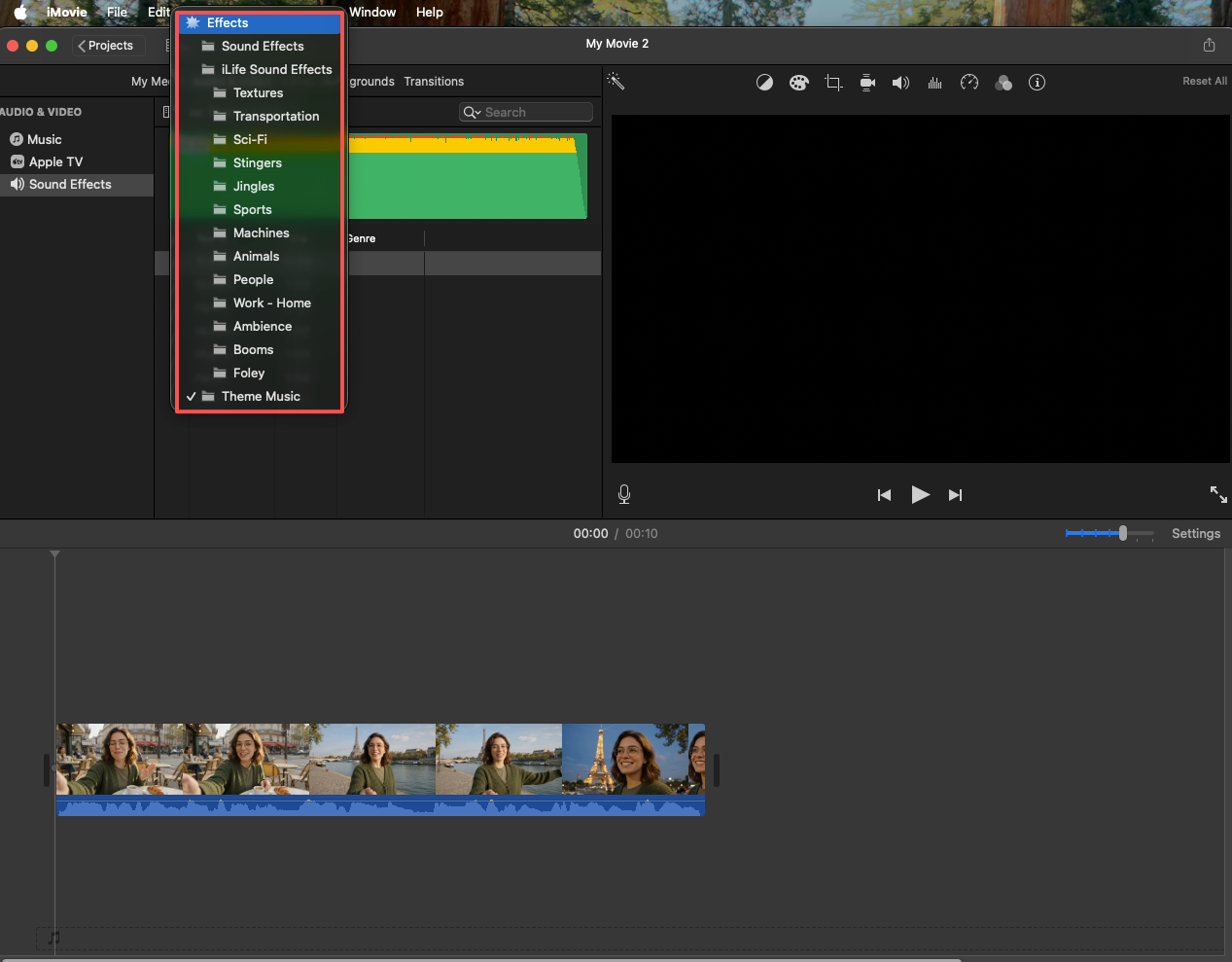
Any editing software lets you drag a file into an audio track in thirty seconds. What takes forty-five minutes is finding a track that doesn't make your video feel like it's wearing someone else's clothes.
The Difference Between Adding a Track and Scoring a Video
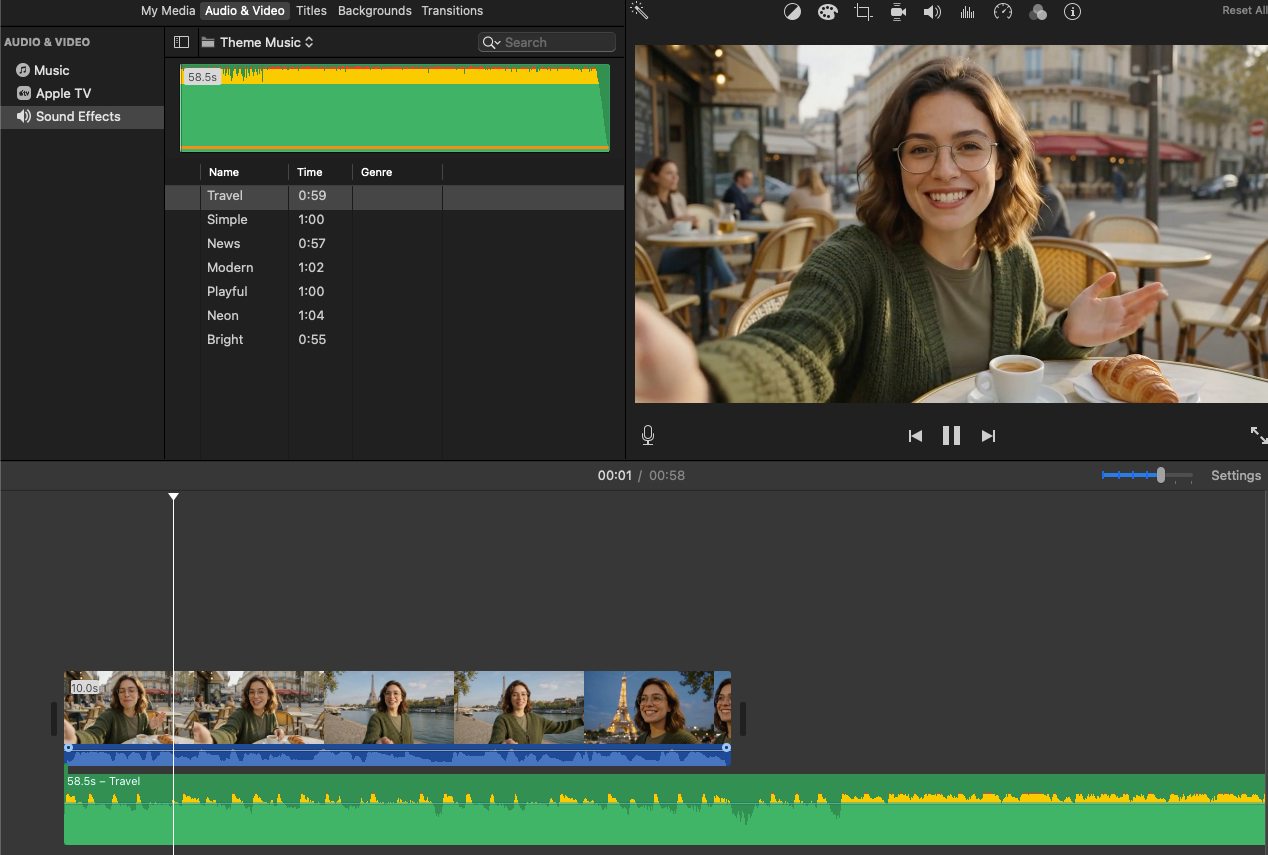
Adding a track means you found something that sounds okay and dropped it in. Scoring a video means the music is doing something specific — it's supporting a pace, building toward a moment, pulling back when the visuals need to breathe.
I used to think these were the same thing. They're not. I figured that out after a client sent back a brand video I'd edited with a track I liked, asking why it felt "off." The music was good. It just had nothing to do with what the video was trying to do.
Why Mood, Pace, and Length Matter More Than Genre Alone
Genre is the first thing people filter by. Upbeat pop, cinematic orchestral, lo-fi — and it makes sense as a starting point. But genre alone doesn't tell you whether a track will actually match music to video in the way your specific cut needs.
Choosing the right music comes down to emotional core, tempo, and matching it to your specific scene — not just genre. A track can be "upbeat" and completely wrong for a 30-second product ad where the key moment happens at 0:18 and everything before it is setup. Or it can be "cinematic" and totally drain the energy from a travel vlog that needs forward momentum.
What actually matters:
- Mood — what feeling should the viewer be in during this specific section?
- Pace — does the music move at the same rate as the cuts and motion?
- Length — does the track start and end somewhere that makes sense for your edit?
All three have to work together. One out of three and the whole thing fights itself.
Step 1: Define What the Video Needs Music to Do
Before you open a music library, open the video and watch it without sound. Ask yourself: what is this video trying to make someone feel, and at what point does it need to deliver that feeling?
Support a Story, Sell a Product, Hold Attention, or Create Energy
These are four genuinely different jobs for music to do, and they call for different choices.
- Story support: music stays in the background, colors the emotion, doesn't call attention to itself
- Product selling: music builds anticipation, hits a moment at the reveal, then gives space for product details
- Attention holding: music keeps a consistent energy level so the viewer doesn't drift
- Energy creation: music IS the experience — think sports montages, brand hype videos
If you're not clear on which one you're doing, the track you pick will probably be trying to do the wrong job.
Match the Music Goal to the Video Format
A 15-second Instagram Reel needs a track that hooks in the first two seconds. A 10-minute YouTube tutorial needs something that doesn't get annoying by minute three. A 60-second product ad might need a track that builds to a specific moment and then gets out of the way.
Format shapes everything about how add music in a video actually works in practice. Same genre, completely different requirements.
Step 2: Match Music Mood to the Viewer's Expected Feeling
Which mood a viewer expects to feel isn't random — it comes from the visual content, the subject matter, and sometimes just the thumbnail they clicked on. Music that confirms that expectation lands cleanly. Music that contradicts it creates friction.
Calm, Upbeat, Cinematic, Playful, Emotional, or Urgent
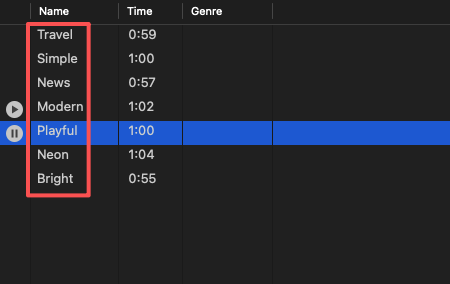
These six cover most of the territory for short-form and marketing video. Here's how I think about them:
| Mood | Best for | Watch out for |
|---|---|---|
| Calm | Tutorials, wellness, lifestyle | Can make product videos feel slow |
| Upbeat | Social content, quick edits, lifestyle | Can feel exhausting over 60 seconds |
| Cinematic | Brand films, story-driven content | Can overwhelm simple demos |
| Playful | Kids content, casual brands, food | Can undercut credibility in B2B |
| Emotional | Testimonials, cause-driven content | Hard to get right without overdoing it |
| Urgent | Promos, sales, news-style content | Can create anxiety if tone is wrong |
Avoid Mood Mismatch in Ads, Vlogs, Demos, and Short-Form Videos
Mood mismatch is probably the most common mistake I see, and it's subtle. The music isn't bad — it just isn't this video. A product demo with urgent music makes the viewer feel rushed. A brand film with playful music undercuts the sincerity of what's being said.
The test I use: watch the first ten seconds of your video with the track playing. If something feels wrong but you can't say what, it's usually the mood. Trust that instinct. Swap the track before you spend another hour trying to edit around it.
Step 3: Match Music Pace to the Edit Rhythm
This is the one most people skip, and it's the one that makes the biggest difference.
Cuts, Transitions, Motion, and Scene Changes
Your edit has a rhythm — the rate at which cuts happen, how fast motion moves through frame, how quickly scenes change. Music that matches this rhythm feels invisible. Music that doesn't creates a constant low-level tension, like two people walking side by side at slightly different speeds.
And as No Film School's pacing analysis points out, every tempo shift in an edit needs narrative justification — random pace changes are what make an edit feel amateur. I once tracked this explicitly on a 90-second travel video. The edit had about 40 cuts. I tried three different tracks at the same BPM. One felt right, one felt slightly rushed, one felt slow. The BPM was identical. The difference was in how the percussion was structured — one had strong beats on the downbeat that aligned with my hardest cuts, the others didn't. Same tempo, completely different experience.
When Fast Music Makes a Video Feel Rushed
This one catches people off guard. You'd think faster music = more energy = better. Not always.
If your video has complex information — a product walkthrough, a how-to, a testimonial — and the music is moving faster than the viewer can process what they're seeing, the music wins. Viewers don't consciously register this; they just feel vaguely stressed and often stop watching.
Pace the music to the slowest thing the viewer needs to understand in your video, not the fastest thing happening on screen.
Step 4: Make the Music Fit the Exact Video Length
Here's where it gets genuinely tedious. And I say that as someone who has spent embarrassing amounts of time trimming, looping, and fading tracks to fit.
Trimming, Looping, Extending, and Fading
Stock music is almost never the exact length of your video. So you're left with a few options:
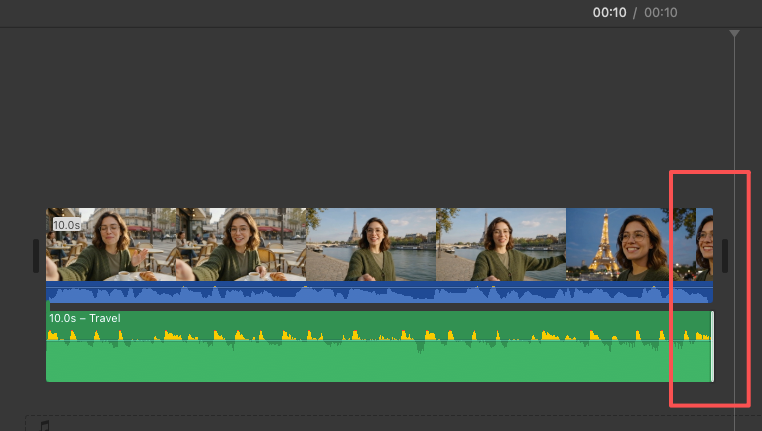
Trim: Cut the end of the track. Works fine if the natural end of the track lands somewhere reasonable in your video, and if the energy at that point matches the visual ending.
Loop: Take a section and repeat it. Works for tracks with simple, repetitive structure. Quickly sounds wrong for anything more complex.
Extend with a fade: Let the track run past the end of the video and fade it out. This works in a pinch but often feels like you gave up rather than finished.
Find a track that's actually close in length: This is the most underrated option. Sometimes spending twenty more minutes in the library to find a 62-second track for your 63-second video is faster than any of the above.
Videomaker has a practical walkthrough on how to trim and extend a music track to fit your video length — worth reading before you commit to the manual route. The crossfade technique they describe, where you overlap two copies of the same track at a natural transition point, is the cleanest way I've found to extend a track without it sounding looped.
When Custom-Length Soundtrack Generation Is Faster Than Editing Stock Tracks
I'll be straight about this: the trimming-and-looping workflow has a ceiling. At some point, you've spent more time wrestling a stock track into shape than the music is worth.
This is where video-first AI soundtrack tools have started to earn a place in my consideration set — specifically because some of them generate music to match a specific video length rather than giving you a fixed track you have to adapt. I've tested a few tools in this space. The one that's stayed in my workflow is Sonilo — it's built specifically around generating music that understands the video and matches its exact duration, rather than giving you a fixed track to wrestle into shape.
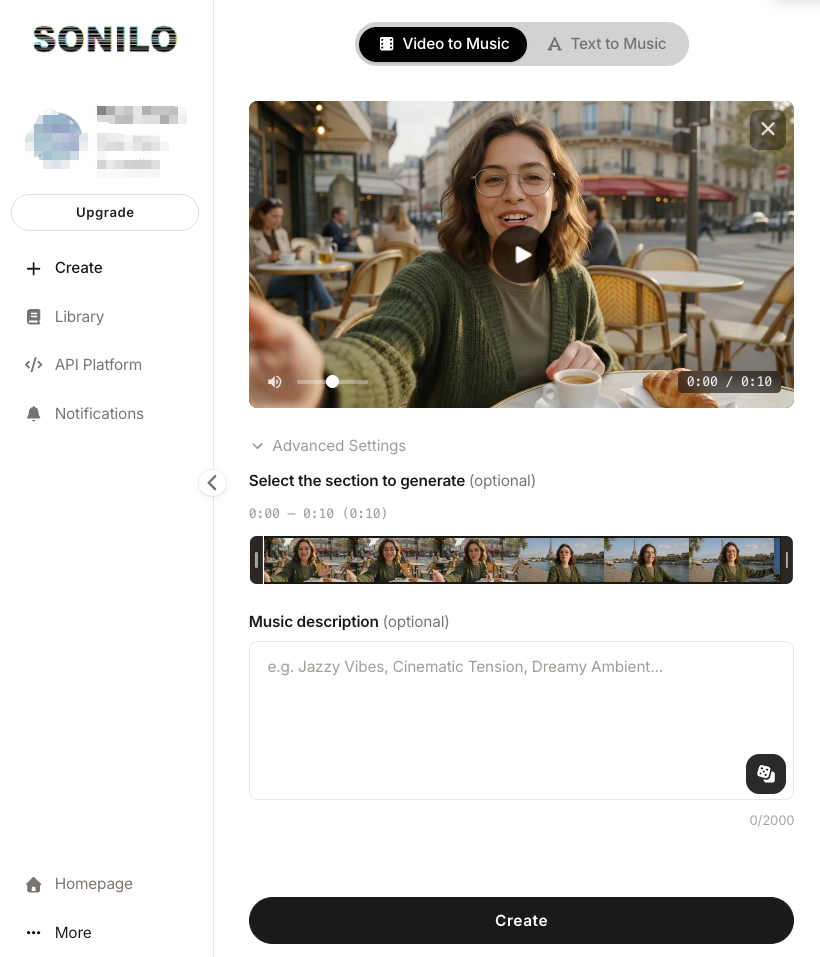
I've run it on a few real cuts now. The part that actually surprised me: you upload the video, and it generates a track that matches the duration without you touching a single fade handle. No looping, no trimming, no "close enough." For the videos I tested — a short brand clip and a product walkthrough — the length matching worked exactly as advertised. Mood fit was decent on the first try, better after I gave it a second pass with a different style direction. The license page is there and worth reading yourself before you commit to anything client-facing — I'm not the right person to interpret what it covers for your specific situation. But as a workflow tool for the length-fitting problem specifically? It's the most direct solution I've tried.
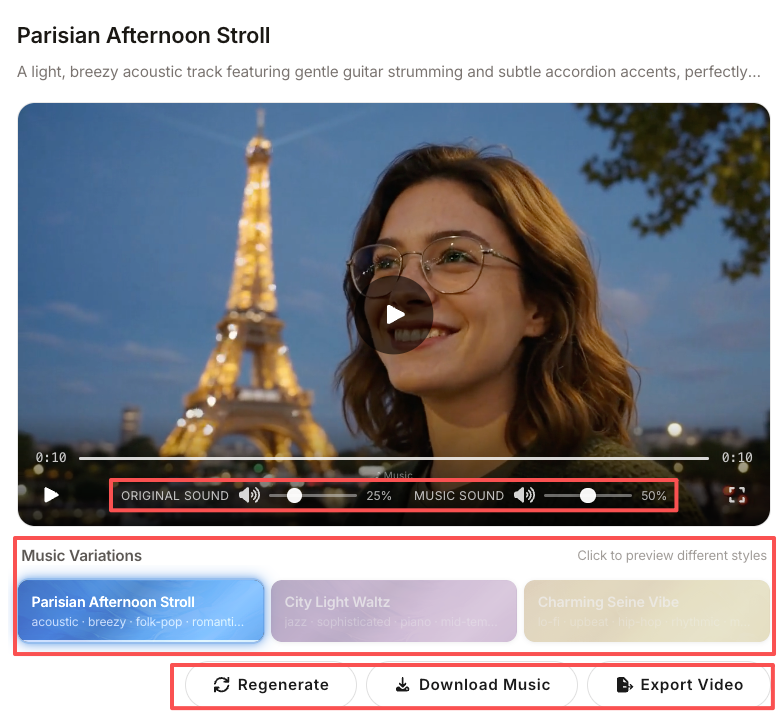
Step 5: Place Music Behind Voice, Product Sound, or Original Audio
This is where how to insert background music in video gets more nuanced than most tutorials cover.
Keep Speech Clear and Avoid Covering Key Moments
Music behind voiceover is a balancing act. The default rule: the viewer's ability to understand every word comes first. Music comes second.
In practice, this means:
- Drop the music volume noticeably the moment speech starts — most editors automate this using volume keyframes in Premiere Pro, which lets you program the dip precisely rather than guessing with a manual fader
- Be particularly careful with the first sentence — viewers are still orienting and they need to hear the opening clearly
- If the voiceover has a natural pause, that's where music can come slightly back up — it makes the video feel more dynamic without competing with the voice
The harder case is product sound. If you're showing a demo where a click, a notification, or a physical sound matters, music shouldn't cover it. I've seen so many product videos where a key UI interaction gets buried in a track that's sitting too high. The viewer misses the moment. The edit moves on. The product looks less clear than it is.
Use Intros, Drops, and Endings Intentionally
One thing that separates a considered edit from a rushed one: using the structure of the music on purpose.
Most music tracks have an intro, a build, a main section, and an ending. If you're not sure how to identify those structural moments in a track, MasterClass has a clear breakdown of how song structure works — intro, verse, chorus, bridge, outro — and how each section behaves differently. Once you can hear those sections, you can align your video's key moments to them:
- Intro: works well under establishing shots or context-setting opening
- Build/drop: align to a product reveal, a key statistic, or a scene transition you want to feel big
- Ending: match to the last shot, the outro card, or the CTA moment
When this lands well, viewers often can't say why the video felt so satisfying. They just know it did. Understanding how to put music behind a video at a structural level — not just volume — is what makes that happen.
Step 6: Preview the Full Video Before Export
I'll be honest: I skip this step when I'm in a rush, and I have regretted it every single time.
Check the Opening Moments, Midpoint, Ending, and Mobile Playback
The opening matters most. The first three seconds of music either set the right tone or create friction that the viewer carries through the whole video. Check this in isolation — mute the visuals and just listen. Does the track start in a way that matches what someone is about to see?
Midpoint check: this is where music drift happens. By the middle of the video, your ear has adjusted to the track, and you stop hearing whether it still fits. Watch from the 40% mark. Does it still feel right?
The ending: does the music resolve, or does it cut off awkwardly? This is where trimming and looping decisions come back to bite. An abrupt ending on an otherwise solid video is jarring.
Mobile playback: check it on your phone. Music that sounds full and balanced on desktop headphones sometimes sounds thin or muddy through a phone speaker. Adjust accordingly.
What to Fix If the Music Feels Close But Not Right
"Close but not right" is the most expensive feeling in video editing, because it makes you want to keep adjusting indefinitely.
My rule: if I've made more than three adjustments to a track — volume, trim, loop point — and it still feels off, the track is probably wrong for this video. Start over with a different one. The sunk cost of having found and worked with that track is real, but it's not as expensive as publishing a video that's 90% there.
Common Mistakes When Adding Music to Video
Choosing by Genre Instead of Video Purpose
Genre is a shortcut, not a decision. "Corporate" music doesn't tell you anything about whether a track will fit a fast-cut product launch versus a slow brand story. Filter by mood and pace first. Genre last.
Picking a Track Before the Edit Length Is Final
This one costs people so much time. You find a great track, you build the edit around it, and then the client wants 30 seconds cut. Now the music doesn't fit and you're starting the search again. Lock the edit length first. Then find music.
Letting Music Overpower Voice or Product Details
When in doubt, go quieter. Viewers will forgive music that's slightly too subtle. They won't forgive music that made them miss something important.
Forcing a Stock Track to Fit an Edit It Was Not Made For
Which is exactly the part that matters — knowing when to stop trying to make a track work and accepting that it was written for a different video than yours. The fit either exists or it doesn't. Your job is to find it, not manufacture it.
FAQ
What does it mean for music to really fit a video?
It means the music is supporting what the video is doing, not competing with it. Specifically: the mood matches the viewer's expected emotional state, the pace aligns with the edit rhythm, and the length doesn't require awkward workarounds to reach the end of your video. When all three are right, most viewers won't notice the music at all — which is usually the goal.
How do I choose music that matches my video's mood and pacing?
Watch the video without sound first and write down the emotion you want the viewer to feel in each section. Then look for tracks that produce that emotion, and check whether the beat structure aligns with your cut rate. A quick test: play the first fifteen seconds of a candidate track while watching your video on mute. If you feel resistance, the mood or pace is off.
How do I make music match the exact length of my video?
Your options are trimming, looping, fading, or finding a track that's naturally close to the right length. Of these, finding a close-length track upfront saves the most time. For videos where length precision really matters — tight ads, timed social content — custom-length generation is a genuinely faster path. I tested this with Sonilo and the duration matching worked without any manual trimming on my end. Whether that output fits your specific project is something you'll need to test yourself, but the trim-and-loop step disappears entirely.
What should I check when placing music behind voiceover or original audio?
Drop music volume noticeably when speech starts, and check that key product sounds or UI interactions aren't buried. The first sentence of any voiceover needs to land clearly — if viewers miss the opening, they carry that confusion forward. Adding background music to a video correctly means the viewer should be barely aware it's there.
When is AI-generated soundtrack a practical option for short videos?
When you've spent more time adapting a stock track than the music work is worth — trimming, looping, adjusting, and still not quite getting there. AI soundtrack tools vary a lot in output quality and what the license actually covers, so I'd read the terms carefully before using anything for commercial work. That part's on you to verify — I'm not the right person to interpret what any specific license covers for your situation. On the workflow side, though: for the specific problem of matching music to video length without manual trimming, I've had the best results with tools that generate to a target duration rather than giving you a fixed track to cut. If you want a starting point, Sonilo is the one I've actually run on real cuts — start there and judge the output yourself.
If the stock-library loop is where you keep losing time, Sonilo is worth an actual test — not a watchlist. It's the tool I've been using for the length-fitting problem specifically, and it's available now. Read the license page before you use it for client work; that part you'll want to verify yourself. But the core workflow — upload video, get a matching soundtrack, skip the trimming — works. But the premise solves a real part of this problem.
What about you — when you add music for video, which step actually slows you down the most? The mood matching, the length fitting, or something else entirely?Recommended Reads