Guides
How to Add Music to a Video on Android: Free Apps & Methods
- Written by
- Sonilo Team
- Published
The video was done. Good pacing, clear story arc, two minutes of footage I'd spent half an afternoon shooting. I hit export — then remembered I still needed music.
What followed was 40 minutes of poking through three different apps, two of which didn't even support audio mixing. On Android. In 2024. I've been adding music to videos on mobile since before it was supposed to be hard, so the fact that it still catches people out is worth actually writing down.
This guide covers four working methods — Google Photos, your phone's built-in Gallery editor, CapCut, and a browser-based option — with honest notes on where each one breaks down. By the end, you'll know which one fits your video, your device, and your workflow.
What You Need Before Adding Music on Android
One thing upfront: Android isn't one thing. A Samsung Galaxy behaves differently from a Pixel, which behaves differently from a Xiaomi. The apps bundled on your phone reflect that — and it matters for which method works for you.
Before you start, check these:
- Your Android version. Google Photos' editing features vary by OS version. Older devices may not have the audio tab at all.
- Your video file. MP4 works everywhere. MOV sometimes doesn't. If you shot in a format your app can't read, you'll hit a wall before step one.
- Your music file. Android supports MP3, AAC, FLAC, WAV, and OGG for most video editors. Streaming-app files (Spotify, YouTube Music) are a different story — more on that in the FAQ.
- Where your music is stored. Downloaded to your device? In Google Drive? These aren't always the same thing, and some editors can only see local files.
Get these sorted first. Most troubleshooting threads I've read are actually just people missing one of these.
Method 1 — Using Google Photos Editor
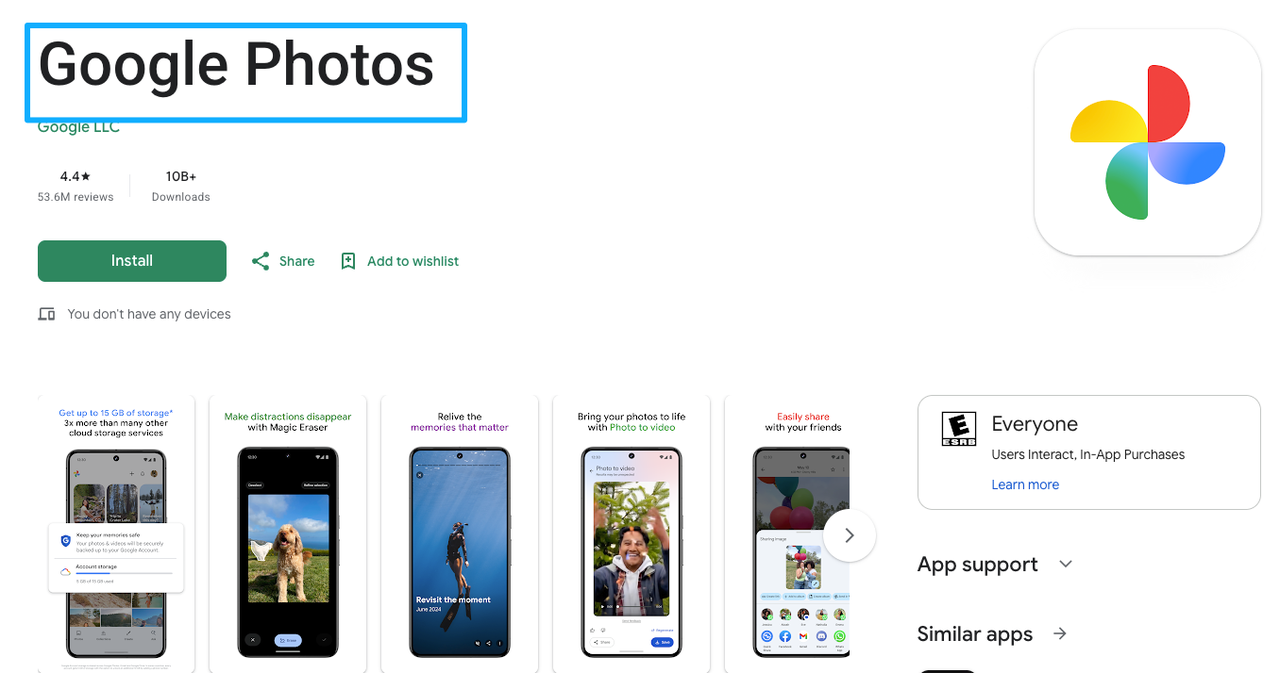
Google Photos is on almost every Android device, which makes it the default starting point. The editor added a basic audio layer a while back — it's not powerful, but it works for straightforward use cases.
Step-by-Step
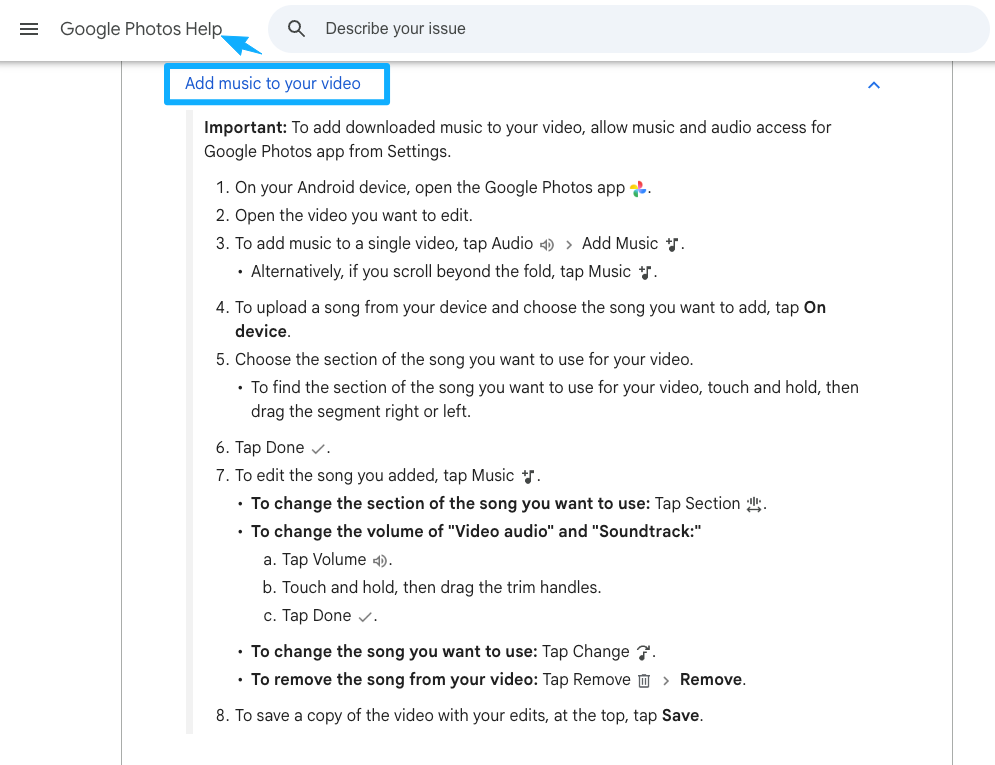
- Open Google Photos and find your video.
- Tap Edit (the slider icon at the bottom).
- In the scrollable action bar, tap Audio, then tap Add Music. On some devices, if you scroll further along the bar you'll see it labeled Music instead — both lead to the same place.
- Tap On device to choose a track from your local music library.
- Select your track. Drag the waveform bar left or right to set which section of the song plays.
- Use the Volume sliders to balance your original video audio against the new music.
- Tap Save copy to export without overwriting the original.
The export quality follows your original video's resolution — Google Photos doesn't downgrade it.
Limitations
Here's the part nobody mentions in most tutorials: Google Photos audio editing is one track only. You can't layer two music tracks, and you can't fine-tune fade-in or fade-out timing. It also only pulls from your local device library — if your music is only saved in a streaming app, it won't appear here.
Pixel users tend to get a slightly more polished version of this interface than Samsung or Xiaomi users, because Google Photos is a first-party Google product. On some non-Pixel devices, the Audio tab is missing entirely depending on app version.
If your needs are simple — one track, roughly right length, basic volume mix — this method works fine. If you need more control, keep reading.
Method 2 — Using Your Phone's Gallery Editor (Samsung, Xiaomi, Pixel)
Most Android manufacturers ship a Gallery app with a built-in video editor. These vary a lot by brand, which is exactly why most guides pretend this section doesn't exist. It does, and it's often faster than downloading a third-party app.
Step-by-Step
Samsung (One UI Gallery):
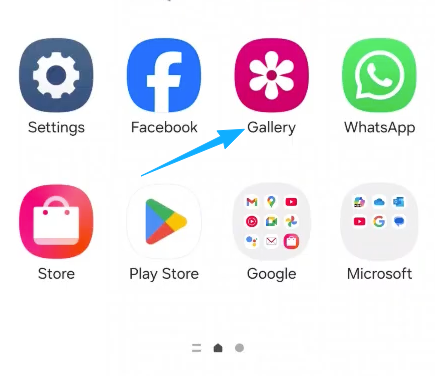
- Open the Gallery app and select your video.
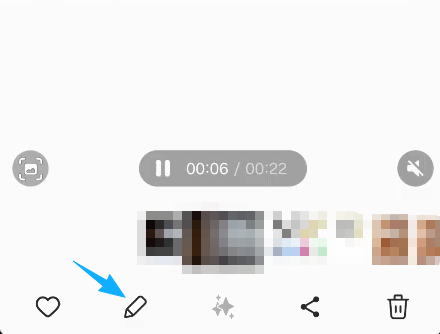
- Tap the pencil icon to enter the editor.
- Tap Audio in the bottom bar.
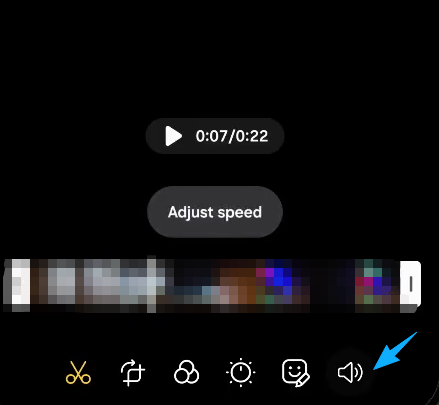
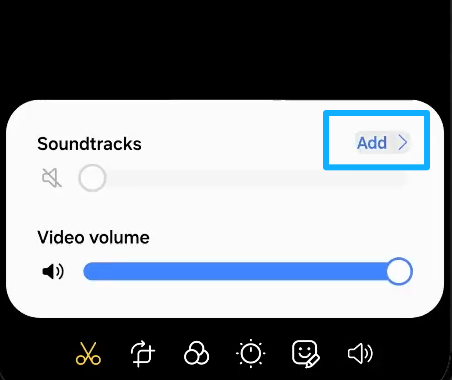
- Choose Add audio — you can pick from music stored on your device.
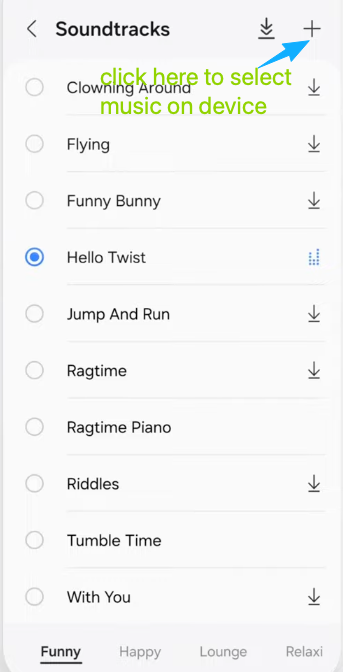
- Trim the audio clip and adjust the volume balance between music and original video sound.
- Tap Save to export.
Xiaomi (MIUI / HyperOS Gallery):
- Open Gallery, find your video, tap Edit.
- Look for the Music icon along the bottom toolbar.
- Select a local file. MIUI's editor has a simple trim handle — drag to set the start point.
- Save as new file.
Pixel (Google Photos is your Gallery): Pixel devices don't come with a pre-installed Gallery app — Google Photos is the default. See Method 1.
When to Use It
Use your built-in Gallery editor when you want to stay in one app, you have local music already downloaded, and your edit is simple — one track, basic volume mix, no multi-layer needs. It's the lowest-friction option for a quick turnaround.
The honest limitation: these editors are basic. No timeline scrubbing, no audio waveform visibility, no layering. For anything beyond "add one song to one video," you'll outgrow them fast.
Method 3 — Using CapCut on Android
CapCut is where I end up when I actually need control. It's free, it's on Android, and its audio tools are the most complete of any free mobile option I've tested.
Step-by-Step
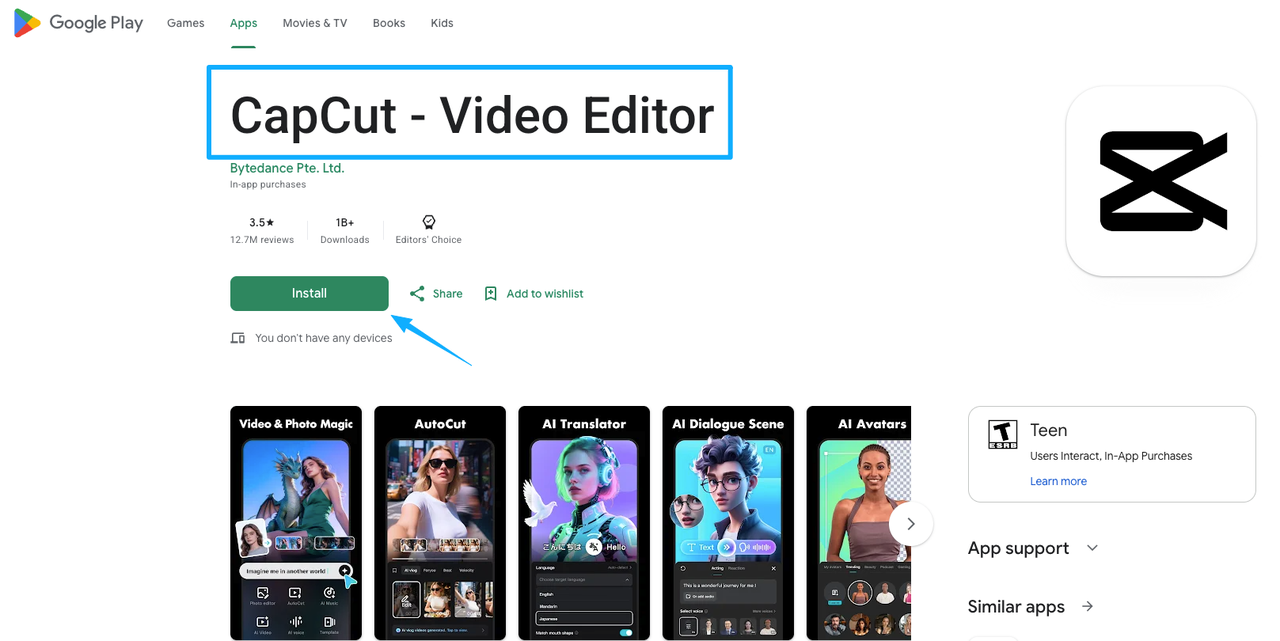
- Download CapCut from the Google Play Store if you don't have it — it's free and installs like any other app.
- Tap New Project and import your video.
- Tap the + at the bottom to add clips if you have multiple.
- To add music, scroll the bottom toolbar left until you see Audio — tap it.
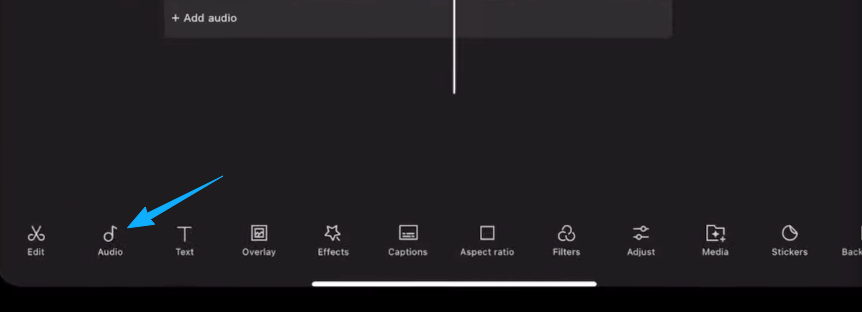
- You'll see options: Sounds (CapCut's built-in library), My Music (your device files), or Extracted (pull audio from another video).
- Select My Music to use your own track. Navigate to the file, tap to preview, tap the + to add it to your timeline.
- The audio appears as a separate bar below your video. Drag the handles on either end to trim. Drag the bar left/right to adjust timing.
- Tap the audio bar and use Volume to set the level. Use Fade to add a fade-in or fade-out.
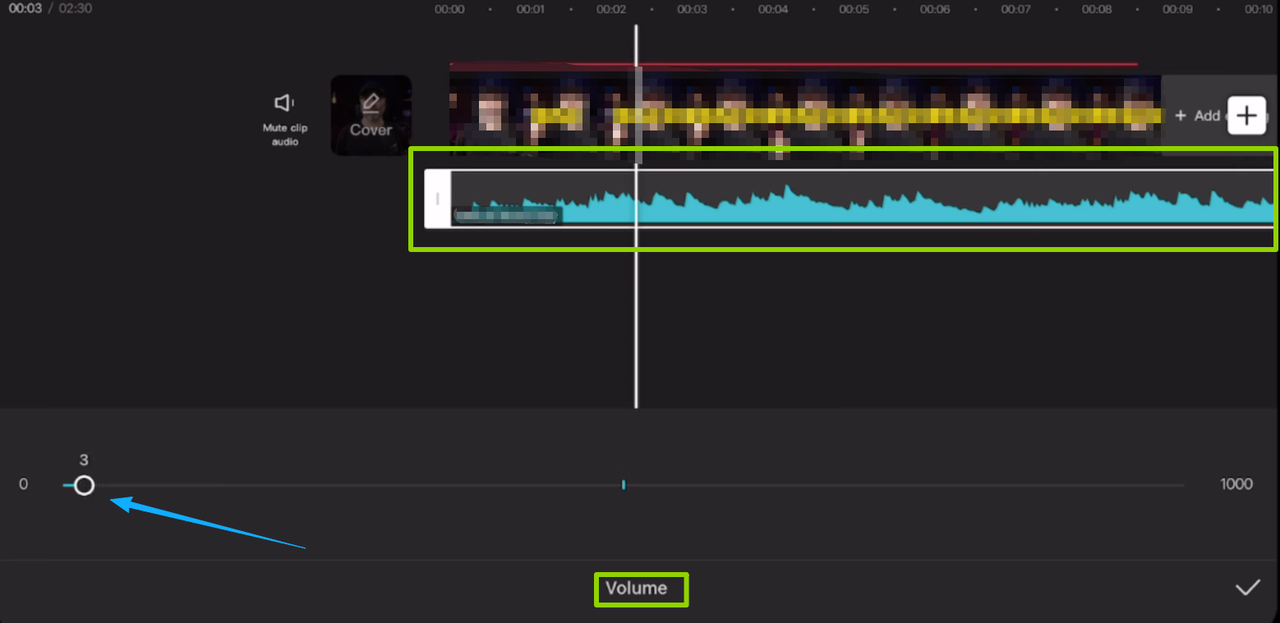
- Tap the checkmark to confirm, then export via the arrow icon (top right). Choose 1080p for most use cases.
Best For
CapCut handles multi-track audio — meaning you can layer background music under a voiceover, for example. It also shows you a visual waveform, which matters when you're trying to sync music to a specific moment in your video.
For short-form content — Reels, TikTok, YouTube Shorts — CapCut is the method I'd actually recommend to most people.
One note on CapCut's built-in Sounds library: the platform licenses tracks for use within CapCut-created content, but the exact terms for commercial publishing vary by track and platform. I've used it without issues for personal content, but I'd check the license details before using it in client work.
Method 4 — Using an Online Tool (No Install)
If you're on someone else's phone, your storage is full, or you just don't want another app — browser-based video editors exist and work on Android Chrome.
Kapwing's add-music tool and Clideo are two that I've tested on mobile. The workflow is:
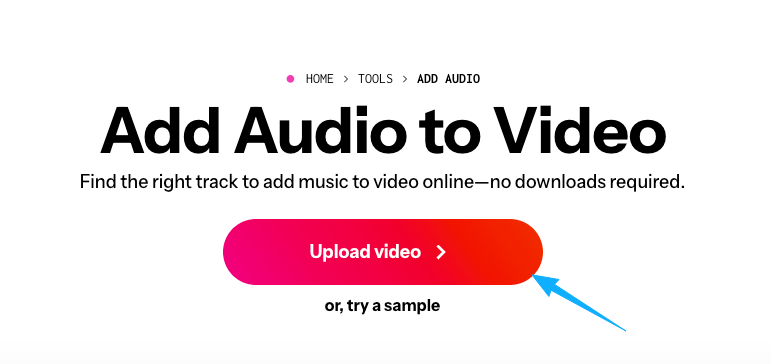
- Open the site in Chrome.
- Upload your video from your device.
- Upload or select your audio track.
- Trim and position using the browser-based timeline.
- Export and download.
When to Use This Method
Use browser tools when you need a one-off edit without committing to an install. They're slower than native apps — upload and export times depend on your connection — and free tiers usually add a watermark or cap video length.
I wouldn't make this my regular workflow. But as a backup option when you're working off a device that isn't yours? It functions.
Choosing the Right Method by Video Type
Not every method fits every use case. Here's a quick cheat sheet:
| Video Type | Best Method | Why |
|---|---|---|
| Quick personal clip (< 1 min) | Google Photos or Gallery | Lowest friction, no extra apps |
| YouTube vlog or short | CapCut | Timeline control, fade support |
| Instagram / TikTok / Reels | CapCut | Built-in library, format presets |
| Client or commercial video | CapCut + own audio file | More control, clearer music sourcing |
| One-off edit, borrowed phone | Online tool (Kapwing/Clideo) | No install needed |
If your video needs are growing — more content, more complex edits — CapCut is the one to invest time in learning. The others work, but you'll hit their ceilings fast.
Common Mistakes
I've watched people get stuck on the same things repeatedly. These are worth skimming even if you think you've got it:
Forgetting to check the original audio. Most editors mix your new track on top of your original video audio, not instead of it. If you don't lower the original audio volume, you'll hear both. Always check the original audio slider.
Adding music longer than the video. Some apps auto-trim the audio to the video length. Others don't, and your export silently cuts mid-track. Preview the full video before exporting.
Exporting without watching the first 5 seconds. That's usually where sync or volume issues show up. Do a quick preview, every time.
Using a streaming service file and wondering why it doesn't appear. Spotify, YouTube Music, and Apple Music files are streamed with DRM — they're not saved as audio files on your device and won't appear in any local picker. You need a file that's actually stored on your phone.
Not checking for end-clip watermarks. CapCut's free version adds a branded clip at the very end of your timeline. It's easy to delete — just scroll to the end, tap it, and hit delete — but if you forget, it exports with the CapCut logo attached. Online tools like Kapwing also add watermarks on free tiers. Always scrub to the end of your export before posting.
FAQ
Q1: Can I use songs from Spotify or YouTube Music in my Android video?
Not directly. Tracks from streaming services are protected with DRM — they stream to your device but aren't saved as usable audio files. Even with a Premium subscription, downloaded songs are locked to the app itself and can't be accessed by any video editor. Spotify is direct about this: as stated on their official support page, the service is only for personal, non-commercial use — which means syncing tracks to a published video falls outside what's covered.
If you want a specific song in your video, you'd need a version you legally own and have downloaded as an audio file (MP3, WAV, etc.) — purchased from a digital store, or sourced from a royalty-free library.
Separately: even if you found a workaround, publishing a video with a Spotify or YouTube Music track on social platforms would likely trigger a content ID match or takedown. The platforms scan audio automatically.
If you're making content for social or commercial publishing, royalty-free libraries or AI-generated music are the practical path. What you need to verify before committing to any source is whether the license covers your specific use case — personal, commercial, client work, specific platforms. I'd read the terms yourself rather than taking anyone's word for it.
Q2: What's the easiest free way to add music on Android?
Google Photos for a single track and basic mix. CapCut if you need any timeline control. Both are free — though CapCut's free version attaches a branded ending clip to your video by default. Just scroll to the end of the timeline and delete it before you export, and the final video comes out clean.
Q3: How do I match music length to my video on Android?
CapCut gives you the most control here — you can see both the video and audio as bars in the timeline, trim either one, and check the lengths visually. Google Photos and Galaxy Gallery let you trim the audio start point but don't show waveforms, so it's more of a guess-and-preview loop.
One practical tip: if your music is longer than your video, trim it from the end so it doesn't just cut off mid-phrase. If it's shorter, either fade it out early or use a repeated section. CapCut has a loop function on audio tracks that handles the latter.
Q4: Does Android have a built-in tool like iPhone's iMovie?
No direct equivalent. iMovie gives you a full multi-track timeline on iOS — Android doesn't have anything like that baked in at the OS level.Google Photos has a basic video editor, and Samsung / Xiaomi ship their own Gallery editors, but none of them match iMovie's depth. CapCut fills that gap for most Android users and is what I'd consider the closest free alternative with real timeline editing.
Q5: Can I add multiple audio tracks on Android?
Yes, but not in Google Photos or most Gallery apps — those support one audio layer only.
CapCut lets you add multiple audio tracks: background music, a voiceover, and sound effects can all sit on separate layers in the timeline. That's the main reason I use it for anything beyond a simple clip.
Q6: How do I keep the original video sound while mixing in music?
Every method covered here supports this — the key is the volume balance between the two tracks.
In CapCut: tap your original video in the timeline, look for Volume settings, and lower it to the level you want (not zero). Then add your music track at whatever level feels right. Preview and adjust.
In Google Photos: the audio editing panel has separate sliders for original video audio and added music. Drag them until the mix feels balanced.
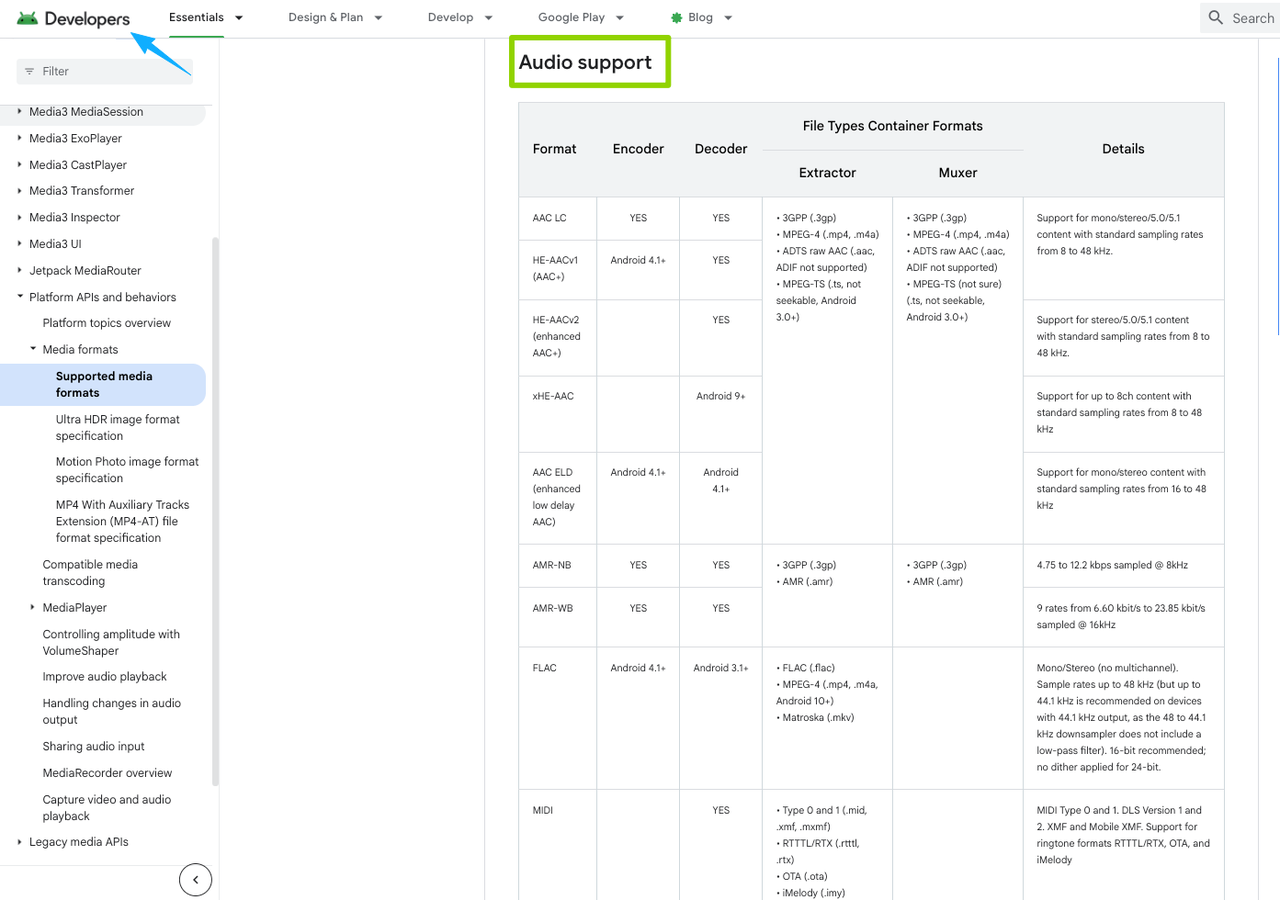
Q7: What audio file formats does Android support for video editing?
For most Android video editors: MP3, AAC, WAV, FLAC, OGG. MP3 is the safest choice — every app I've tested accepts it. For the full codec and container breakdown, the Android developer docs on supported media formats are the most reliable reference — it's where device manufacturers pull their specs from.
CapCut is more flexible and handles M4A as well. If you're downloading royalty-free music, MP3 at 320kbps is the format I'd grab.
Q8: What should I check before sharing the final Android video?
A quick pre-publish checklist I actually use:
- Watch the full export once, not just the first 10 seconds
- Check audio levels — does the music overpower the original sound if you wanted both?
- Confirm the video length is what you expected
- If you're posting to YouTube or Instagram, check whether your music source is platform-safe for that use case — I'd read the license terms yourself rather than taking anyone's word for it, including mine
- Export at 1080p unless you have a specific reason not to
One More Thing About Music for Videos
Most of the friction in adding music to Android videos isn't really about the apps. It's about finding music that fits — the right length, the right mood, something that doesn't make the video feel like a stock template.
I've been testing Sonilo for the past few weeks and it's the thing that's actually changed how I think about this step. The workflow is nothing like what's in this guide: you upload your video, it reads the footage — pacing, cuts, the emotional shape of it — and generates a matching soundtrack. No prompts, no mood sliders, no manually dragging audio to line up with a scene. It just does it.
What surprised me is that it gets the length right automatically. Not "close enough, now trim it" — it ends where your video ends, with an actual musical resolution rather than a hard cut. I uploaded a 94-second brand clip and the first version it gave me was usable. Not perfect, but the kind of result that would have taken me 40 minutes to find in a library.
You get multiple versions from the same upload, which I didn't expect to matter as much as it does. The first result isn't always the one — but having three or four variations to pick from means you're choosing, not settling.
The licensing situation is also worth knowing if you make content for clients or publish commercially: everything it generates is cleared for commercial use, no extra steps. That's not nothing — I've spent way too much time second-guessing royalty-free tracks before.
It's not going to replace the judgment call of whether music actually works for a piece. That part's still on you. But the part where you're burning 30 minutes in a stock library hoping something fits? That's the part it solves.
What's the part of adding music to your videos that actually slows you down — finding the right track, getting the length to fit, or something else? Drop it in the comments.