Guides
How to Add Music to a TikTok Video
- Written by
- Sonilo Team
- Published
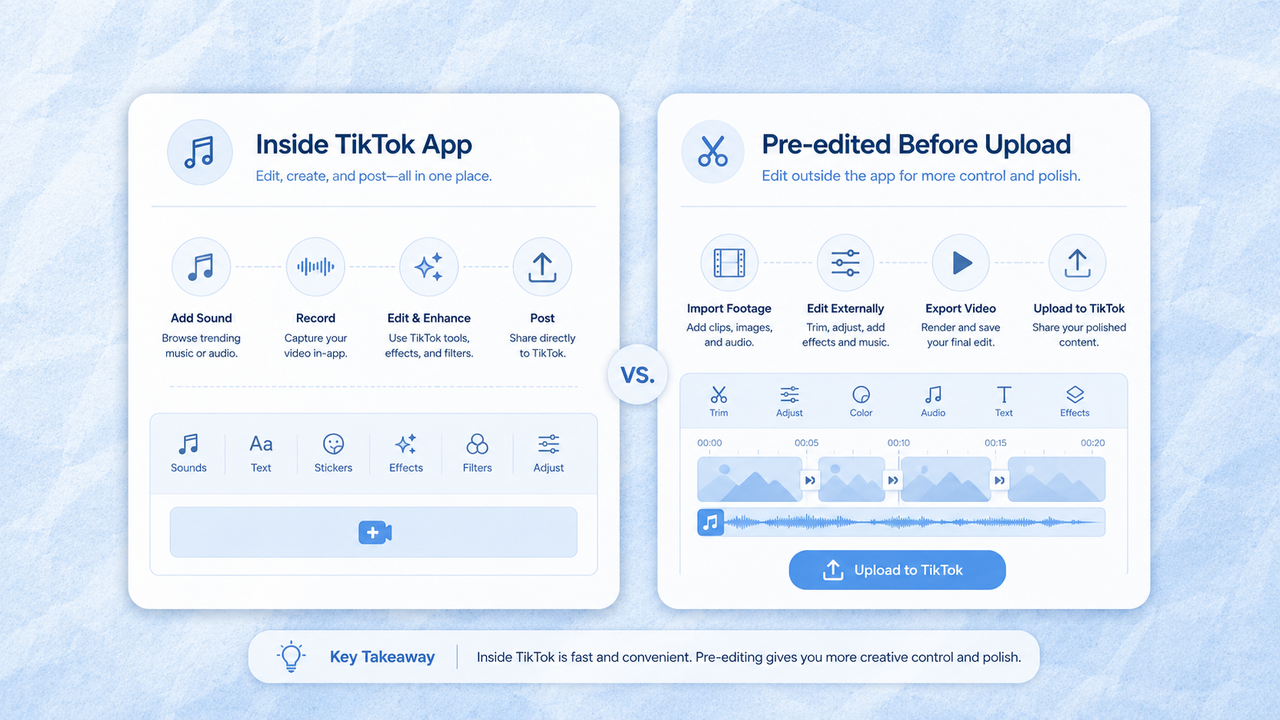
Adding music to a TikTok video can happen in two ways: inside TikTok, using an available sound, or before uploading, using music already added in an external editor. Both workflows can work, but they are not the same. Monetized uploads need that same rights check: choosing claim-safe music for monetized video means confirming the plan, license certificate, and platform claim behavior before the video goes public.
The best choice depends on what you need: access to TikTok sounds, cleaner timing control, original voice clarity, commercial-use checks, or a soundtrack that already fits the clip before you post.
Add music inside TikTok or before uploading?
If you add music inside TikTok, you can browse sounds available to your account, preview them in the app, trim the sound section, and publish with TikTok’s sound attribution.
This is often the fastest workflow for casual posts, trends, memes, dances, lip-syncs, and videos where the TikTok sound itself is part of the format.
If you add music before uploading, the soundtrack is already part of the video file. This gives you more control over timing, transitions, voice balance, and the final mix. It is useful for edited vlogs, product clips, tutorials, branded videos, and videos made in CapCut, Premiere Pro, Final Cut, iMovie, or another editor.
The tradeoff is rights and flexibility. TikTok’s US Terms of Service, accessed August 10, 2026, say users should not post, upload, or share content that violates someone else’s copyright, trademark, or intellectual property rights. So if you add music outside TikTok, keep the source and license record.
Add a sound inside the TikTok app
To add a sound inside TikTok, open the app, start a new video, record or upload your clip, then use the sound option in the creation flow.
The sound options you see can differ by account type. TikTok’s Business Help Center guide to using the Commercial Music Library says Business Accounts only see Commercial Music Library sounds when they tap Add Sound, while Personal Accounts may see all sounds and can choose Commercial Sounds from the sound selection flow where available.
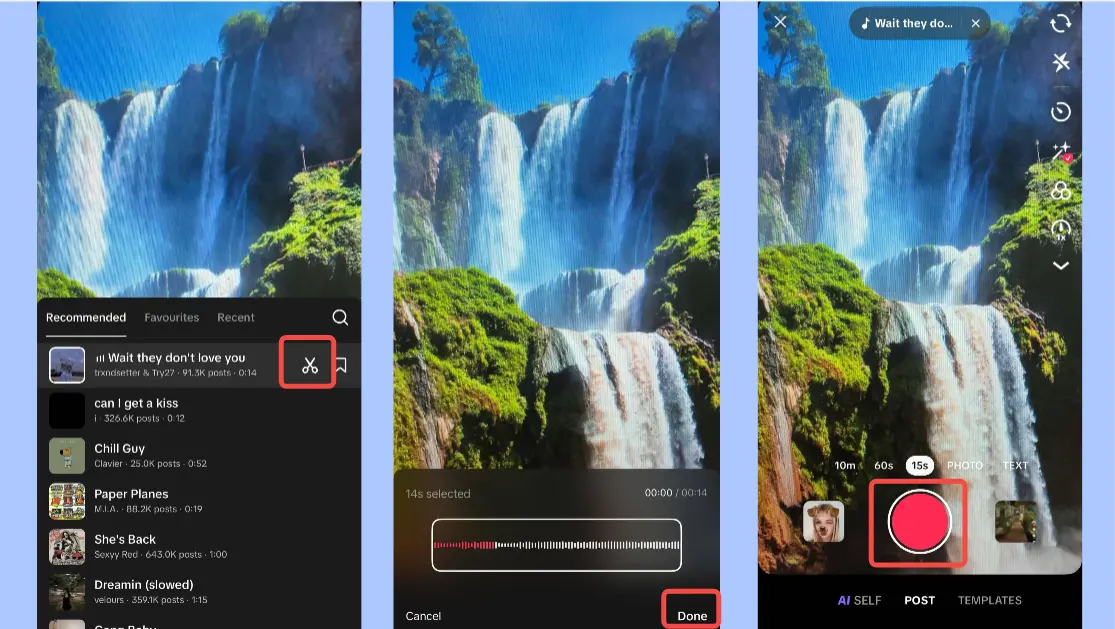
Find and preview an available sound
Search or browse for a sound that matches the video’s job. Do not choose music only because it is familiar or trending. A sound that works for a dance may not work under a tutorial. A loud vocal hook may cover the most important words in your clip.
Preview the sound with the actual video. Listen for three things:
- Does the first beat support the opening?
- Does the music section match the clip length?
- Does it leave room for voice, original sound, or on-screen information?
For commercial or brand-related content, check the music source before posting. TikTok’s official page on commercial use of music says content that promotes a brand, product, or service should use music from the Commercial Music Library, or the creator must confirm they have the necessary rights if using original sound or music outside the CML.
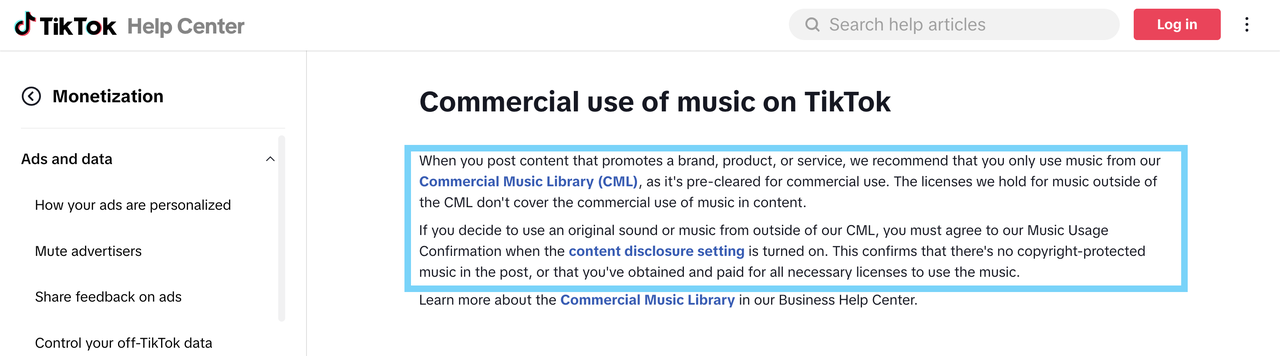
This is not legal advice. If the post is for a brand, client, paid partnership, ad, or monetized campaign, verify TikTok’s current music rules and the sound’s usage terms before publishing.
Trim the selected sound for the video
After choosing a sound, trim it so the strongest section fits the clip. TikTok’s newsroom post on enhanced editing tools says TikTok editing tools can cut, trim, and set the duration for sounds.
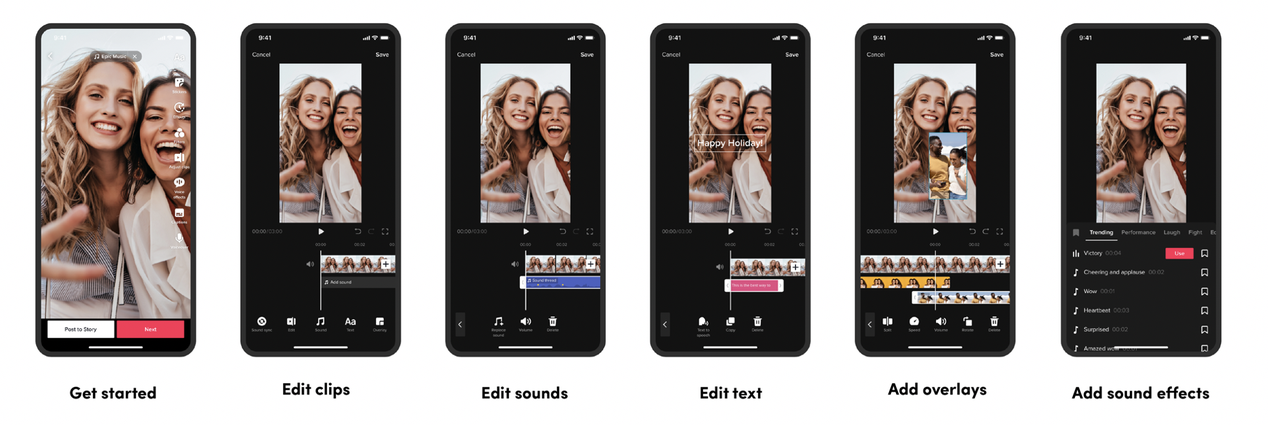
The best section is not always the beginning of the track. For a quick hook, you may want the beat, lyric, or musical change to arrive immediately. For a talking clip, you may want a quieter section that supports the voice without distracting from it.
Watch the video from the first frame after trimming. If the music feels like it starts too late, the viewer may lose the opening rhythm. If it starts too aggressively, it may make the clip feel chaotic.
Add music before uploading the video
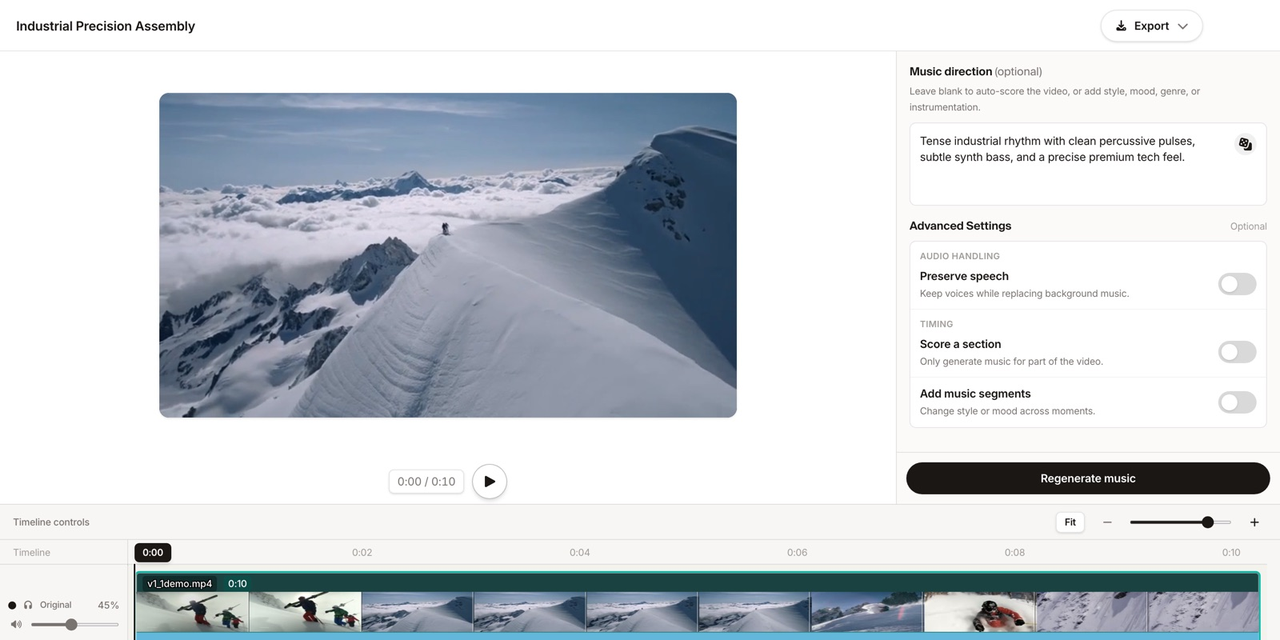
Pre-edited music means the soundtrack is already mixed into the video before TikTok sees it. You might do this in a video editor, an audio editor, or a soundtrack tool.
This workflow is useful when you need precise timing. For example, you may want a beat to hit on a product reveal, a music drop to match a transition, or a soft bed under a voiceover. You can also export a version where the voice and music are already balanced.
If you use external music, keep a record of where it came from. Save the file name, source URL, license, plan, invoice, permission email, or generation record. TikTok may treat uploaded audio differently from sounds selected inside the app, and the rights check is your responsibility.
External music tools can fit into this workflow when they provide a soundtrack that you have permission to use. Sonilo is one example of a tool that may be used before uploading, depending on its current features and licensing terms. It is not a TikTok built-in feature.
Balance music with voice and original sound
Music should not cover the reason the viewer is watching. If the video includes speech, original camera sound, product audio, cooking sounds, street ambience, or a reaction, listen for those details after adding music.
For voice-led videos, the first test is simple: can you understand every important word without replaying the clip? If not, lower the music, choose a quieter section, or use a different track.
For original-sound videos, decide what should stay audible. A travel video may need crowd or street sound. A makeup tutorial may need voice more than room tone. A cooking video may feel better if chopping or sizzling remains under the music.
If you edit inside TikTok, use the available sound and volume controls shown in your version of the app. If you edit before upload, balance the soundtrack in your editor before exporting. Either way, review the video on phone speakers, not only headphones.
Match the music section to the clip length
Short TikTok videos do not give music much time to settle. The section you choose needs to work quickly.
For a fast clip, start near the musical moment that matters. That might be a beat, lyric, drop, rhythm change, or clean instrumental phrase. For a calmer clip, choose a section that supports the mood without demanding attention.
Avoid endings that feel accidental. If the music cuts off mid-word or mid-build, the video can feel unfinished. If the track keeps going after the visual idea is complete, the ending can feel loose.
When the section does not fit, you have three options: trim to a cleaner musical phrase, choose a different sound, or prepare a custom-length soundtrack before uploading.
Review sound and publishing details before posting
Before posting, watch the full TikTok from start to finish. Do not only check the section where you added music.
Review these details:
- The opening sound supports the hook.
- Voice or original sound is clear.
- The selected music section fits the clip length.
- The ending does not feel chopped off.
- The sound source matches the account and publishing purpose.
For commercial content, check whether the sound is from the Commercial Music Library or whether you have the necessary permissions for an original or external sound. TikTok’s CML guide says Commercial Sounds can be used for organic or paid content, but availability depends on region, account type, and the sound selected.
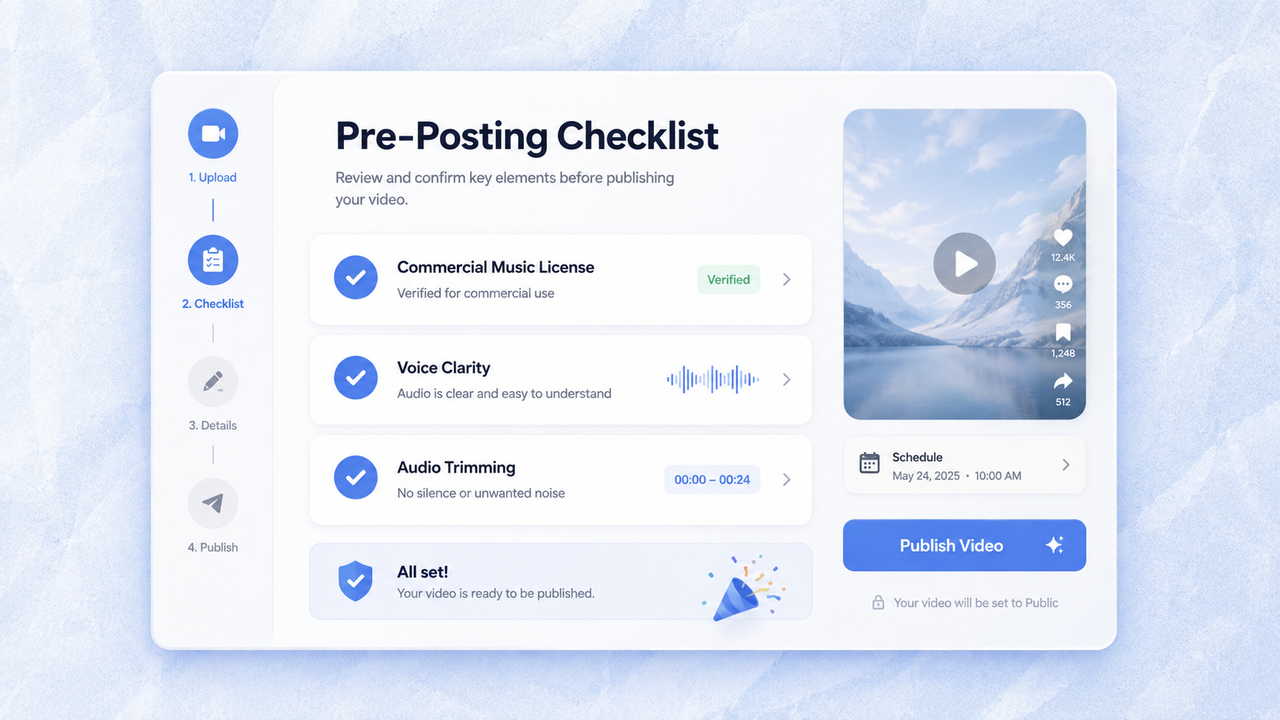
If the post promotes a brand, product, or service, take this step seriously. A sound that is available for personal entertainment may not be cleared for commercial use.
Understand what can change after posting
A sound may become unavailable or muted in some cases, such as copyright or Community Guidelines issues.
TikTok’s help page on removed sounds says TikTok removes sounds added to the platform if they violate copyright restrictions or Community Guidelines. It also says muted videos may show details explaining whether the sound was removed for a copyright claim, Community Guidelines violation, or both, and may offer an option to change the sound.
Drafts also need care. TikTok’s help page on editing, posting, and deleting says drafts may be removed if TikTok is uninstalled and reinstalled or if the account is moved or switched to a different device. Drafts also cannot be shared or transferred between accounts.
For important videos, do not rely only on a TikTok draft. Keep the original video, music source, edited export, caption notes, and license record outside the app.
FAQ
Why can a saved TikTok sound disappear from drafts?
A sound may become unavailable or muted because of copyright restrictions, Community Guidelines issues, region differences, account changes, or platform availability. Drafts can also be affected if the app is reinstalled or the account moves devices. Keep a separate copy of important video and audio files.
Can TikTok drafts move safely between different devices?
Not reliably. TikTok’s help center says drafts may be removed when an account is moved or switched to another device, and drafts cannot be shared or transferred between accounts. Export or save important working versions outside TikTok before changing devices.
What should creators keep before replacing a posted video?
Keep the original export, project file, music source, sound name or URL, license record, caption, cover, hashtags, and a note explaining why the replacement was made. If the post already has comments or approvals, keep a screenshot or record before deleting or reposting.
Who should verify a sound’s current usage terms?
The person or team publishing the video should verify the sound’s current usage terms. For brand, client, ad, paid partnership, or monetized content, check TikTok’s Commercial Music Library rules, the provider’s license, and any account-specific requirements before posting.