Guides
How to Make Video Sync with Music: Beats and Timing
- Written by
- Sonilo Team
- Published
Learning how to make video sync with music starts with a sync map, not a beat-detection button. To sync video to music, mark the visual anchors, identify the track's beats and phrases, then decide which moments need exact alignment.
My rule is simple: synchronize decisions, not every cut. Short vertical formats need the same clarity: a Facebook Reels music sync workflow should lock duration and energy to the cut, then leave headroom for captions and voiceover. A reveal may need a strong musical accent, while a line of dialogue may work better across several beats without a visible edit. The goal is for the soundtrack and picture to feel intentional together, not mechanically attached.
Sync Does Not Mean Cutting on Every Beat
Beat cuts are only one form of synchronization. A new scene can begin with a musical phrase, motion can resolve with a cadence, or a quieter section can create room for narration.
Cutting on every beat removes hierarchy. If every glance and B-roll shot receives the same emphasis, the important moments stop feeling important. It can also make interviews or emotional sequences feel rushed.
Decide what the music is doing. Featured music can drive a montage; background music should support speech and story without making the footage obey every pulse.
Mark the Video's Visual Anchors
Watch the cut once without music and mark the moments a viewer will notice: the first clear image, a location change, a completed action, a reveal, a reaction, a title, or the final frame.
Label each anchor as fixed or flexible. A fixed anchor cannot move without hurting the story; a flexible one can shift by a few frames or use a neighboring shot. This prevents a good edit from being broken just to satisfy the soundtrack.
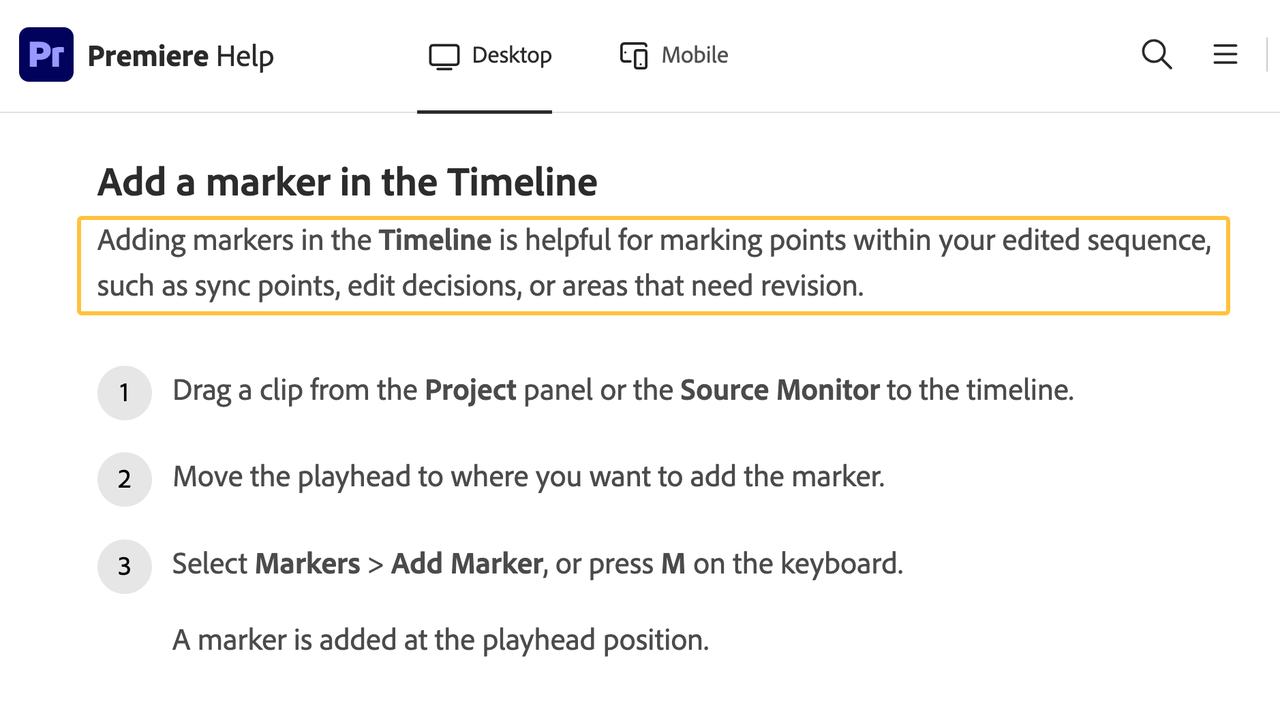
Timeline markers make the map easier to review and hand off. Premiere supports sequence markers for sync points, edit decisions, and areas that need revision, according to Adobe's current guidance. Give each marker a clear name rather than leaving a row of unlabeled colors.
Scene Changes, Actions, and Payoffs
Scene changes need structural alignment, not necessarily a drum hit. Place the new scene at the start of a phrase, after a break, or where the instrumentation changes.
For visible actions, mark contact or completion rather than the start of movement. A door closing, foot landing, or logo finishing its animation gives you a clear sync point. Let the movement begin before the beat so the accent feels earned.
Payoffs deserve the strongest markers. Identify the reveal, punchline, or winning moment before adjusting the soundtrack. If the music peaks elsewhere, reposition or replace it instead of moving the story's main event.
Read Beats and Musical Phrases
The beat is the repeating pulse you can tap. A phrase is a larger musical thought that ends with a change, pause, cadence, or return. Good video music timing uses beats for actions and phrases for sections.
Listen before relying on the waveform. Mark the first reliable pulse, strong accents, section changes, builds, and the ending. A large waveform peak is not automatically the beat that matters to the story.
Do not assume one count continues throughout. Intros may be irregular and tempo can change, so count the music in the timeline instead of forcing it into a generic template.
Choose the Right Sync Method
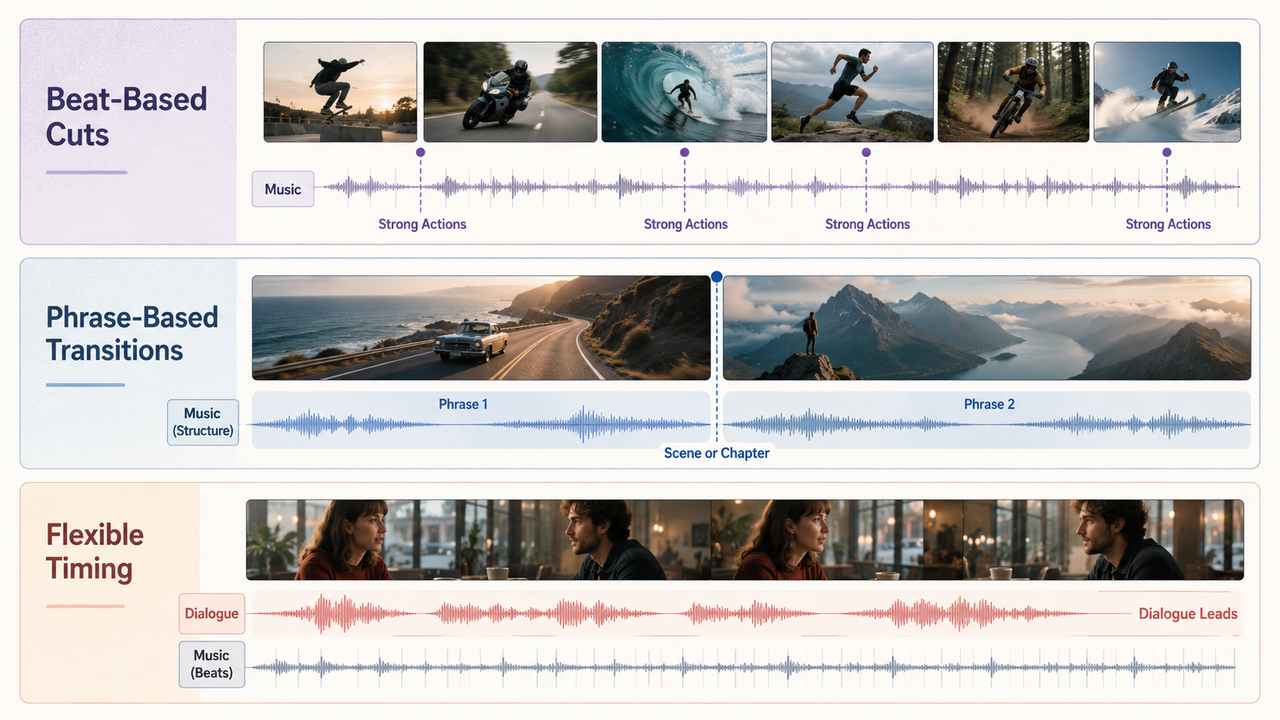
With both marker sets visible, choose a method for each section. One video may use beat cuts in the opening, phrase changes in the middle, and flexible timing under narration.
Beat-Based Cuts
Use beat-based cuts for sports highlights, dance, fast product shots, or repeated actions. Place important cuts on strong accents, then let some shots cross smaller beats to preserve contrast.
To match cuts to beats, move a flexible edit point a few frames and replay it at normal speed. If the action feels clipped or continuity breaks, restore the picture and try another accent. Story clarity matters more than a perfect grid.
Phrase-Based Transitions
Phrase-based timing works for larger changes. Align a new scene, chapter, or energy level with the beginning or resolution of a phrase rather than adding an effect to every cut.
This is the boundary between overall music sync editing and a transition-effects guide. Here, the task is to decide where sections belong in relation to the music. The choice of crossfade, visual effect, or transition preset is a separate finishing decision.
Flexible Timing Under Speech
Dialogue and narration should lead. Keep sentences and pauses natural, using lighter or less dense musical sections beneath them. A lift can land between thoughts or after the final word.
If an accent competes with an important phrase, move the music, lower it, or choose a less busy section. Do not speed up speech or shorten a meaningful pause to reach the next beat.
Decide Whether to Adjust the Video or Music
Adjust the video when shot length is flexible and the change improves rhythm and meaning. Trim dead air, extend a reaction, or exchange a B-roll angle without changing the story.
Adjust the music when picture or dialogue timing is locked. Shift the track's start, choose another section, shorten a repeated passage, or replace the track with one that fits the runtime. Preserve an unedited source copy before destructive changes.
If repeated manual changes still leave the soundtrack fighting the cut, a video-first workflow is another option to test. According to Sonilo's current description of its video-first soundtrack workflow, it accepts a video and generates music of the same length around pacing, motion, and scene changes. That is a first-party product description, not a guarantee that every result will fit; compare each output inside the real edit before using it.
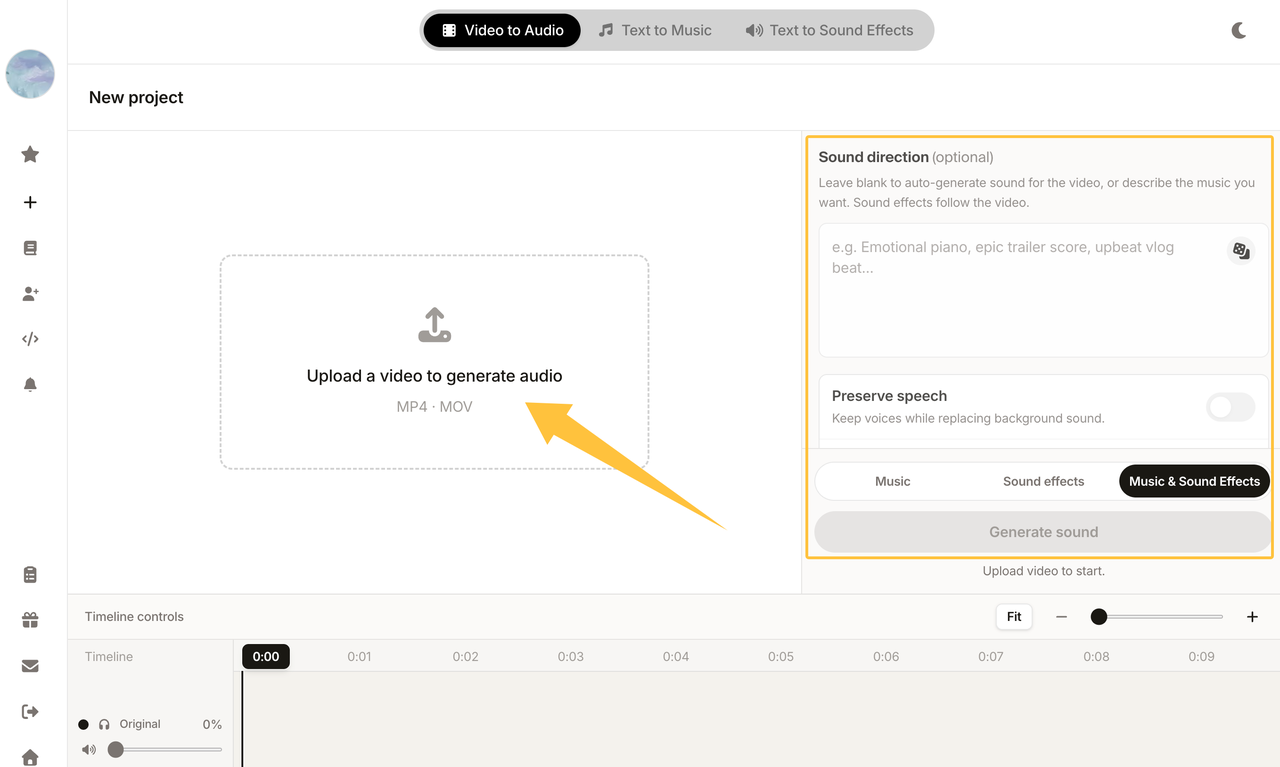
Before uploading footage, confirm that you are authorized to provide every included asset and review Sonilo's current Terms of Service and Privacy Policy. Do not upload confidential, restricted, or unreleased third-party material unless your permissions and the applicable service terms allow it.
Handle Tempo Changes and Off-Beat Footage
When tempo changes, stop treating the soundtrack as one grid. Map each musical section separately and consider using the change as a visual turning point. If it lands badly, move the track before cutting footage into smaller pieces.
Some footage feels better before or after a beat. An early action can create anticipation; a later reaction can let impact register. Judge the complete movement, not only the marked frame.
Automatic beat markers can provide a first pass, but review them by ear. They identify pulses without knowing which accent or quiet gap matters to the scene.
Review the Ending and Final Export
Work backward from the final image. Choose a clean stop, resolved note, short tail, or fade, then give the last visual time to register. Exact file length does not help if the music sounds interrupted.
Export a review file and watch it without moving the playhead. Check the opening, scene changes, dialogue, payoff, and ending, including cues that looked precise on the timeline but feel early or late in playback.
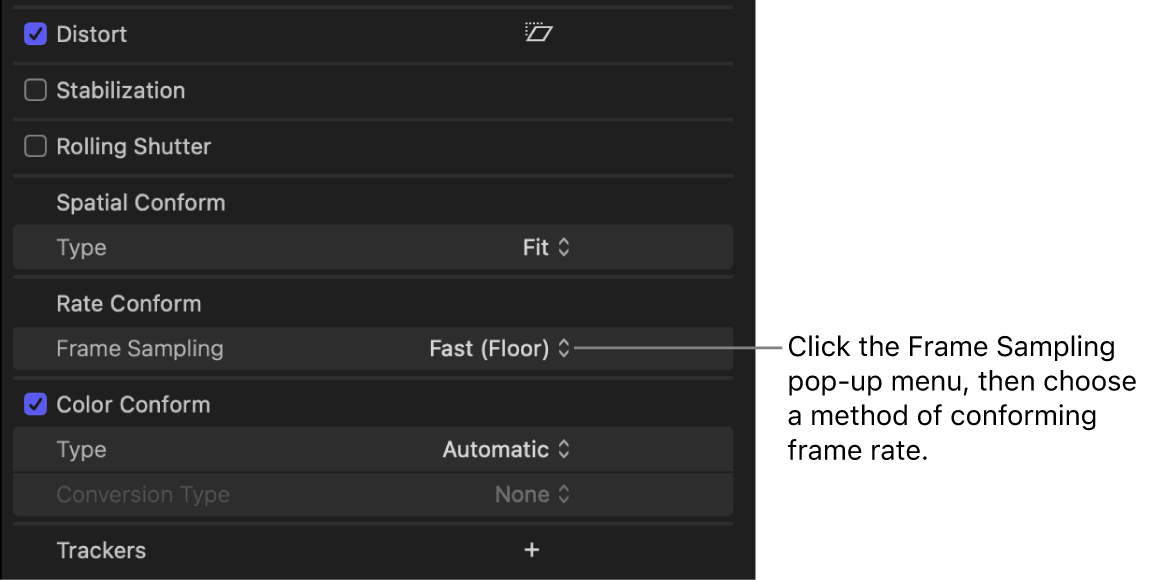
Recheck the sync after changing frame rate or conforming mixed-frame-rate footage. Apple's current Final Cut Pro guide warns that changing a project's frame rate can shift edit points in time, so a previously approved marker map should not be assumed to survive unchanged. Review the actual delivery file, not only the source timeline.
Before publishing, confirm that the soundtrack's current license covers the intended platform, client, territory, and commercial use. Importing a music file into an editor does not establish publishing rights, and this workflow guidance is not legal advice.
FAQ
What happens if the frame rate changes?
A frame-rate change can alter the available frame boundaries or shift edit points, depending on the software and conforming method. Lock the delivery frame rate early when possible. If it changes, reopen the sync map and inspect every fixed action, scene change, payoff, and final-frame cue in the conformed sequence and exported file.
How should sync markers be labeled for handoff?
Use a short type, number, and purpose, such as V01_SCENE_CHANGE, V02_PRODUCT_REVEAL, M01_STRONG_BEAT, or LOCK_FINAL_HIT. Add a comment when the reason is not obvious, and distinguish fixed visual anchors from optional musical targets. The next editor should be able to tell which side may move without asking what each color meant.
Can one sync map work across aspect ratios?
It can provide a starting structure, but it should not be treated as final. A vertical crop may hide an action, require a closer shot, change text timing, or move the viewer's attention to a different subject. Copy the major timecode references, then review and approve each aspect-ratio version against its own picture.
Who approves sync after the final recut?
Assign approval to the person who owns the final picture, with input from whoever is responsible for audio, narration, and delivery requirements. After any recut, that named owner should approve a fresh exported file rather than relying on an earlier timeline review. Record the approved filename, version, frame rate, and date so the publishing team receives the correct master.
When you need to align video with a soundtrack, build from meaning outward: fixed visual anchors first, musical phrases second, individual beats third. That order keeps the story intact while giving the moments that deserve emphasis a clear, satisfying landing.