Guides
Vozo AI Video Translator: Fit for Creator Videos
- Written by
- Sonilo Team
- Published
The new voiceover is ready, but the slide still says “Soft light” in English. So does the camera menu beside it. Your viewer can hear the lesson in their language, yet still has to work out the words on screen.
I’m Nico. Let’s use this lighting lesson to decide what to change in Vozo and what’s easier to fix in your original editor. A few headings may only need a quick text edit. When all you have is the exported video, Vozo’s dubbing and Visual Translate tools give you another way to tackle the job.
We’ll follow the same clip through the spoken lines, screen text, and optional lip sync, checking that they still explain the same thing. Before exporting, we’ll also look at what those changes mean for the video’s resolution and timing.
Sonilo publishes this guide and offers a separate video translation service.
When Does Vozo Fit a Creator Video?
The Vozo AI video translator fits a lesson, presentation, or product clip where viewers need to understand both the voice and words on screen. Its video translation tools cover dubbing and subtitles; Visual Translate is a separate pass for the picture's text.
In your source project, you can change the wording and layout before exporting at the resolution the project supports. Visual Translate is more relevant when you need to change text already baked into an exported video.
It accepts up to 4K input but currently exports at up to 1080p. For a 4K delivery, keep the original picture in your editor, replace the text there, and use a suitable dubbing route for the speech. A later export cannot recover detail lost in a 1080p pass.
Which Parts of the Video Need Translation?
Listen to the explanation, then watch without sound. A camera-setting label may carry information the narrator never says. Mark that text for translation; a decorative word that adds no meaning may be fine to leave alone.
Spoken Audio and Subtitles
Translate & Dub creates translated speech with a cloned voice or a selected voice. Correct the source transcript and speaker tags first, then review the translated wording. After changing a line, generate its speech again and hear it beside the picture.
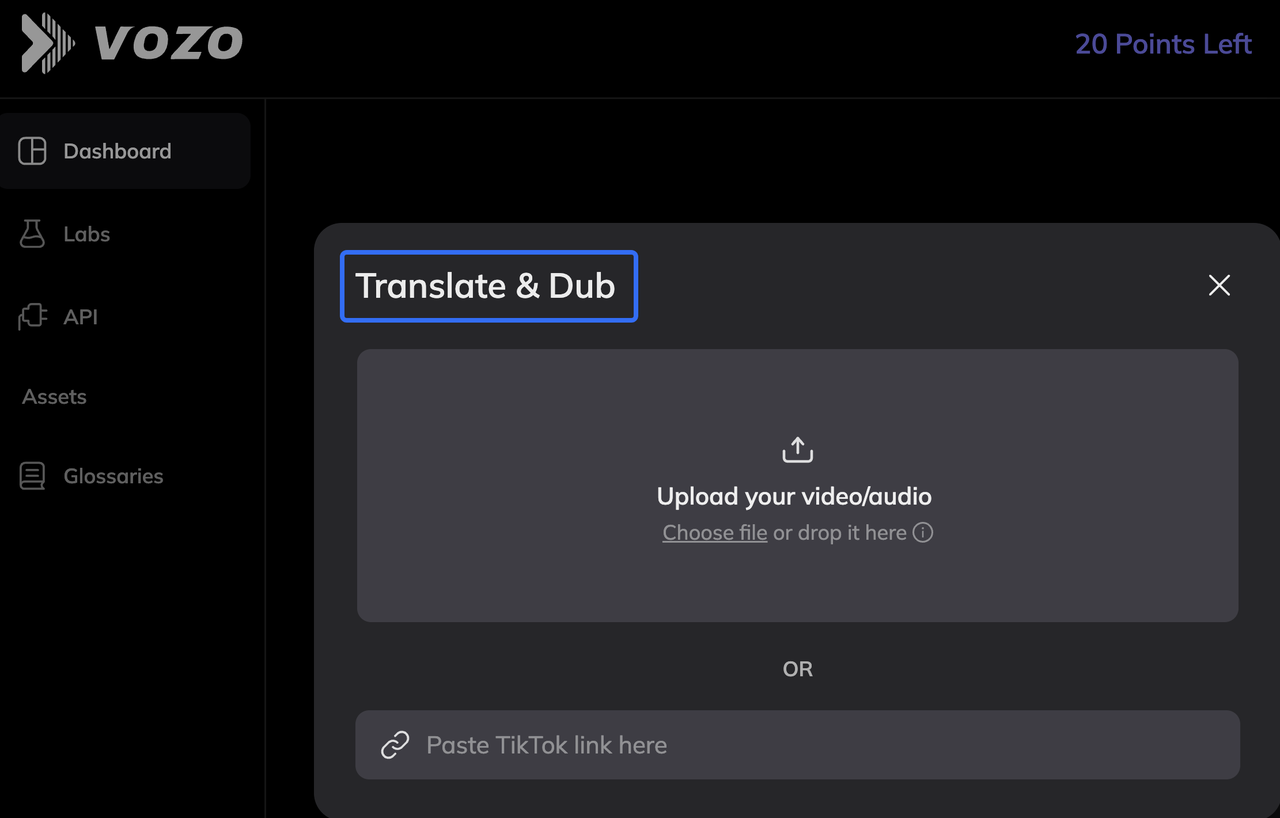
Subtitle-only translation retains the original audio. It can suit a performance viewers want to hear, provided they have time to read along. During a hands-on demonstration, a dub may let them keep their eyes on the action. Our guide to subtitles, dubbing, and lip sync explains those output choices.
For either route, check the captions on the actual frame. Move or reformat a line if it covers the camera control being explained. Vozo provides subtitle position, width, and style controls, but the layout still needs your judgment.
On-Screen Text and Lip Sync
Visual Translate supports slide text, explanatory overlays, and other text in video frames. Its current text-handling guide says software interfaces, buttons, menus, packaging, signs, and logos are preserved by default. To request their translation, specify them in Translation Prompt when creating the project.
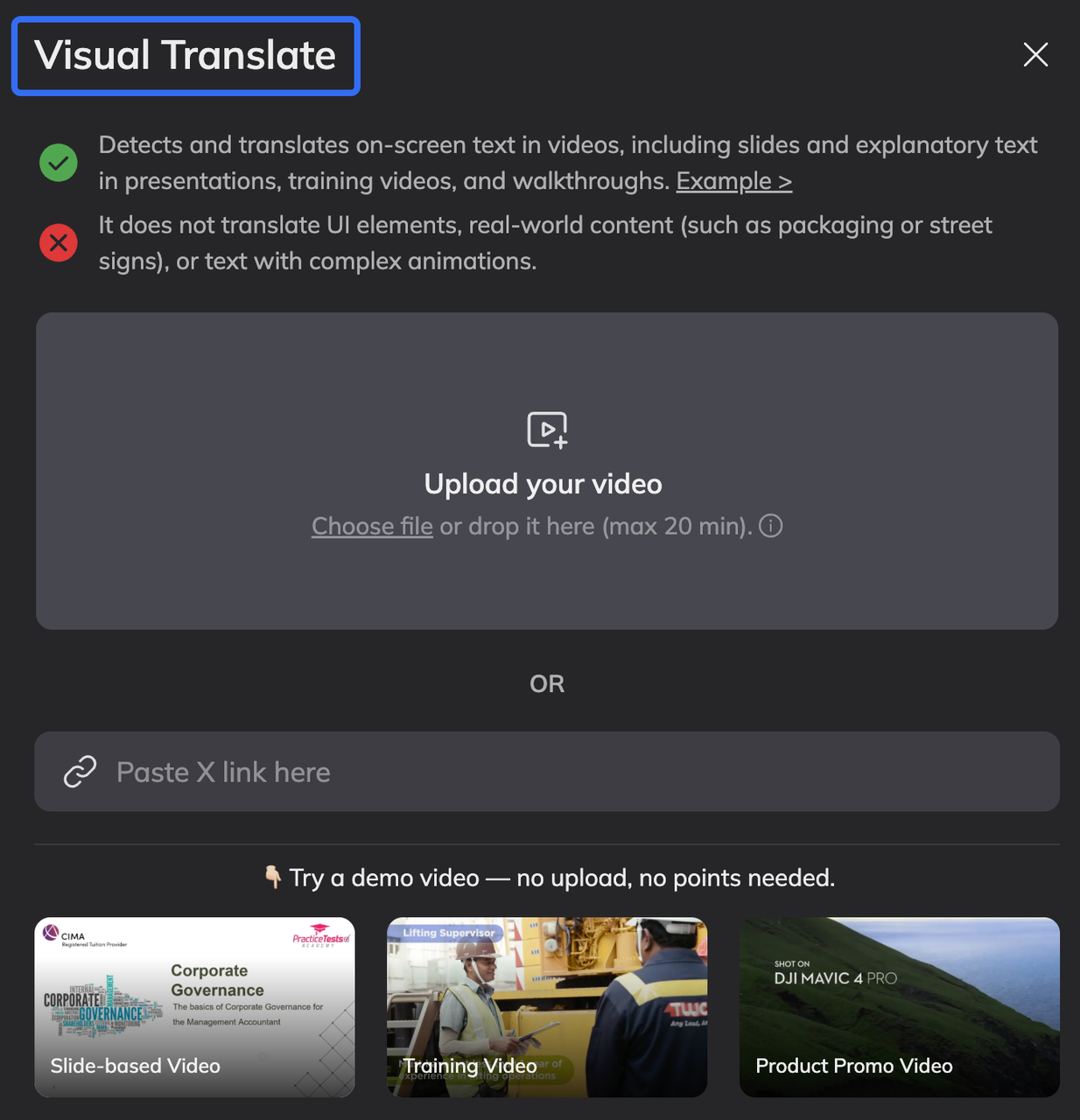
This supplied screen shows the earlier restriction message. The November 19 help update describes prompt-based translation for text preserved by default.
In an illustrative lighting lesson, an added “Soft light” heading appears beside a camera menu. Ask for the heading and any menu text the viewer needs. Check which words were replaced and which stayed unchanged. If the setting is still hard to read, add a translated annotation in your editor or explain it in the narration.
Choose the mode for the picture you have. V1 suits simple layouts and basic transitions; V2 targets complex layouts and text animation. V1 offers direct text and style edits. V2 takes requests to change layout, animation, or text removal. These are documented differences, not results from a test of this lesson.
When the text is approved, export it and upload that video to Translate & Dub for the spoken version. Keep the edited text and narration terms consistent through that second pass.
Add lip sync when the speaker's visible mouth contributes to the scene. Finish the dub before starting lip sync: it creates a new project where the dubbed audio can no longer be edited. Correcting the words first avoids carrying a known mistake into that render.
What Should a Small Team Review Before Export?
Review the words in the voice, captions, and picture together. In the lighting lesson, “Soft light” should express the same idea in the heading and narration. A fluent reviewer can settle the term before the editor adjusts the layout.
If the new heading overflows, shorten it without changing the lesson, or adjust its position and size. Then watch the whole shot for remnants of the old lettering and check that subtitles leave the camera setting visible.
A late spoken instruction needs a different fix. Revise the wording and regenerate the line before changing the picture. If it still needs more room, decide whether the language version can have different timing.
Vozo's Auto Align Audio & Video changes video and audio speed by segment, altering the overall duration. Leave it off if you need audio for the unchanged original, such as an additional YouTube language track. For a separate video version, review the altered motion and pauses after alignment.
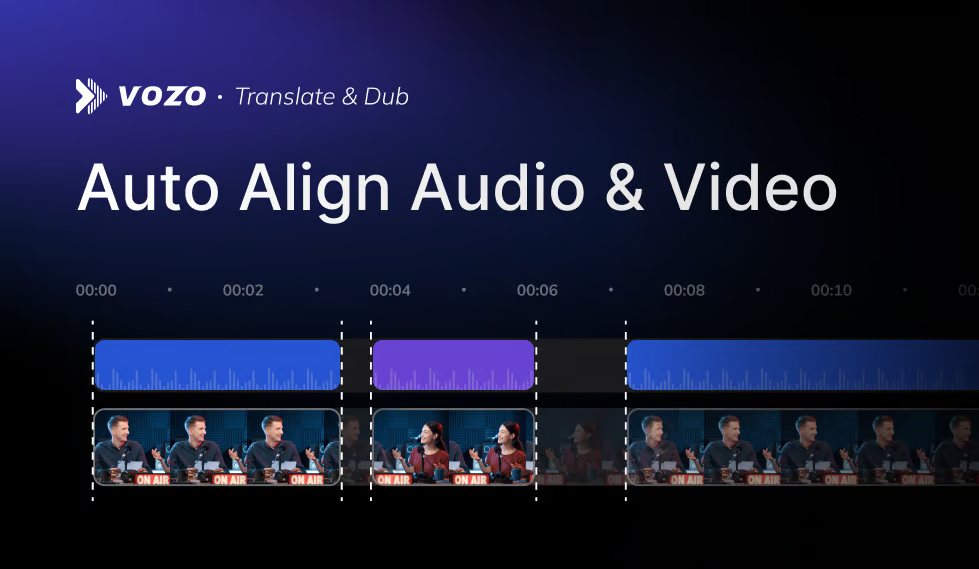
Official feature illustration, not an alignment result from the example lesson.
Team workspaces are available on Studio and higher plans. Reviewers can edit projects shared with them. Take turns: Vozo warns that simultaneous edits can overwrite changes. Let the language reviewer finish, then have the editor check the layout and play the downloaded video through to its last sentence.
When Is a Simpler Dub Enough?
Start with dubbing when narration carries the explanation and no essential picture text needs changing. An off-camera narrator also removes the reason to alter mouth movements. Vozo can do that job without Visual Translate.
Sonilo is another finished-clip translation route for MP4, MOV, or M4V videos up to five minutes and 400 MB. It offers proofreading before voicing and optional lip sync. Its product page says the original music and effects are kept; translated video and subtitle downloads require a paid plan.
For a qualifying clip, compare the correction and download controls you need. Use the same source if you try both services, and listen to the soundtrack rather than assuming it survives unchanged. Essential headings still need a separate text-editing pass. For the full review order, see how to translate a video with AI and review the dub.
What Plan and Input Limits Change the Decision?
The feature, pricing, and export conditions in this guide were checked against Vozo’s official product pages and help guides on November 23, 2026. Use the live Vozo pricing page for the tool you intend to use. The monthly Creator plan lists $29, 150 points, and one seat; Studio lists $99, 600 points, and three seats. A second team editor changes that choice even if the clip is short.
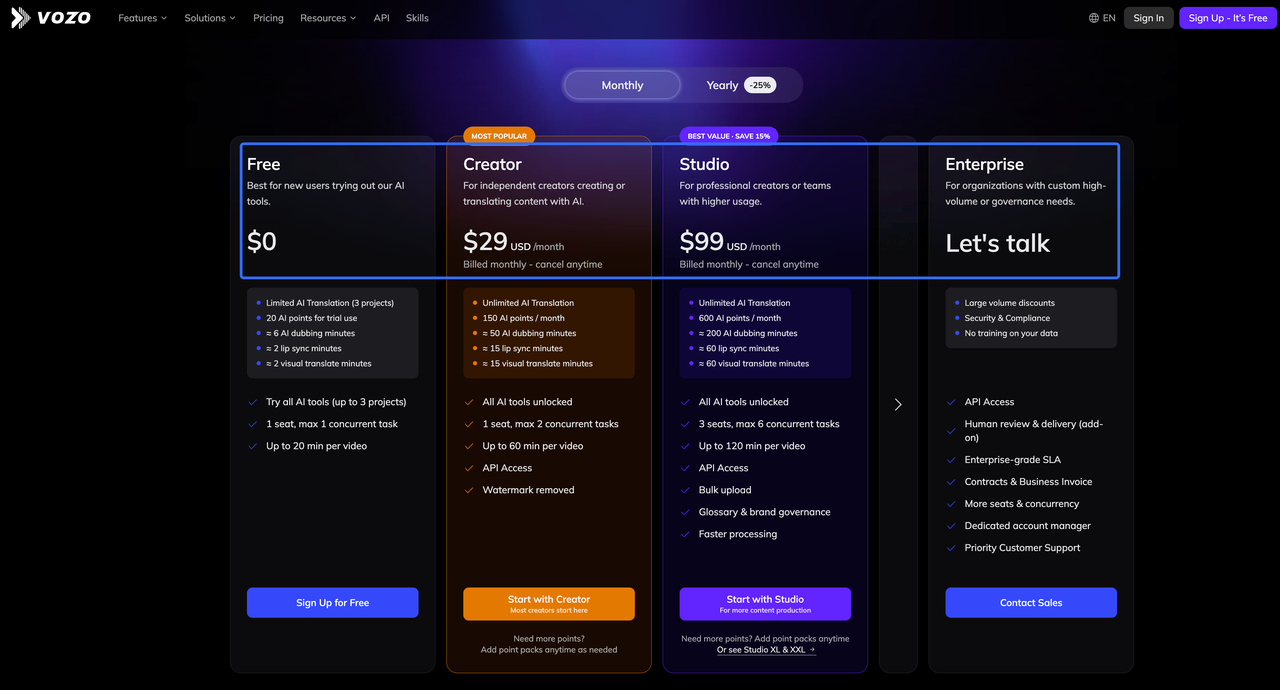
Supplied plan snapshot. Prices and tool-specific limits in this section were checked on November 23, 2026.
Translate & Dub lists up to 4K, with file limits of 60 minutes on Creator and 120 on Studio. Visual Translate lists 20 minutes and 1080p output. Check the final delivery before spending points on the text pass.
The Free trial lists 20 points and up to three projects. The example minutes for different tools share that balance; they are not separate free allowances. Gift points expire seven days after registration. Paid plans' “Unlimited AI Translation” wording also sits alongside point charges for processing.
The point rules now distinguish Visual Translate V1 and V2. For one minute at each stage:
| Processing step | Using V1 | Using V2 |
|---|---|---|
| Translate & Dub | 3 points | 3 points |
| Visual Translate | 10 points | 30 points |
| New lip-sync project | 10 points | 10 points |
| Total | 23 points | 43 points |
This calculation assumes unchanged duration, one new lip-sync project, and no extra processing or revisions. Neither full example fits the 20-point trial. A simpler job costs less: dubbing alone is 3 points for that minute, and V1 plus dubbing totals 13. The required processing matters more than the advertised trial minutes.
File formats and size limits can differ by tool. Check each uploader you plan to use rather than assuming a file accepted for dubbing will work everywhere.
For a guest or client's video, get permission to process the footage and reproduce the voice or likeness. Review Vozo's terms and applicable privacy conditions before uploading sensitive material. Music and third-party footage need rights for the intended release too. This is general information, not legal advice.
FAQ
Can Vozo start from a YouTube link instead of a file?
Yes. The Video Translator upload field accepts a YouTube link. The source must be accessible to the importer. Keep an authorized file available for restricted links rather than changing access to confidential footage just to import it.
Can Vozo export translated subtitle files separately?
Yes. Its Subtitle Translator offers SRT and VTT files, as well as captions on the video. Choose a separate file when your publishing platform needs selectable captions, and check its timing against the video you will upload.
Can a Vozo project produce several target languages?
Yes. Review the source transcript and speaker tags in a primary project, then select More Languages. Each target language becomes a separate dashboard project. Reusing the source corrections saves repeated preparation; each translation still needs a fluent review.
Does Vozo keep the original background music?
Default preservation of the original music and effects was not confirmed by the product and help pages reviewed here. If those sounds are essential, ask Vozo how the source mix is handled before committing. Keep the original mix and separate tracks, then compare the export during both speech and pauses.
Can different speakers use different output voices?
Yes. Change Voice can change a sentence or all lines assigned to a speaker, followed by speech generation. Fix an incorrect speaker tag before changing the voice. Cloning a real person's voice also requires their permission for the intended use.
Conclusion
Choose Vozo when the finished clip needs both translated speech and text in the picture, and the text mode and output resolution suit the job. If only a few headings need changing and you have the source project, edit them there. Keep the language version at the original timing when you need a matching audio track; review a separately timed video as its own final cut.
Related Articles
- Free AI Video Translators for 2027: Preview vs Export — Check what a trial lets you preview and download before paying.
- AI Video Translator Reviews: What to Check Before Buying — Check dubbing-specific user feedback before choosing a service.