Get Marketing Insights First
Subscribe to receive actionable strategies, growth tips, and industry insights delivered straight to your inbox.

Lyria 3 Pro is now inside Google Vids. Here's how to generate background music for your video project step by step.
Here’s what three years of editing taught me about soundtrack tools: the best one is almost always the one that doesn’t make you leave your workflow to go find it.
That’s why I paid attention when Google quietly added Lyria 3 Pro inside Google Vids. An AI music generator that lives where you’re already editing — that’s the dream, right?
I ran it through a proper test. Real projects. A few product walkthroughs, an internal training video, a quick explainer. Here’s what I actually found — including the part Google’s announcement didn’t lead with.
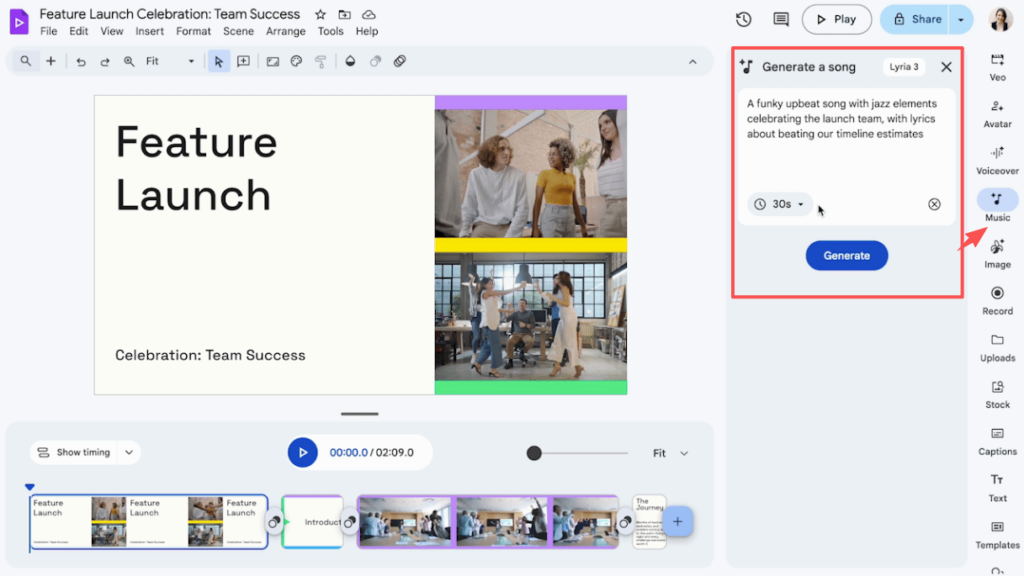
Lyria 3 Pro is Google DeepMind’s music generation model. It’s the same model that powers the music generation features in YouTube Dream Track and other Google creative tools. In Google Vids, it shows up as a built-in option to generate original background music directly inside your project.
The pitch is clean: instead of leaving Vids to hunt through a stock library or open a separate AI music tool, you write a prompt, generate a track, and apply it to your timeline — all without switching tabs.
That part works exactly as described. It is genuinely faster than opening three other browser tabs.
But there’s a detail worth knowing before you build your workflow around it, and I’ll get to that in a minute.
Access is tied to your Google Workspace plan — check Google Workspace plan eligibility before expecting this feature to show up in your account, because rollout has been staggered and tier requirements may have changed since initial launch.
If you don’t see the music generation option inside Vids, that’s the first place to check. It’s not a bug — it’s likely a plan access issue.
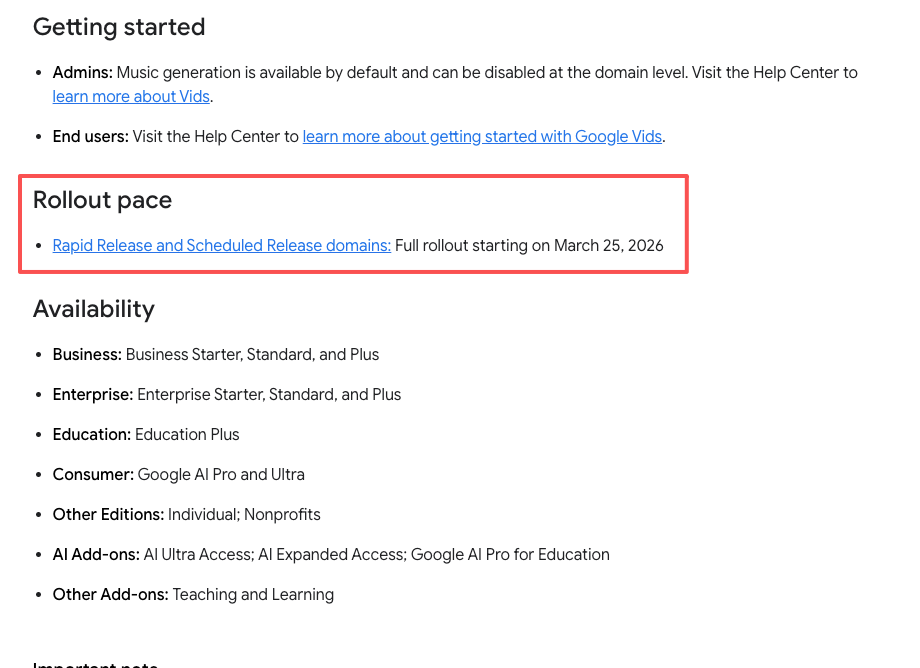
Google has been expanding access gradually. The feature is not universally available across all regions or all Workspace plans. Check Google Workspace release notes or your admin console for the most current status before assuming you have access.
Here’s the actual workflow once you have access.
Open an existing Vids project or start a new one. Music generation is available from within the editor, not from the Vids home screen.
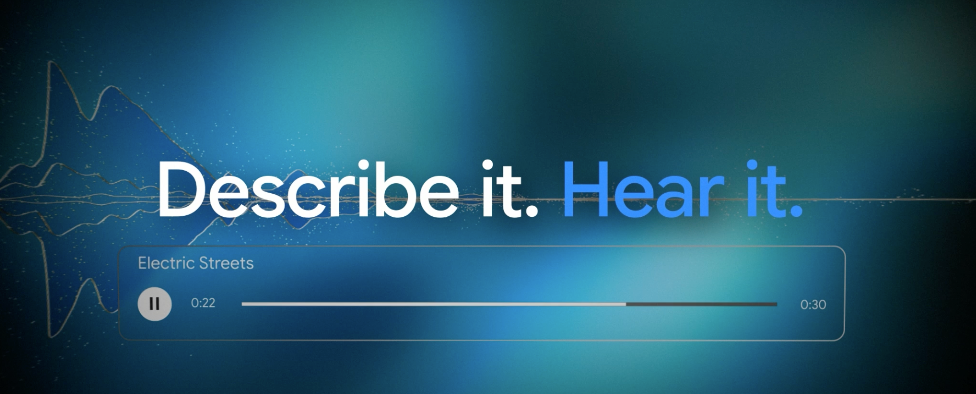
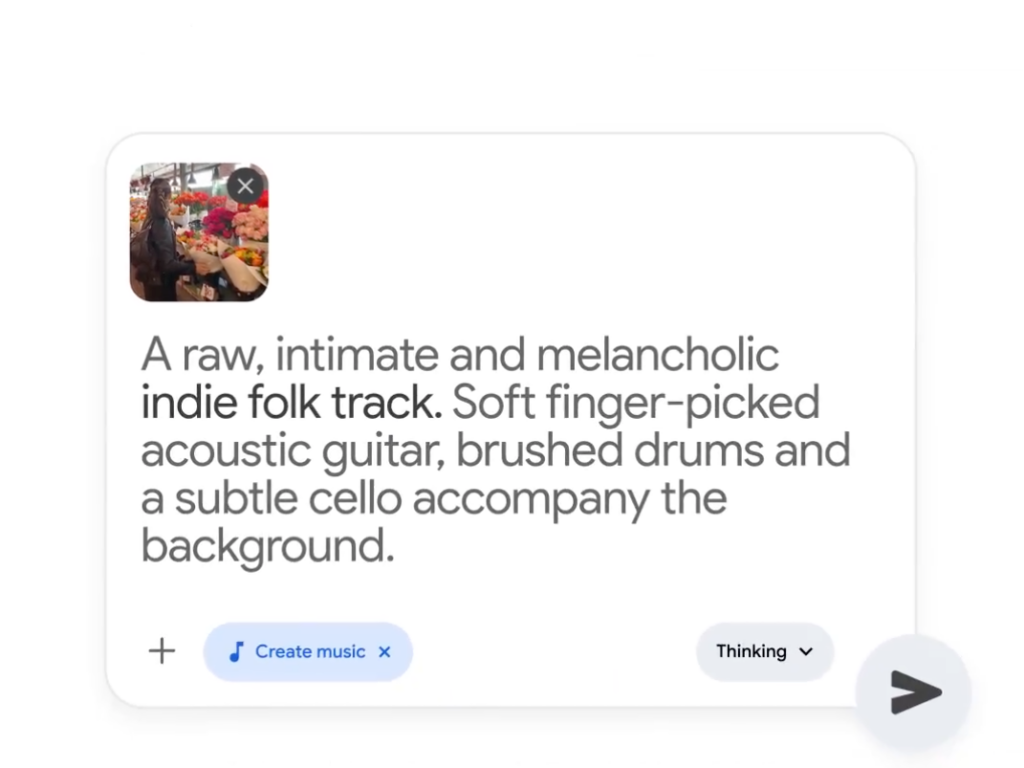
This is where most people spend more time than expected. You’re not selecting from a library — you’re describing what you want in text. Genre, mood, tempo, instrumentation. The more specific, the better the result. If you want to understand what the model is actually responding to, the Lyria 3 developer guide on text-based prompting for music generation is worth a skim before you start.
A prompt like “upbeat corporate background music, no lyrics, medium tempo, light piano and strings” will get you somewhere useful. A prompt like “good background music” will get you something technically competent and thoroughly forgettable.
I’ll share prompt-writing specifics in a dedicated section below, because this is genuinely where the quality gap lives.
Lyria 3 Pro generates a track based on your prompt. You preview it directly in the Vids interface. If it’s not right, you adjust the prompt and generate again. There’s no fine-grained editing of the output — you’re working with regeneration, not manipulation.
Each generation takes a few seconds. Plan for 3–5 attempts before landing on something you actually want to use.
Once you’ve settled on a track, you apply it to your project timeline. It sits as a background audio layer. From there you treat it like any other audio element in Vids — adjusting clip length, position, and volume.
Prompt quality is the biggest controllable variable in your output. Here’s what actually moves the needle.
Don’t describe the video — describe the feeling you want the music to carry. “Calm and focused, like something you’d hear in a productivity app” is more useful than “for a software tutorial.”
Energy level matters too. “Low energy, ambient” versus “moderate energy, forward-moving” will give you meaningfully different results.
Prompts like “in the style of [artist]” tend to produce inconsistent results and may be filtered by the model. Instead, describe the texture: “sparse, minimal, mostly single instrument, no percussion.”
Always say explicitly whether you want vocals or not. For background music in a talking-head video or presentation, you almost certainly want no lyrics — just say it. “Instrumental only, no vocals” takes one second to type and saves you from a result you can’t use.
This is where Lyria 3 Pro in Vids genuinely earns its place. For internal presentations, team updates, quick product walkthroughs — anything where “good enough and fast” beats “perfect and slow” — it delivers. I generated usable background tracks in under five minutes on two of the three projects I tested.
Generation speed is fast. It doesn’t make you wait. And because it’s inside Vids, there’s no copy-paste step, no separate download, no format conversion. That friction removal is real.
If you’re a team lead or L&D person who ends up recording a lot of video-based training content inside Google Workspace, this feature was built for you. The music quality is appropriate for the context, the workflow stays inside tools you’re already in, and you don’t have to justify a separate music subscription to your finance team.
This is the part I want to be direct about, because the marketing doesn’t say it clearly.
Lyria 3 Pro in Google Vids is prompt-driven, not video-driven.
This is the most important thing to understand about this feature, and it was underemphasized in Lyria 3 Pro’s March 2026 rollout coverage: the tool does not analyze your video. It does not look at your cuts, your pacing, your visual mood, or your scene changes. You describe what you want in text, and it generates to that description.
This means the music is only as video-matched as your prompt is accurate. If you’re a strong writer and you know what you want musically, that’s fine. If you’re trying to match a specific edit’s rhythm or emotional arc — a product ad, a brand promo, a reel with a tight visual pace — you’ll feel that gap.
Generation speed is one thing, edit-matching accuracy is another.
You can’t tell Lyria 3 Pro “I need exactly 47 seconds of music that builds to a peak at second 32.” The duration output is approximate. For a casual corporate presentation, that’s fine. For a tightly cut edit where music and visuals need to land together, you’ll be trimming and adjusting manually.
If you’re generating music for multiple sections of a longer video and need them to feel sonically distinct, plan to iterate more than you’d expect. The model can produce variety, but steering it toward meaningfully different moods in the same session requires deliberate prompt changes — it won’t just automatically give you contrast.
If you’re cutting a product ad, a brand reel, or any video where music timing is part of the creative — where the cut lands on the beat, where the outro breathes with the track — prompt-driven generation will slow you down more than it saves you. You’ll spend the time you saved on generation doing manual sync work instead.
For this kind of work, you need a tool that starts from the video, not from a text description.
Before you hand a client anything with AI-generated music, read the Google Workspace Service Specific Terms directly — specifically the Generative AI sections — rather than relying on a blog summary. Licensing on AI-generated audio varies significantly across tools and plans. The version of the page is one thing; what your Workspace terms actually cover is another.
Is Lyria 3 Pro in Google Vids free? It depends on your Workspace plan. Lyria 3 Pro music generation is not available on all plans.
Can I export the generated music separately? Currently, the music is applied as part of your Vids project. If you need the audio file independently for use in another editor, check current export options — this may vary by plan and has been subject to change during rollout.
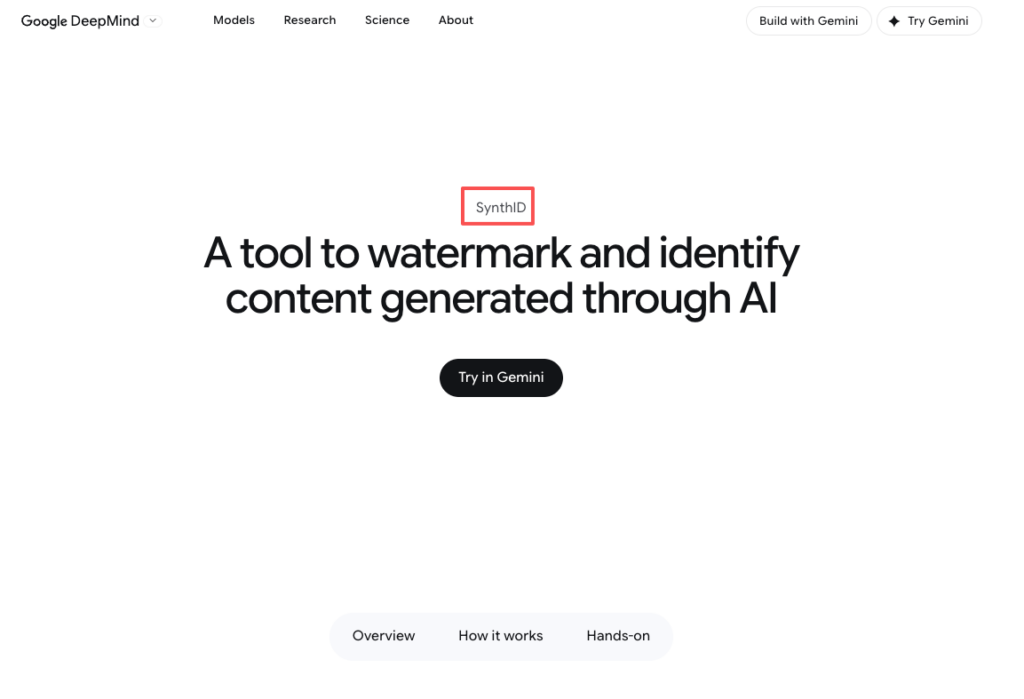
Does it analyze my video to generate the music? No. This is the most important thing to understand about this feature. Lyria 3 Pro in Vids is text prompt-driven. It does not watch your video or read your timeline. The music it generates is based entirely on what you describe. One thing worth noting alongside this: all Lyria-generated tracks carry an inaudible SynthID watermark embedded by Google DeepMind, which means the AI origin of the audio remains detectable — relevant if you’re publishing to platforms that check for AI-generated content.
Selecting a tool before you’re clear on what you actually need from it — that’s the fastest way to waste an afternoon.
Lyria 3 Pro in Google Vids is a real, useful feature for a specific kind of work: Workspace-based video content, internal communication, presentations, training material. If that’s your primary context, it will save you time with minimal friction.
The honest gap is this: it doesn’t close the distance between “AI-generated music” and “music that actually fits this specific video.” It gives you good-enough music fast, as long as you can describe what you want in a text box. If your edit needs music that reads the video — that matches your cut’s pace, its emotional turns, its actual running time — you’re still going to feel the mismatch.
That problem is still unsolved in most AI music tools. Prompt-writing skill is one thing; video-aware generation is another.
This time, I ran three real projects through Lyria 3 Pro in Vids and mapped exactly where it works and where it doesn’t — you can take that breakdown straight into your next project decision.
What’s your current setup for video background music? And more specifically: are you more stuck on finding the right sound, or on making the music actually fit the edit? I’m curious which part of that workflow is still costing people the most time.
Recommended Reads