Inspiration
Mubert AI Review for Video Soundtracks
- Written by
- Sonilo Team
- Published

The picture is locked, the voiceover stays, and the music still has to find a place between them. That is a more useful starting point for a Mubert AI review than asking whether its tracks sound good in isolation. Mubert Render offers text- and image-led music generation, duration controls on paid plans, and editing options. The harder question is how much of that control survives contact with your actual cut.
This is an editorial assessment of Mubert’s public Render pages, pricing, API documentation, and licensing terms, checked September 29, 2026.
Quick Verdict for Video Creators
Mubert Render is worth considering when your video needs a steady instrumental bed and you would rather specify a mood and approximate length than compose from scratch. Its published controls also give paid users ways to revise a track instead of starting every request from zero. They do not establish that a generated phrase will land on a cut or leave enough room for speech.

For a narration-heavy video, check whether the track reaches the final frame without an awkward cut. Listen through the busiest spoken passage. Then see whether a revision can preserve the approved version. If your brief needs a rise at a reveal, budget for timeline editing even when the duration matches.
What Mubert Is Designed to Generate
Mubert Render’s current creation screen accepts a text description or an image and lets you choose a track type. It also surfaces moods, genres, BPM, instruments, and curated playlists. That makes sense for background music: you can ask for restrained electronic motion, then compare it with a softer playlist direction before committing to an export.
The Render screen does not document direct video upload or automatic reading of your cuts. If you feed it a still frame, the image is a musical prompt, not a map of changing scenes. A travel montage may need a turn halfway through; one image cannot describe when. Mark those moments before generating.

Render’s public controls can help find an atmosphere. Composing to picture remains a different job.
Fit One Track to a Locked Video Cut
Start with a video that will not change during selection. Mark the first spoken word, the largest visual change, and the last frame. You need those landmarks to judge the music; a pleasant standalone preview tells you little about its behavior under the cut.
Set the Mood and Target Duration
Describe the role of the cue rather than naming only a genre: “quiet pulse under a product explanation, gentle lift at the reveal, no dominant lead.” Keep a copy of the brief. If a result misses, changing one musical variable is more informative than rewriting the whole request.
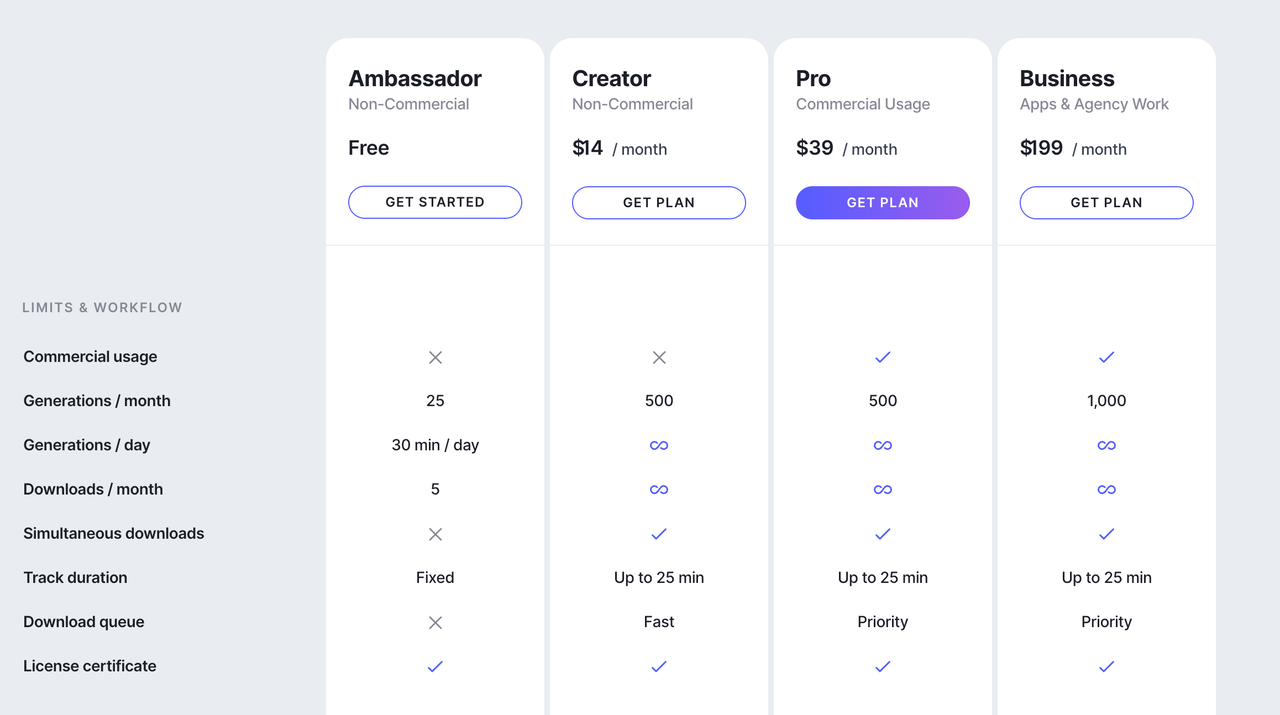
Duration control depends on your plan. Mubert’s current pricing table lists fixed duration for the free Ambassador tier and custom duration, up to 25 minutes, for paid tiers. That is an input control, not proof of a clean ending at your exact last frame. A cymbal decay can outlive the picture; a phrase can resolve before the title card. Both still require a listen in the editor.
Check the Music Under Voiceover
Play the densest spoken passage first, at a realistic mix level. If the lead melody fights consonants, simply pulling down the fader may erase the cue’s energy without solving the arrangement. Try a less busy direction or a different generated track before building an elaborate ducking curve around an unsuitable bed.
Then listen to a quiet gap. A track that disappears under speech can suddenly feel oversized when the narrator pauses.
Move the Track Into the Editor
Download the permitted format, place the file under the locked cut, and check three joins: entry, biggest scene change, and ending. The current plan comparison lists MP3 quality for Free and lossless quality for paid plans; verify the available MP3/WAV export choices in your account. It does not promise a separate file for every instrument in the ordinary download. Verify the actual export options in your account before promising stems to another editor.
Leave room for a fade. If the scene change lands between phrases, move the cue or revisit the generation. Do not force the picture to follow a background track.
Evaluate Three Soundtrack Needs
Save the locked cut, brief, candidate files, and edits needed to make one usable. The approved video export is the finish line.
Duration Fit
Record the requested and exported durations, then check the last phrase. Does it resolve, fade naturally, or need a cut? A loop may suit a long ambience bed; a branded sign-off needs a deliberate ending.

Background-Music Consistency
Listen at the same voiceover level for every candidate. A cue that changes intensity during a key explanation may be musically interesting and editorially unhelpful. Mark each moment that needs level automation, a section cut, or another generation. The best soundtrack is not necessarily the most dramatic file; it is the one that lets viewers hear the point of the video.
Revision and Version Handoff
The next editor should know which file made the cut. Name exports by brief and version, and keep the license certificate beside them. Keep the approved original while testing revisions.
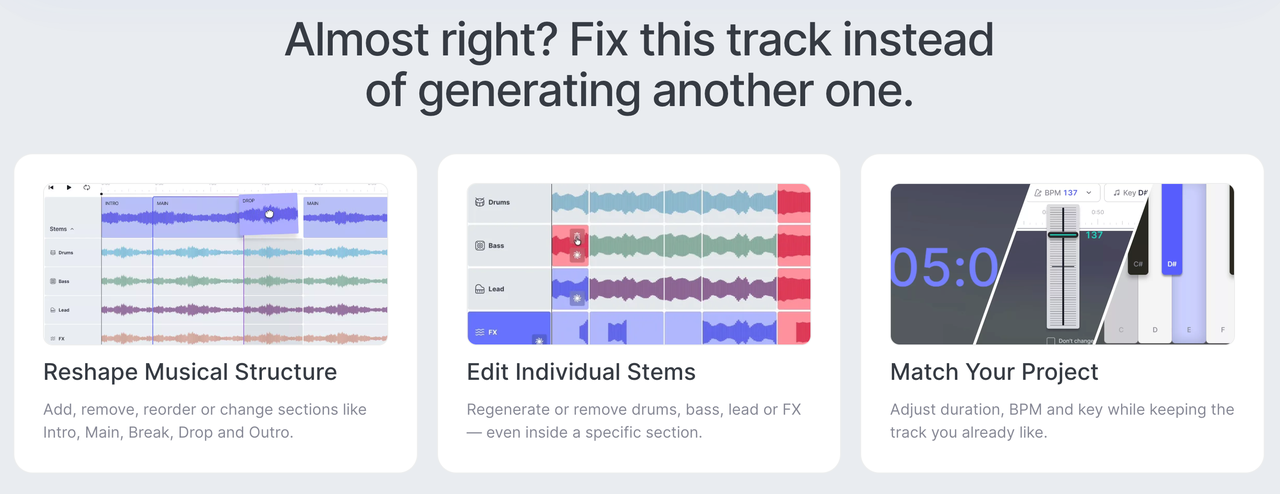
Mubert’s Track Editor says edits are generative: you choose changes, render a new version, and the original remains. Its pricing FAQ places the full editor on Pro and Business, while Quick Remix and some duration controls vary by plan. That is useful for version safety, but it is not live trimming inside your video editor. A new render still has to be checked against the picture and speech.
Current Download and Licensing Considerations
Before you download for publication, settle the use case: personal post, monetized channel, boosted social post, digital ad, or client delivery.As checked September 29, 2026, Mubert’s pricing page labels Creator “Non-Commercial” and says monetization needs Pro or Business. Its subscription license agreement, however, says the Creator License permits monetized social posts and boosted posts. Mubert’s Render FAQ treats boosted posts as Creator use but points monetization to Pro or Business. These official descriptions do not fully align. Do not treat this article as resolving the conflict; ask Mubert to confirm your intended use in writing before publishing a monetized or client project.

The free Ambassador path also carries attribution and non-commercial limits. Mubert’s pricing page bars standalone resale, streaming-platform release, and Content ID registration. Its subscription agreement draws a separate line around client work and sublicensing. A “royalty-free” label does not erase these conditions or prevent every automated claim. Mubert’s own pricing FAQ acknowledges possible false-positive claims and points to the track’s license certificate.
Keep the certificate, the plan and terms version, the export, and the finished video together. The useful question at handoff is not “Was it royalty-free?” but “Did this plan cover this video, on these channels, for this client?” This is general publishing information, not legal advice. Recheck the live terms and get qualified advice when the rights decision carries material risk.
Who Mubert Fits—and Who It Does Not
For a Vlog or long-form explainer needing an even bed, Render’s text, image, and mood inputs offer a plausible starting place. Paid duration control and revision may reduce blind searches. This is an inference from documented controls, not a listening-test result.

It is a less obvious fit for a trailer built around precise hits or an edit that changes daily. Someone must place each turn and recheck the mix. Render’s public page does not promise automatic matching to several picture events.
Limitations and Trade-Offs
The biggest trade-off is the gap between specifying a duration and finishing a cue. Mubert can offer timing and editing controls, while the editor remains responsible for the moment a narrator stops, a title appears, or a scene turns. More options in Track Editor may save a fresh search, yet each remix creates another version to audition and manage.
Conclusion
For this Mubert AI review, the fairest answer is conditional. Render has documented ways to generate and reshape background music, especially when the brief is about mood and length. It has not, in this review, proved that a cue will land on your scene change or behave under your narrator. That decision belongs to a file under the final picture.
Sonilo publishes this article and offers a different starting point: music generated from the video itself. That may be worth exploring when describing every cut in a text prompt has become the slowest part of the job. It is an option, not a measured winner here. Whichever route you choose, the last listen should be to the exported video, not the music tab.
FAQ
Can Mubert remove an uploaded image after track generation?
I could not verify a Render control that deletes only the source image after generation. Mubert’s privacy policy discusses user-data access and deletion, but it does not explain image-by-image removal from a generated track’s history. Avoid uploading client images until you have permission, and ask Mubert support what is retained and how a specific upload can be removed.
Can collaborators preview a Mubert track without an account?
Mubert’s public Render pages do not document an account-free guest-review link for generated tracks. For a client review, share a permitted video preview with the cue under the picture, rather than assuming a raw track URL grants listening or reuse rights. Confirm the applicable license before sending downloadable audio outside your team.
Does Mubert expose project history through its official API?
Not as a documented Render project-history endpoint. The Mubert API documentation describes listing tracks and retrieving an individual track, including generation data. That can identify audio outputs. It does not establish access to Render’s editorial approvals, saved video cuts, or complete project history.
Does Mubert publish a status page for generation outages?
I could not verify a Mubert-operated public incident page in the official links reviewed on September 29, 2026. That does not prove one does not exist. If generation stalls, check Mubert’s announcements and contact support. Keep the request and track ID so they can trace the issue.
What remains accessible after a Mubert subscription ends?
Mubert’s pricing FAQ says previously published projects may remain online under their existing license. It says old tracks cannot enter new projects after cancellation. This does not promise continued access to every account file or editing feature. Download the permitted track, certificate, and project notes before a plan change, then confirm account-retention details with Mubert.