Guides
DJI Osmo Music Workflow: Add an AI Soundtrack
- Written by
- Sonilo Team
- Published
Osmo footage often brings part of its soundtrack with it: tires on gravel, footsteps through a station, waves under a travel shot, or a quick line to camera. Cover those sounds too early and the video can lose the place where it was filmed.
A useful DJI Osmo music workflow starts with those moments, not a genre menu. Finish the visual story, decide which recorded sounds deserve to stay, then build music around the cut. The exact route depends on whether you edit in DJI Mimo, use DJI-recommended LightCut, or move the footage into another editor.
Reviewed September 2, 2026. App features and device support can vary by model, operating system, region, and release. Check the current official pages for your setup before publishing.
Choose the Right Route for Your Osmo Footage
Edit in DJI Mimo or LightCut
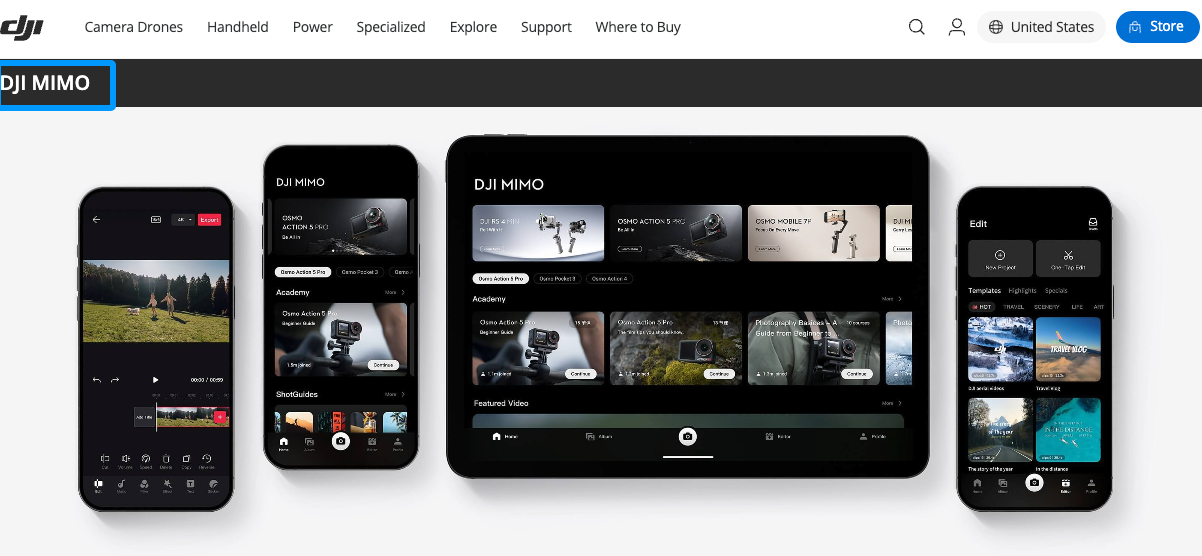
DJI Mimo connects with supported Osmo Pocket, Osmo Action, and Osmo Mobile products. DJI lists templates, transitions, subtitles, speed changes, and export controls, but support is not identical across devices. Confirm the feature after connecting your model.
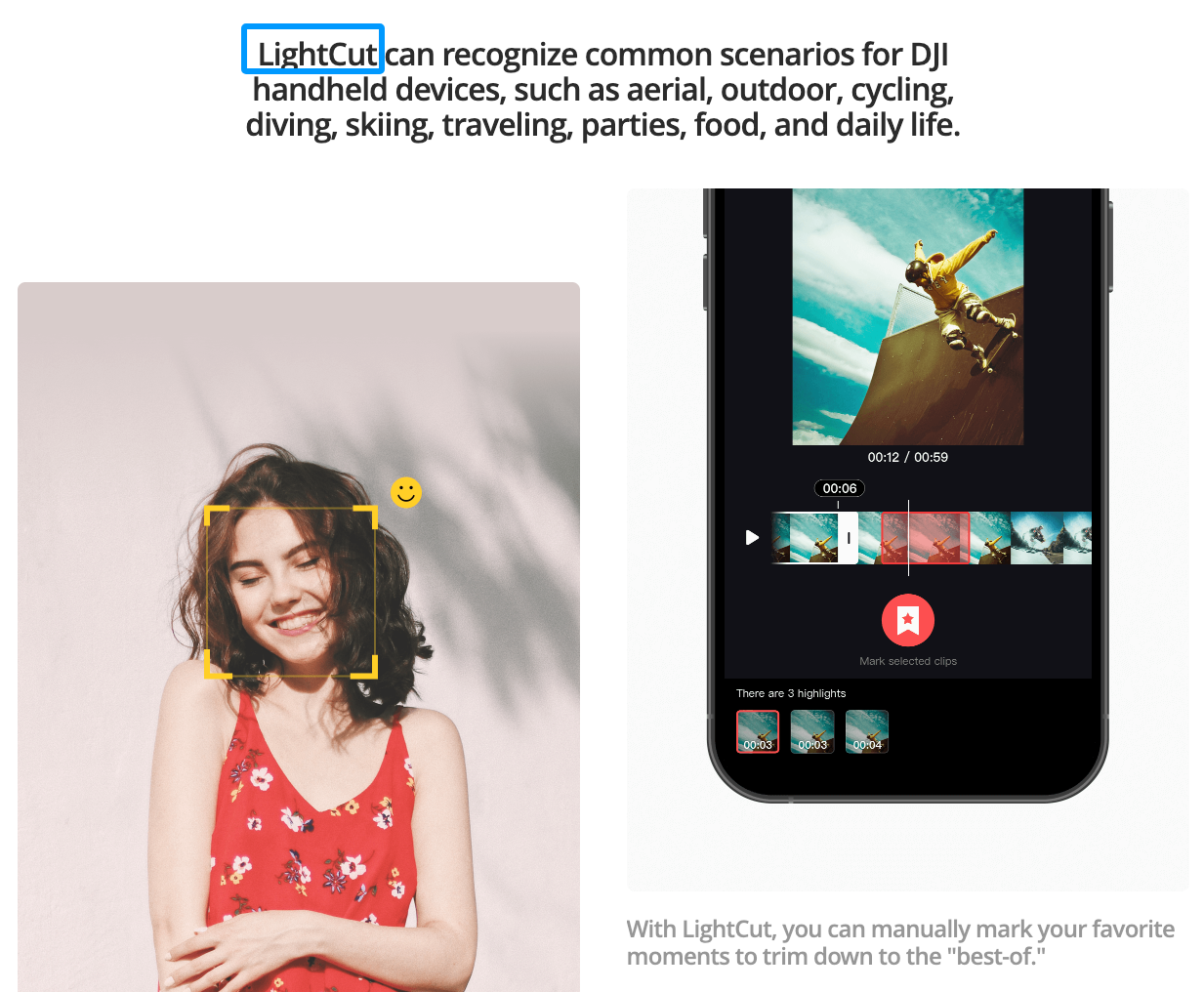
LightCut is an app officially recommended by DJI. Its One-Tap Editing workflow selects highlights and recommends templates, including music and effects. That can be convenient for a quick Osmo vlog music edit, but a recommended template track is not the same as a custom score generated from the complete finished cut.
Export to a Desktop or Mobile Editor
Use another editor when the project needs several dialogue clips, separate ambience, detailed fades, or multiple soundtrack versions. Test a short sequence through the entire route, confirming that the app accepts the intended music file, preserves recorded sound, and exports correctly.
Lock the Video Before Generating Music
Select the Final Clips and Scene Order
Generate the final track only after the opening, major reveal, and ending stop moving. Build a reference cut in the final aspect ratio, then mark the first movement, location change, strongest action, main reaction, and last usable frame.
Keep Natural Sound and Dialogue in the Cut
Do not mute camera audio merely to clean the reference. A bicycle pass, splash, engine start, or spoken sentence shows where music should step back. Settle narration timing first, and choose which natural sounds will briefly take the foreground.
Generate a Soundtrack From the Finished Video
Match Energy to Action, Travel, or Talking-Head Footage
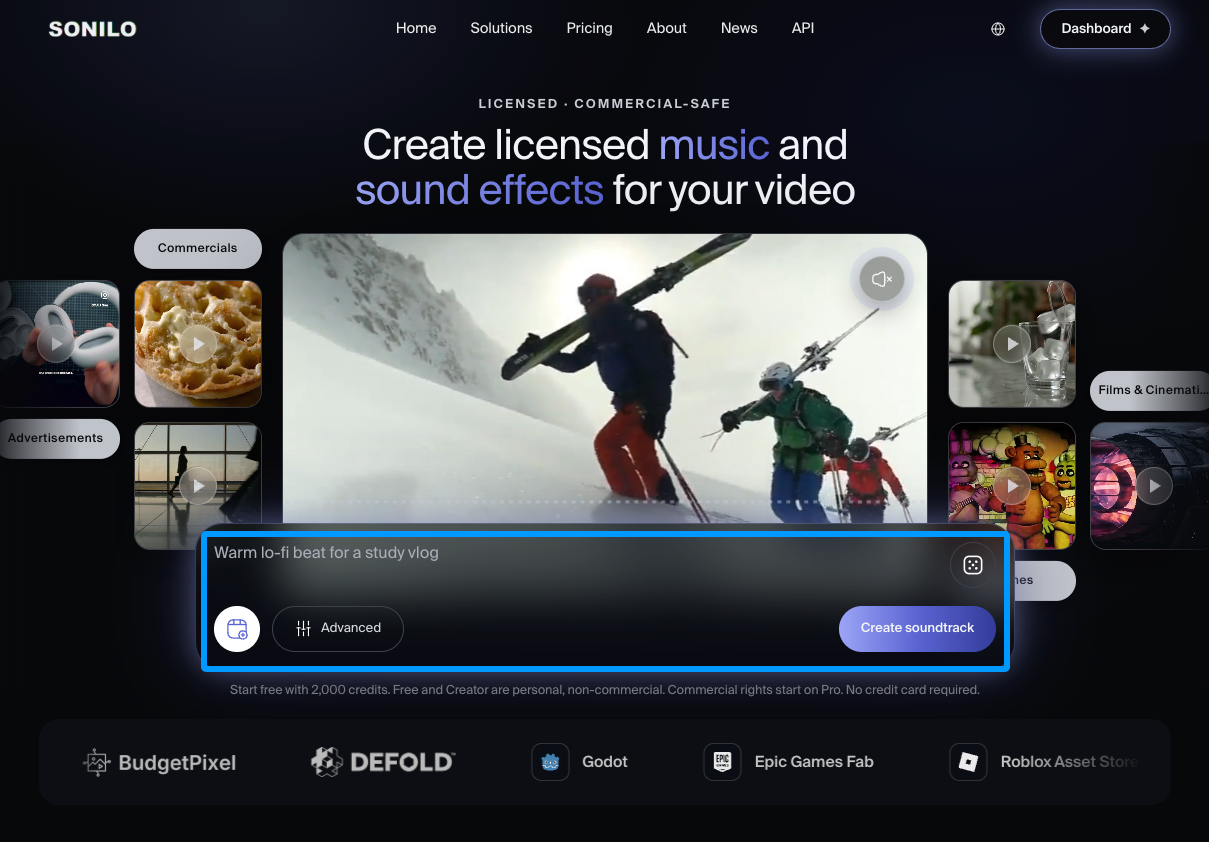
Send the locked reference cut to a separate video-first soundtrack tool. For example, Sonilo is independent of DJI, Mimo, and LightCut; there is no implied integration. Its current workflow accepts a video as context for generating music matched to the timeline.
Review the result in the scene, not as a standalone song. Fast action does not need a hit on every cut; travel footage needs room for location sound; talking-head footage needs a restrained arrangement.
Match the Track Length to the Final Cut
Correct duration is only the first test. The musical payoff should meet the strongest shot, and the ending should resolve rather than sound truncated. If it misses an anchor, revise the musical direction before altering a finished edit.
Add the Music and Finish the Mix
Align Changes With Key Moments
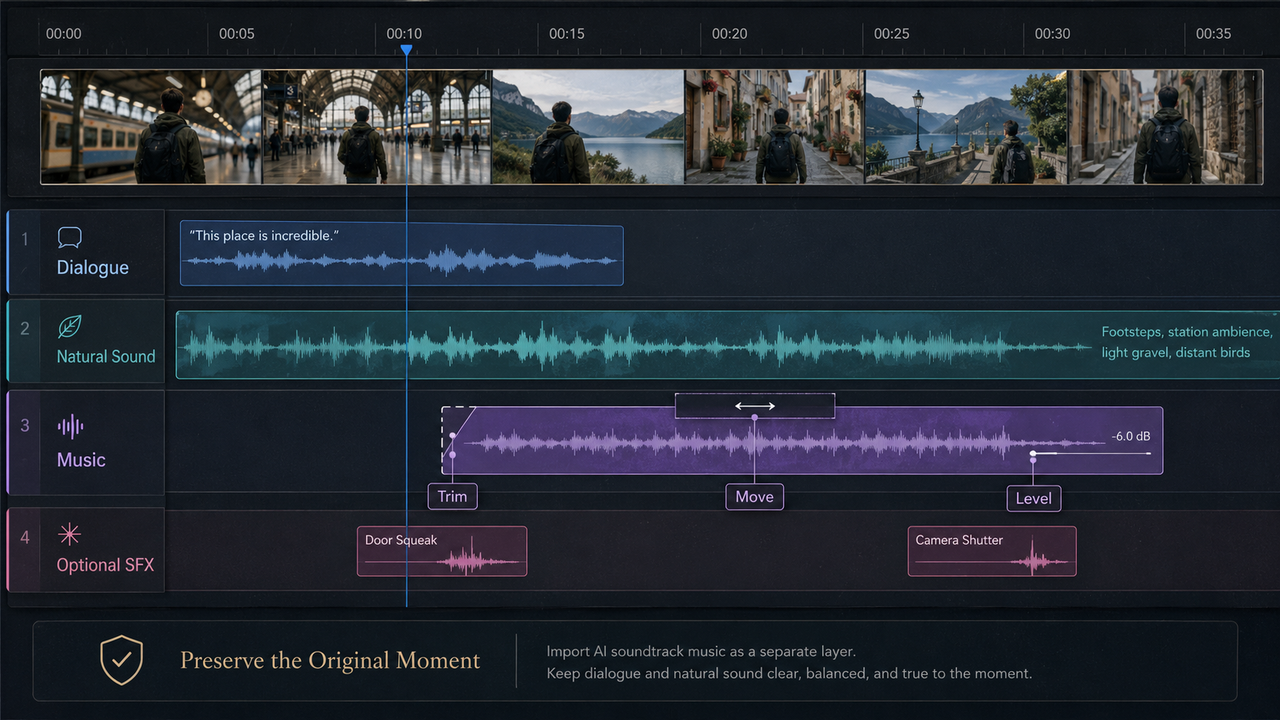
Import the soundtrack as a separate audio layer. Line up the opening, then inspect the marked visual anchors. Trim or move it only where the editor supports the change without damaging the musical phrase.
Not every camera move needs a beat. Let longer shots breathe, and use a musical transition for the few changes the viewer should feel most strongly.
Balance Music Against Speech and Ambient Sound
Set speech and essential natural sound first, then raise the music without masking detail. Duck it around dialogue and restore it through silent action.
Check the licensing terms attached to the selected music source and intended use before release. This is general workflow guidance, not legal advice; commercial permissions and platform rules can change.
Check the Final Export
Review Sync, Loudness, and Image Quality
Watch the exported file from beginning to end. Check that music changes still meet the intended shots, speech remains clear, natural sound survives, and the resolution, frame rate, and aspect ratio are correct.
Listen once through phone speakers and once through headphones. The phone pass exposes crowded dialogue; headphones reveal rough edits, noise, and fades that end too late.
Save a Clean Master and Separate Audio
Keep the final video, a clean picture master where practical, approved music, and separately recorded microphone audio. Note the editor version and approval date for later recuts.
FAQ
Which Osmo models support direct DJI Mic recording?
It depends on the Osmo model and microphone generation. Current DJI pages list direct transmitter connections for selected products, including Osmo Action 4, Osmo Action 5 Pro, and Osmo Pocket 3; transmitter counts vary. Osmo Mobile is a phone gimbal, not the recording camera. Check the exact camera, transmitter, and firmware combination.
Do Osmo slow-motion modes record usable sound?
Do not assume a slow-motion clip contains usable normal-speed audio. Behavior varies by model and mode. Record important ambience or dialogue separately and test the exact camera setting before the shoot.
Can DJI Mimo add a voice-over after the picture edit is locked?
DJI’s public Mimo page does not clearly document voice-over recording for every device and version. Check the installed app. If the control is absent, add narration in an editor with a separate voice track.
Does LightCut provide wind-noise reduction before music is added?
The reviewed LightCut page does not clearly promise a general wind-noise-reduction control. Confirm the current build, reduce wind at capture, and use a suitable audio editor if cleanup is required.
Does an Osmo camera create a separate audio file for an external microphone?
Not in every setup. Some DJI transmitters make an internal recording while the camera embeds received audio in the video. The separate file depends on the microphone, connection mode, and settings. Test and inspect both storage locations first.
Conclusion
The best AI soundtrack for Osmo video begins after the edit has decided what viewers need to see and hear. Choose the app route your device actually supports, keep useful location sound in the reference, generate against the locked duration, and judge the music inside the finished scene. That produces a more convincing result than treating every action clip as a blank surface for a loud track.
Related Posts
- Sonilo: AI Music for Video Creators
- Video Soundtrack Generator: Fit Music to Your Cut
- Vlog Background Music: How to Pick the Right Fit
- How to Add Music to CapCut and Keep the Edit Balanced
- How to Combine Video with Audio Without Sync Issues