Guides
How to Make a Video in Instagram with Music
- Written by
- Sonilo Team
- Published
Learning how to make a video in Instagram with music starts with one decision: should the soundtrack be added inside Instagram, or should it be part of the edited video you upload? The in-app route is faster; an external edit gives you more control over timing, narration, revisions, and source records.
Nico here. I make that choice before touching the music menu. Otherwise, it is easy to polish a soundtrack inside Instagram and then discover that the video still needs a new cut, a quieter voiceover section, or another version for a different account.
This is a production guide, not a Reels growth or algorithm guide. The Instagram Help Center route cited below is Reels-oriented, so the interface may refer to a reel even when your goal is simply to publish a video with music.
Choose Between In-App and External Editing
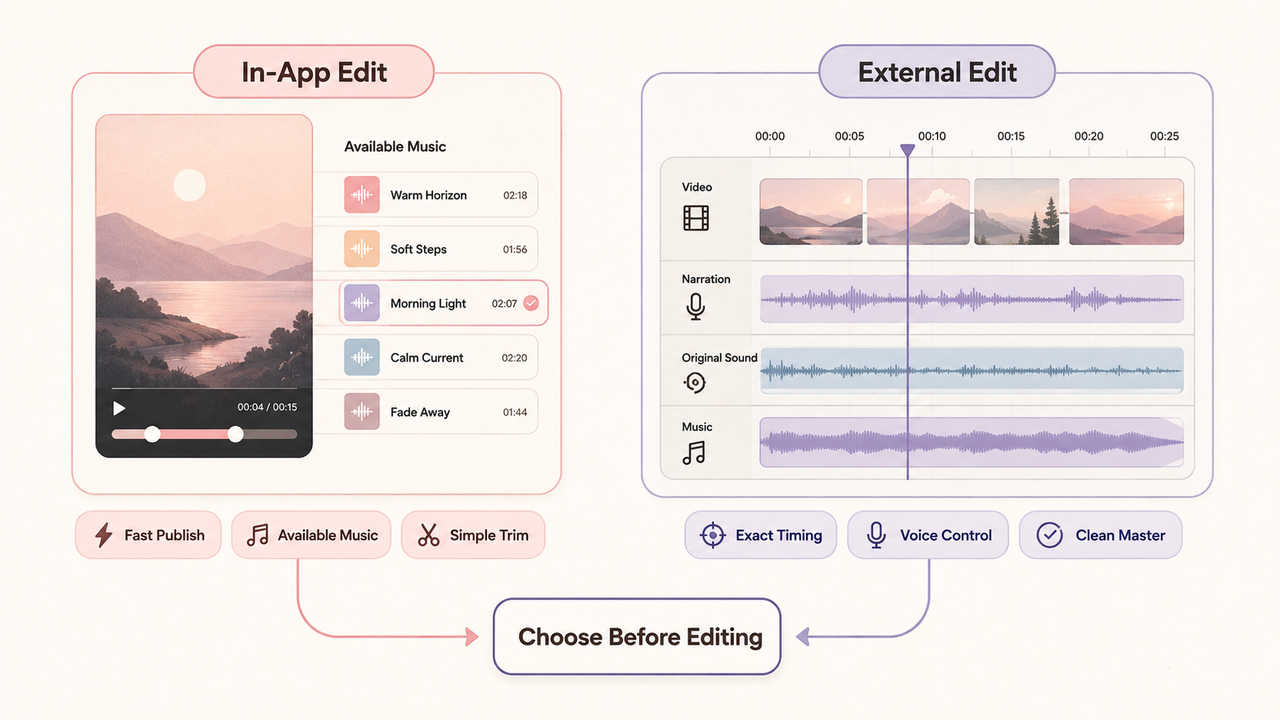
Use Instagram's in-app workflow when the edit is nearly finished and a track from the available library fits the post. It works well for a short personal clip that needs a recognizable mood more than detailed audio control.
Edit externally when the soundtrack needs to follow exact cuts, sit under narration, preserve location sound, or survive review. This route also makes it easier to keep a clean master and document where the audio came from.
Neither route is automatically better. If Instagram is the only deliverable, in-app editing may be enough. If the video could be revised, approved by a team, or republished elsewhere, I would keep the master outside the platform.
Create a Video with Music Inside Instagram
At the time of review, Instagram's Help Center describes music selection through its Reels creation workflow. Interface labels can move, so treat the steps below as the current route rather than a permanent map.
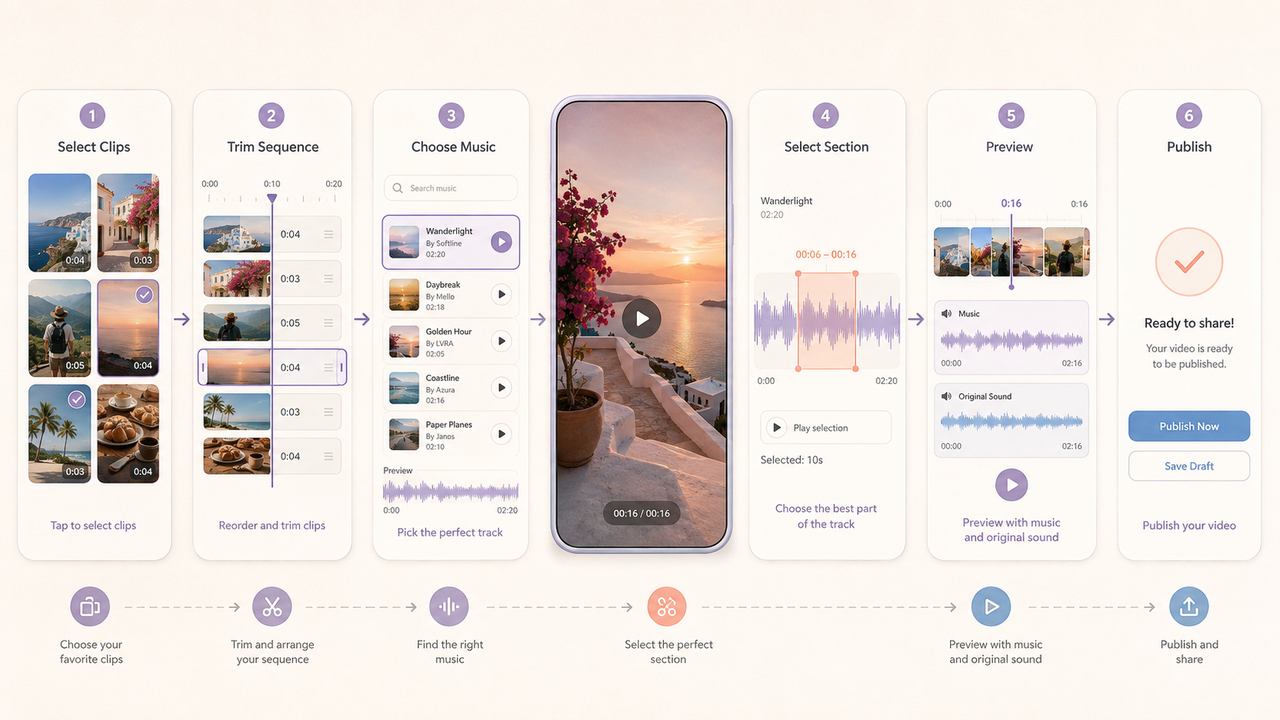
Select or Record the Clips
Open Instagram's creation flow, choose the video or Reels option available, then record footage or select clips from the device. Arrange and trim the sequence before choosing the final music section.
Watch the silent cut once. Mark the opening action, the most important visual change, and the intended final frame. Use those points to choose music instead of browsing until something feels vaguely energetic.
Keep spoken or useful environmental sound during this review. Muting everything hides where the soundtrack needs to leave space.
Choose and Trim Available Music
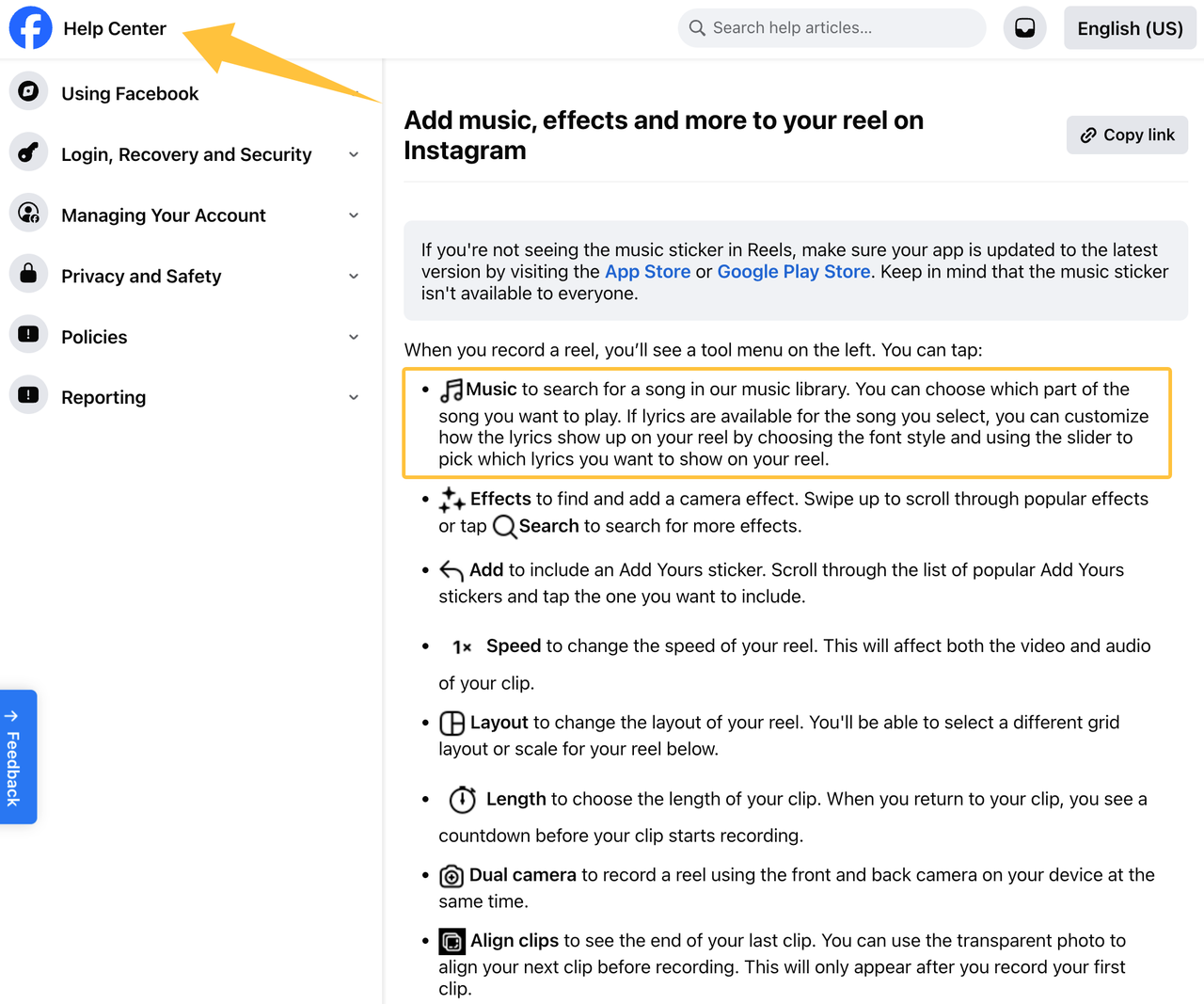
Use the Audio or Music control shown in the creation interface, search the available catalog, and select the part of the track you want. Instagram's current guidance for adding music to a reel says creators can search for a song and choose which section plays.
Choose the section by function, not familiarity. The opening should support the first image, a build can help a reveal, and the ending should sound intentional when the final image disappears.
Preview the complete post after trimming. If the music control or a track is missing, check the app version and account availability before rebuilding the edit around it. Instagram's current music-library guidance notes that music availability may vary by account, region, or feature access.
Prepare an Externally Edited Video
An external workflow begins with a nearly locked picture edit. Put the clips in order, trim the duration, place narration, and decide which original sounds matter before selecting or generating music.
If you already have a track, import it into the editor and cut it against the picture. Keep the untouched audio, edited music, and video master as separate assets for later level changes or recuts.
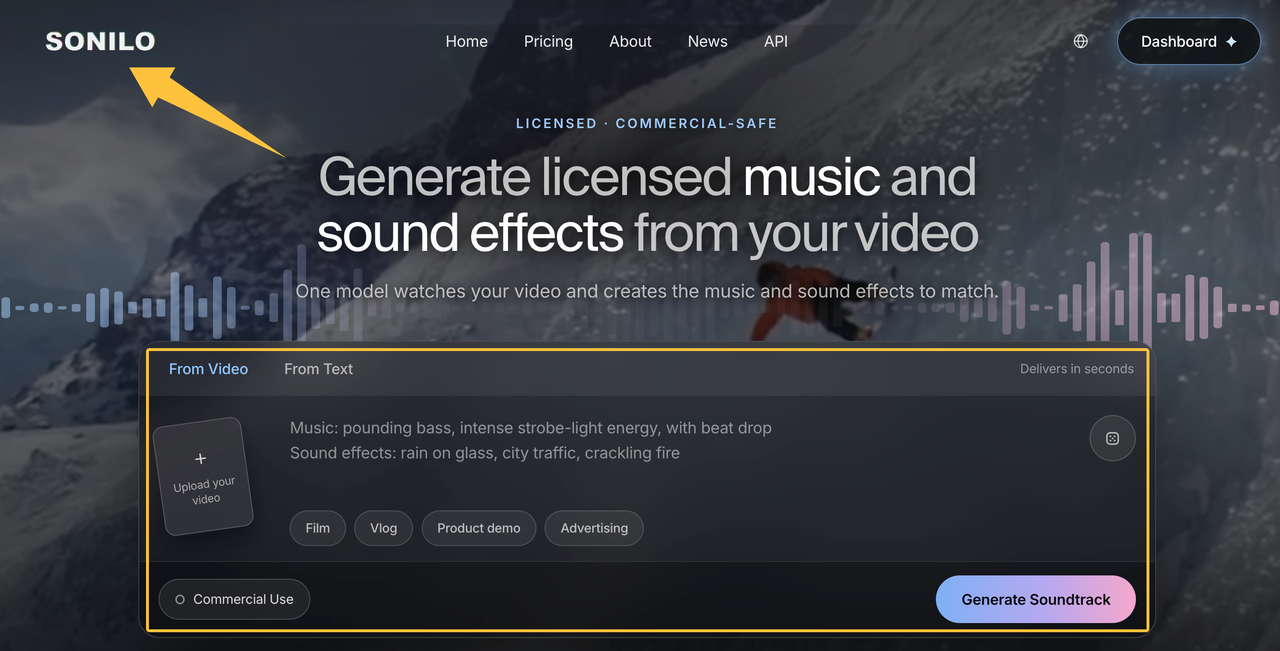
According to Sonilo's current product page, its external workflow is designed to generate music around a cut's duration, pacing, motion, and scene changes. Sonilo is not an Instagram feature: you review the generated options, confirm the applicable plan and use terms, export the result, and then upload the finished video to Instagram. Before uploading client, confidential, or unreleased footage, confirm that you have permission to submit it and review Sonilo's current Terms of Service and Privacy Policy, including how uploaded content may be processed and used.
Do not add a second library track inside Instagram without a specific purpose. Competing music beds create density rather than energy and make the source harder to document.
Sync the Music Section to Important Cuts
Good synchronization is selective. Mark visual moments that change meaning—a reveal, location shift, product action, reaction, or final frame—then listen for phrases, accents, transitions, and rests that can support them.
Align larger visual and musical changes. A phrase ending can support a transition, an accent can sharpen a reveal, and a thinner section can leave room for an explanation. Small cuts can move naturally without hitting every beat.
If the chosen section has the right mood but the wrong structure, replace it or return to the edit. Repeatedly slicing a track into tiny pieces can introduce abrupt changes and make a simple Instagram video feel overworked.
Check the last few seconds. A phrase ending, held note, or controlled fade feels more complete than music that stops only because the file ended. Give a text-heavy final image enough time for both message and soundtrack to resolve.
Balance Voice, Music, and Original Sound
Set the hierarchy before adjusting levels. If the video contains narration, the words lead. Music supports the pace, while original sound provides texture or information. If there is no speech, the relationship between music and environmental sound can be more equal.
Lowering the soundtrack is only the first fix when speech is unclear. Busy percussion, bright leads, vocal samples, and constant movement can still compete with a voice. A simpler section may work better.
Use original sound deliberately. Footsteps, a door closing, a crowd response, or packaging sounds can make the video feel present. Keep what adds meaning and remove distracting noise.
Review the mix through a phone speaker and headphones. Listen once without watching: if a word disappears or an edit creates an audible jump, the mix needs work. Then watch at low volume to confirm the story remains understandable.
Review Current Availability and Publishing Rules
Instagram music availability is conditional. Instagram's licensed music library guidance says the library is intended for personal, non-commercial use and that access may be restricted for certain business accounts, post types, or regions. Meta identifies its Sound Collection as an alternative for some commercial needs, but you should still check the current terms against the specific account and use.
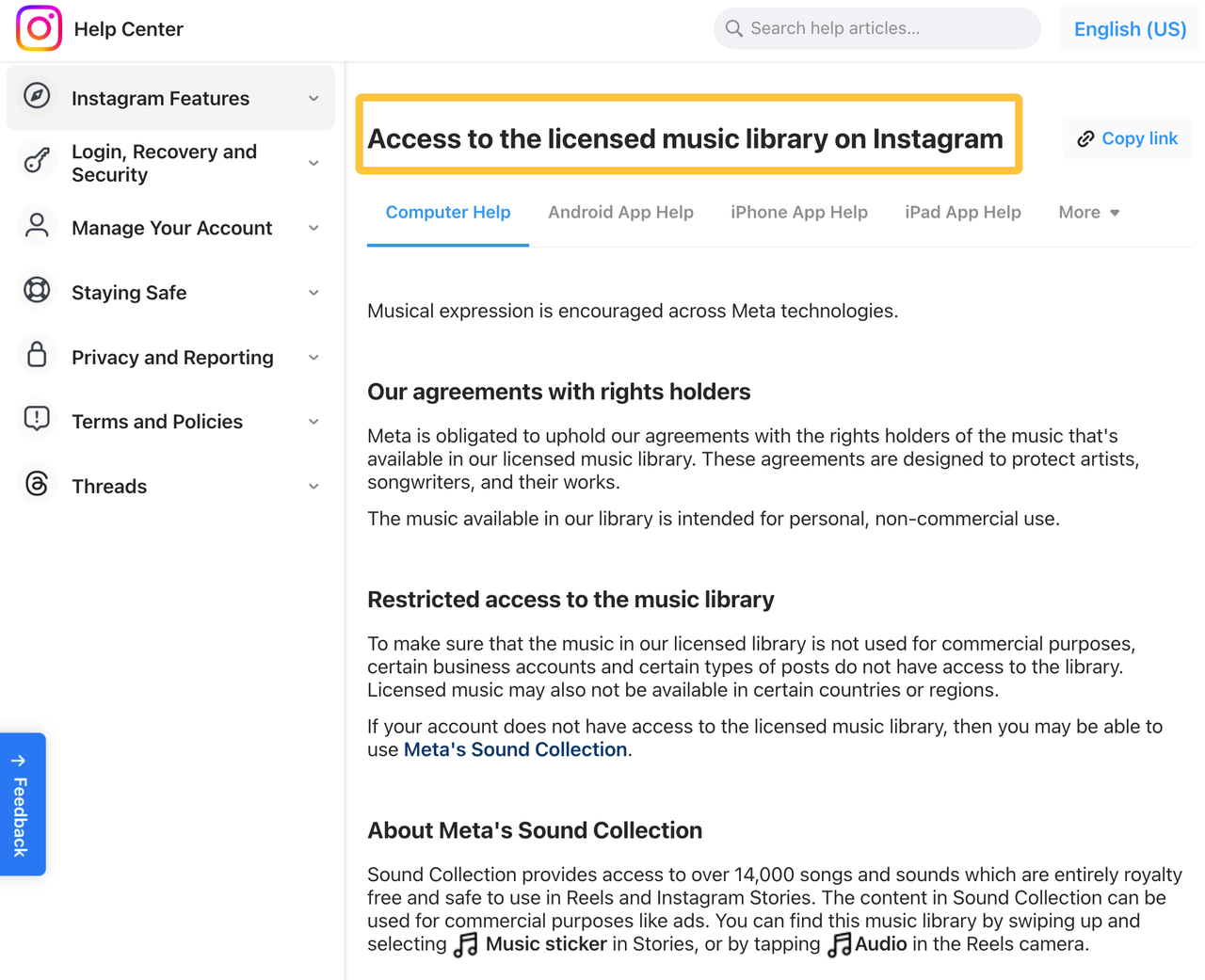
The source of the audio matters as much as the editing method. Instagram distinguishes between original audio, audio from another creator, and licensed audio from its library in its current explanation of audio available for reels. If you upload externally edited music, confirm that you have the necessary permission for the planned post, especially for branded, client, or paid distribution.
Music can also change after publication. According to Instagram's current guidance on audio available for reels, licensed audio may be muted in some cases when rights availability changes. Keep a clean video master, the music source, the edit version, the date of selection or generation, and any relevant license or plan record. These checks provide useful production evidence, but they are not legal advice; the current source terms and Instagram rules control the actual use.
Run one final release check from the account that will publish:
- Confirm the music or audio control is available on that account and device.
- Check the final timing, voice clarity, original sound, caption, cover, and ending.
- Confirm that the audio source permits the intended personal, business, client, or promotional use.
- Save the external master and source record before publishing.
- Review the uploaded preview instead of assuming it matches the editor export.
FAQ
Why can audio change after reposting?
A repost may be processed as a new upload and may not carry the same music association, regional availability, or audio treatment. Licensed tracks can also be muted if platform rights change. Review the repost from the destination account and keep an external master so the soundtrack can be restored or replaced without rebuilding the video.
Can drafts move between devices or accounts?
Instagram's official draft guidance says reel drafts are saved on the device and cannot be opened from another device, even after logging into the same account. Treat drafts as temporary working copies, not project storage. Save important source clips and external masters outside Instagram before changing devices or uninstalling the app.
What should be retained before replacing a post?
Keep the final exported video, a clean master without platform-added music, the caption, cover, source clips, soundtrack file or library details, and any relevant permission or license record. For team work, also save the approved version name and a screenshot or note showing what was originally published.
How should teams document the original audio source?
Record whether the audio was captured in the footage, selected from Instagram, licensed elsewhere, or generated through an external service. Add the track or asset name, creator or provider, source URL, account or plan, selection date, intended use, and associated edit version. Store that record beside the exported master so another editor can trace the decision later.
The cleanest workflow is the one you can still explain after the post is live. Decide where the soundtrack will be edited, make the music serve the cut, and preserve enough source information to revise the video without guessing.