Guides
How to Make Music Fade Out in iMovie Smoothly
- Written by
- Sonilo Team
- Published
To learn how to make music fade out in iMovie on Mac, move the pointer over the audio clip in the timeline and drag its ending fade handle toward the left. That creates the fade. Making it sound smooth depends on where the fade begins relative to the final scene, dialogue, and end card.
I treat the handle as the last adjustment. If the picture is still changing or the music lacks a closing phrase, a correct fade can still sound abrupt.
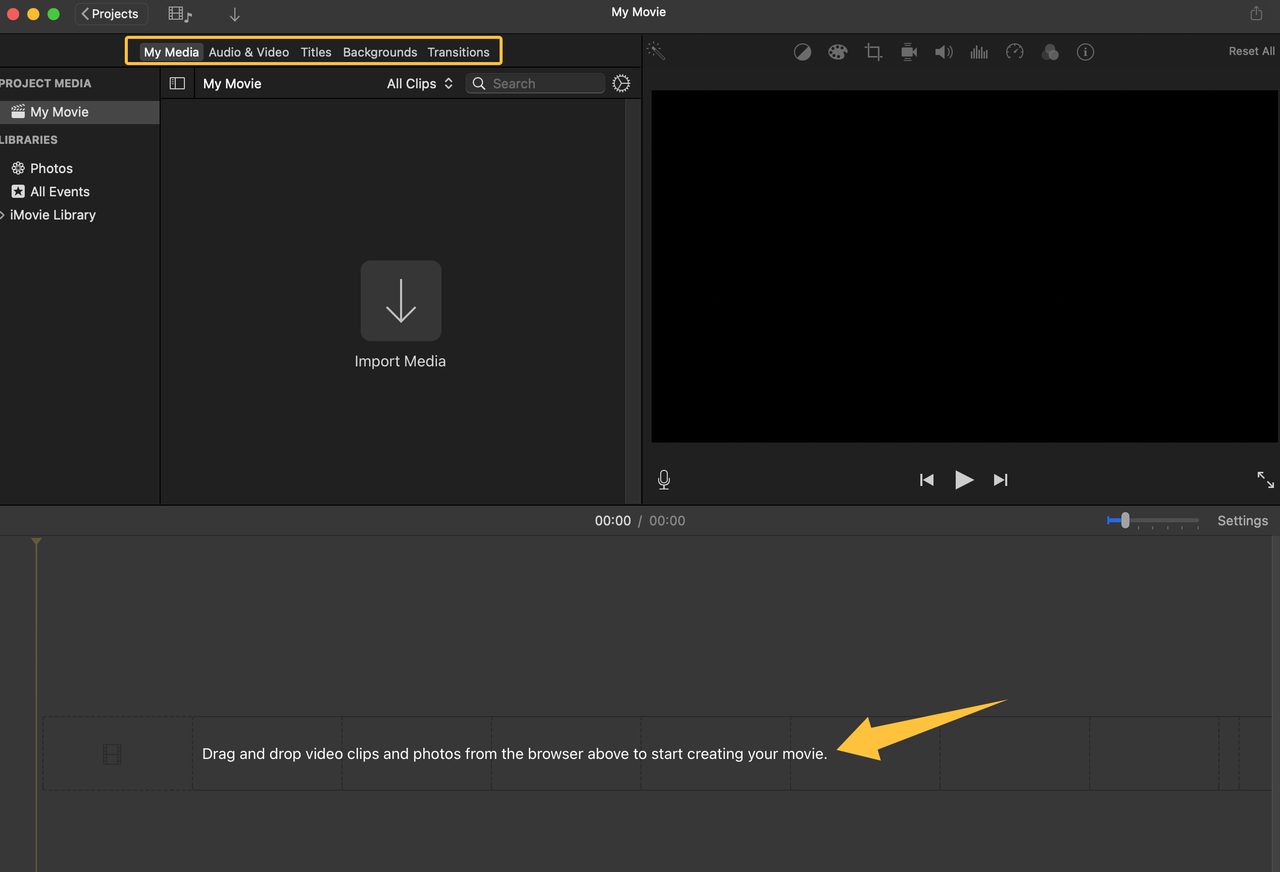
This guide assumes the music is already in the project and covers fades only—not the basic process for adding a track.
Why Music Can End Abruptly in iMovie
A track ends abruptly when its clip reaches the endpoint while the volume is still high. This often happens after an editor trims the music exactly to the movie duration but does not move the fade handle to match the new endpoint.
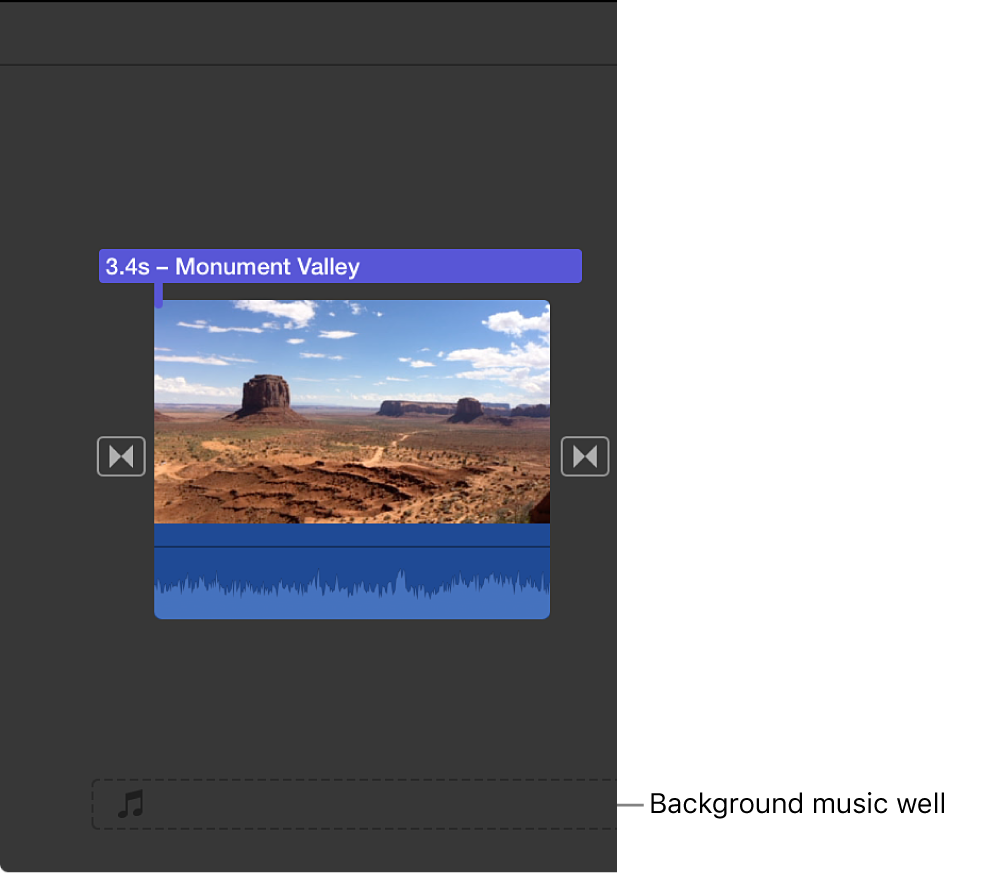
iMovie can also trim music automatically. Apple's current guide to adding music and sound clips in iMovie on Mac says audio placed in the background music well can be trimmed to the movie duration when “Trim background music” is enabled. That keeps the timelines aligned, but alignment alone does not create a musically satisfying ending.
The other cause is track fit. A sustained chord can tolerate a gradual reduction, while a busy chorus or an unfinished musical build may still feel interrupted after the volume reaches silence. The fade cannot invent a resolution that is missing from the source music.
Fade Music Out on Mac
The Mac workflow is direct: reveal the fade controls, then move the ending handle to set where the volume reduction begins. Do this after the picture duration is stable enough to judge the ending.
Locate the Fade Controls
In the timeline, move the pointer over the audio portion of the clip. Apple's current iMovie fade-audio instructions say this reveals the fade handles. Dragging the handle at the end of the clip creates the fade-out.
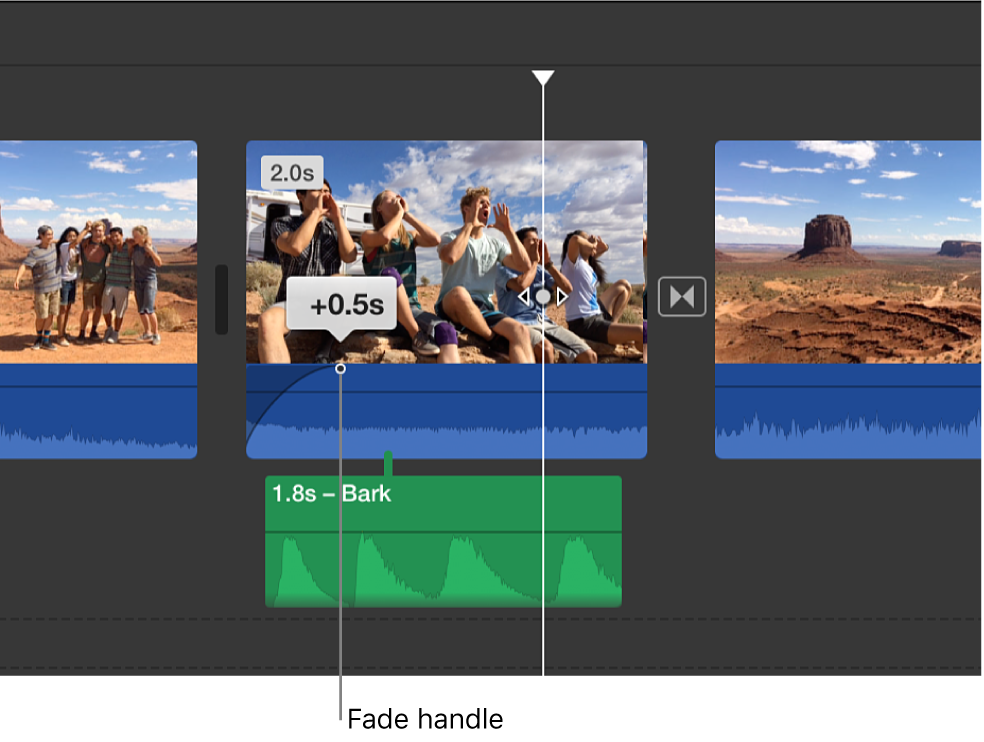
If the audio is difficult to read, open the timeline settings and turn on waveforms. Apple notes in its current volume-adjustment guidance that the waveform changes as volume is adjusted, making it easier to see both loud sections and the falling level near the end.
Zoom into the timeline before a fine adjustment. The control can be difficult to place when a long project is compressed into a narrow view.
Shape the Fade Around the Final Scene
Play from before the final scene, not only from the last frame. Drag the ending handle left until the volume begins falling at a point that supports the visual transition. Then listen through the final frame without moving the handle again.
There is no single fade duration that works for every video. A quiet piano ending, a dense electronic track, spoken dialogue, and a silent logo card all need different exits. Judge the fade by whether the music appears to finish with the scene, not by the width of the shaded area.
Avoid placing the fade start on an important musical accent unless you want that accent weakened. If the final visual change already has a strong hit, let it land first and use the fade to carry the remaining sound away.
Add a Music Fade-In
The same controls create an iMovie audio fade at the beginning. Move the pointer over the audio clip and drag the starting fade handle toward the right. Apple describes this as a fade-in from silence to full volume.
Use the opening picture to decide how quickly the music should arrive. A title that needs a calm entrance can support a more gradual build. A cold open with immediate action may need the music to become present sooner.
Do not add a long fade-in merely to mirror the ending. The opening and closing serve different story functions, so their fade shapes do not need to match.
Adapt Fades for Dialogue and End Cards
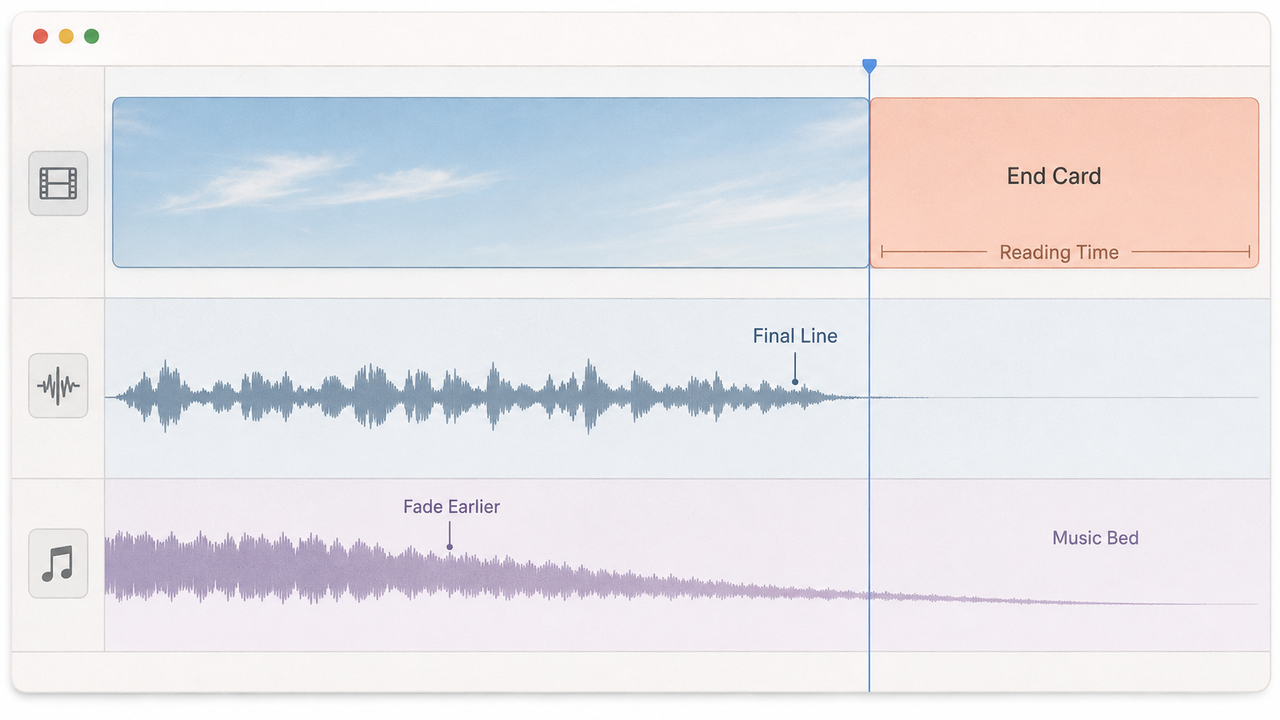
When dialogue continues into the final scene, speech remains the priority. Start the music reduction early enough to clear the last line, but do not assume that the music must reach silence before the speaker finishes. A low musical bed can carry the voice into the end card more naturally than an empty gap.
If the music is already competing with speech before the fade starts, lower the clip level first. A fade-out solves an ending; it is not a substitute for balancing the complete dialogue section.
For an end card, decide what the viewer needs to notice. A logo or short message may feel complete when the music resolves on the final frame. A card that requires reading time may work better when the music becomes quieter, holds briefly, and then disappears at the actual end.
Fix Fades After Trimming the Video
Treat every picture trim near the ending as a reason to recheck the fade. Apple's Mac trimming guide explains that dragging a clip edge changes its start or end point. When the movie or background-music endpoint changes, the old fade may begin too late, finish early, or become compressed into the remaining audio.
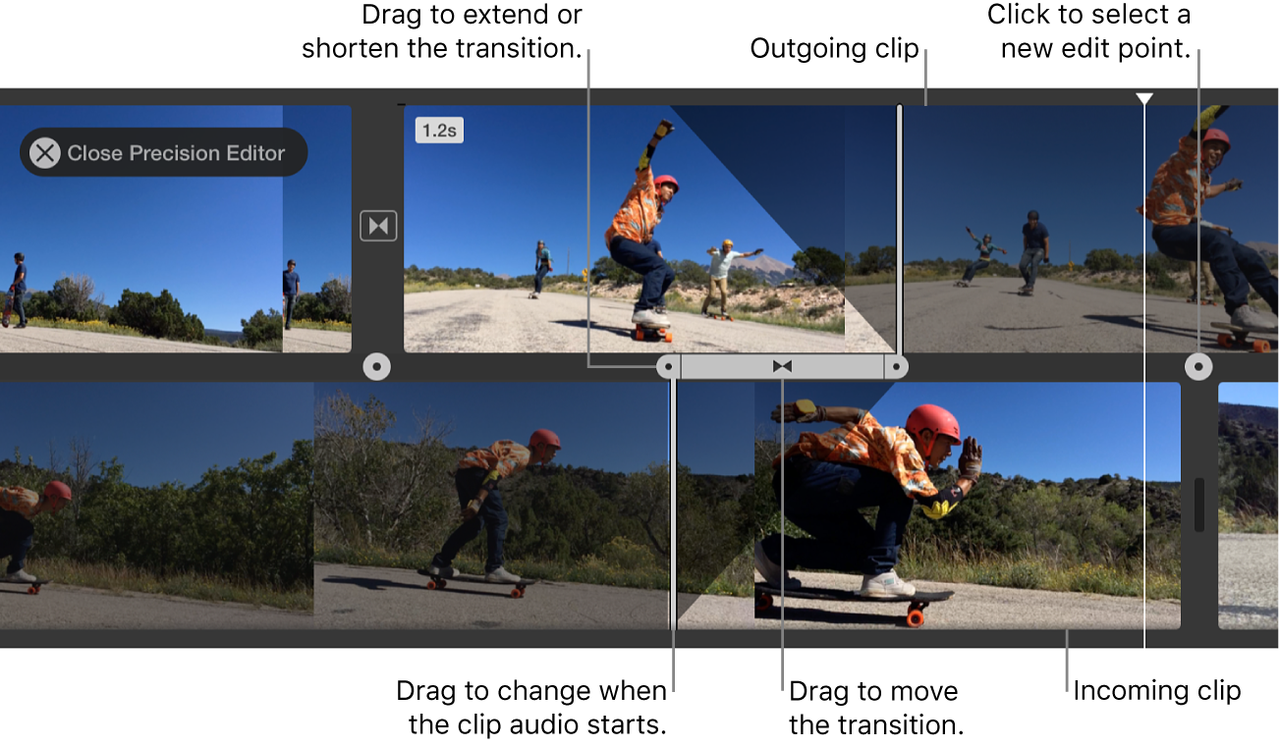
Use this repair order:
- Finish the latest picture trim.
- Confirm where the music clip now ends.
- Reveal the ending fade handle again.
- Reposition it while watching the final scene and listening to the music phrase.
- Check the transition into any dialogue or end card.
If the cut is locked but every fade removes the track's strongest moment or exposes an unfinished phrase, replace the music instead of stretching the handle farther. According to Sonilo's current product page, its external video-first workflow is designed to generate soundtrack options around a cut's duration, pacing, and scene changes. Review the result in iMovie and keep the fade decision in the edit. Before uploading client, confidential, or unreleased footage, confirm your input rights and review Sonilo's current Terms of Service and Privacy Policy.
Review the Exported File
Timeline playback is not the final check. Apple's current file-export instructions for iMovie on Mac route a finished project through File > Share > File and say the result opens in QuickTime Player after sharing completes.

Listen to the exported ending without watching the timeline. Check that the music does not stop sharply, disappear before the end card has registered, or compete with the final words. Then replay it through headphones and ordinary speakers at a comfortable listening level.
Keep the music source and confirm that its license covers the intended release. Being able to import a track into iMovie does not establish publishing rights; Apple's current music-import guidance tells editors using purchased music to hold the copyright or obtain permission from the copyright holder.
FAQ
Does fading alter the original audio file?
In a normal iMovie project, moving a fade handle changes how that clip plays in the timeline; it does not rewrite the separate source file you imported. The fade is included in the exported movie. Keep the original audio file so you can rebuild the edit or create a different fade later.
Why can fade controls disappear after a project transfer?
First confirm that you opened the same project and complete iMovie library, not only an exported movie file. An export is a finished video rather than an editable timeline. Before moving a project, Apple's project-media consolidation instructions provide a way to collect its source media into the open library.
Should editors retain an unfaded master?
Yes. Keep the original music file and, for important deliverables, a project version from before the final audio pass. An unfaded source gives the next editor enough material to rebuild the ending after a new end card, duration change, alternate aspect ratio, or client revision.
Who should recheck fades after picture changes?
The editor making the picture change should flag the audio impact, and the person responsible for the final export should perform the last playback check. If those roles belong to different people, record the new project version and note that the closing fade needs approval before delivery.
A smooth ending is not the longest fade or the most precise-looking handle. It is the point where the music, final image, and remaining speech all finish as one decision.