Guides
How to Make a Slideshow with Music That Flows
- Written by
- Sonilo Team
- Published

Learning how to make a slideshow with music is less about adding a track and more about controlling attention. The images need enough time to register, the sequence needs a reason to move forward, and the soundtrack should follow that structure without turning every slide into a beat hit. Slideshow and montage work still benefits from the same discipline: frame-accurate music for video edits should land lifts and resolves on the intended visual moments, not float independently of the cut.
Before auditioning any music, I would make one silent pass through the full sequence. If the images already create an opening, a sense of progression, and a clear ending, the soundtrack can strengthen that arc. If the order still feels random, dramatic music will only make the problem more obvious.
Disclosure: Sonilo publishes this guide and is the soundtrack-generation example discussed below. Its capabilities are described from current official pages rather than independent performance testing.
Plan the Slideshow Before Choosing Music
Start by defining what the slideshow is supposed to do. A family recap may be organized around shared moments. A portfolio may need to show range without losing visual consistency. An event sequence may need to move from arrival to activity to a final group moment.
Then collect the assets before opening the music library.
For a public, client, or commercial slideshow, confirm that you are authorized to use the selected photographs, portraits, logos, quotations, narration, and other supplied material. Possessing a copy of an image does not necessarily include permission to publish, modify, or upload it to another service.
Keep the highest-quality originals, remove obvious duplicates, and note which images must appear.
A simple planning map is enough:
| Sequence role | Image job | Timing clue | Music job |
|---|---|---|---|
| Opening | Establish the people, place, or subject | Give the viewer time to orient | Introduce the mood without peaking |
| Development | Add variety, movement, or context | Let similar images move as a group | Build energy or texture gradually |
| Key moment | Carry the emotional or informational payoff | Hold long enough for the moment to land | Support the emphasis without exaggerating it |
| Ending | Create closure | Leave a deliberate final pause | Resolve or fade naturally |
Choose an approximate total duration only after this map exists. Otherwise, you may pick a track first and start deleting useful images just to obey its structure.
Arrange Slides Around a Clear Story
A slideshow with music still needs visual logic. Chronological order is useful when time itself is the story, but it is not the only option. You can also arrange images by location, person, theme, color, increasing activity, or a question that the final slide answers.
Look for relationships between neighboring images. A wide exterior can lead into a room detail. A quiet portrait can lead into a group scene. Similar framing can create continuity, while a deliberate contrast can signal that the story has moved somewhere new.
Avoid long blocks of nearly identical photos. If five images communicate the same thing, choose the strongest one or create a short cluster with a clear purpose. Repetition should build meaning, not prove that more files were available.
Once the order is set, play the sequence silently. You should be able to feel where it begins, where it changes direction, and which image acts as the payoff. That visual structure becomes the brief for the music.
Set Screen Time for Different Images
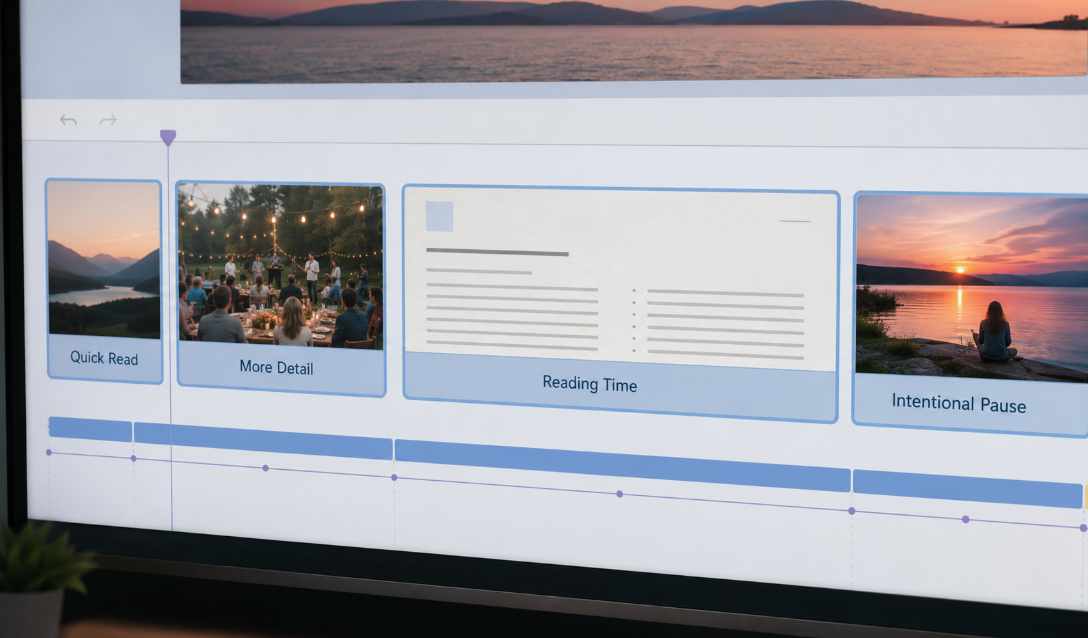
Good slideshow timing is based on how much the viewer needs to process. A simple landscape or familiar face may read quickly. A group photo, diagram, document, or image with important background detail needs longer. A slide with text needs enough time for a comfortable read, not merely enough time for the transition animation to finish.
Use the image itself as the timer. Ask how long it takes to notice the subject, understand the context, and find the detail that makes the slide worth including. Move on shortly after that point unless the image is carrying an intentional pause.
Varying screen time creates rhythm before music enters. Quick clusters can show activity or passage of time. Longer holds can mark a change, introduce a new chapter, or let an emotional image settle. When every slide lasts exactly the same amount of time, the sequence can feel automated even if the individual images are strong.
Choose Music That Supports the Sequence
Now audition photo slideshow music against the rough visual order. Start with the story function: warm reflection, quiet explanation, celebration, tension, discovery, or closure. Genre can help narrow the search, but it is less important than energy, arrangement density, and the shape of the track.
Listen for where the music changes. A useful slideshow soundtrack should have enough movement to support the sequence without demanding a new visual event every few seconds. Tracks with constant dramatic rises can make ordinary photos feel inflated. Tracks with no internal change may flatten a sequence that already has clear chapters.
If the slideshow includes narration, interviews, or spoken messages, choose music that leaves room for them. Sparse instrumentation and restrained melodic activity are often easier to place beneath speech than a memorable lead or vocal texture.
Check the music source before committing the edit to it. Record where the track came from, which plan or license applied, and which terms were reviewed for the intended audience and platform. “Royalty-free” by itself does not explain every permitted use.
Match Slide Changes to Musical Phrases
Do not place every slide change on a beat. It can work for a brief energetic cluster, but across a full slideshow it often becomes predictable and leaves the images no room to breathe.
Listen instead for musical phrases: the start of a melody, a chord change, a shift in percussion, a small pause, or the arrival of a new section. Align the important visual changes with those larger moments. Less important slides can move inside the phrase rather than waiting for its boundary.
The visual and musical importance should roughly agree. A major chorus or lift deserves a key image, a faster run, or a chapter change. If the music reaches its biggest moment under a transitional photo, either move the visual payoff, choose a different section of the track, or reconsider the music.
Add Captions Without Crowding the Soundtrack
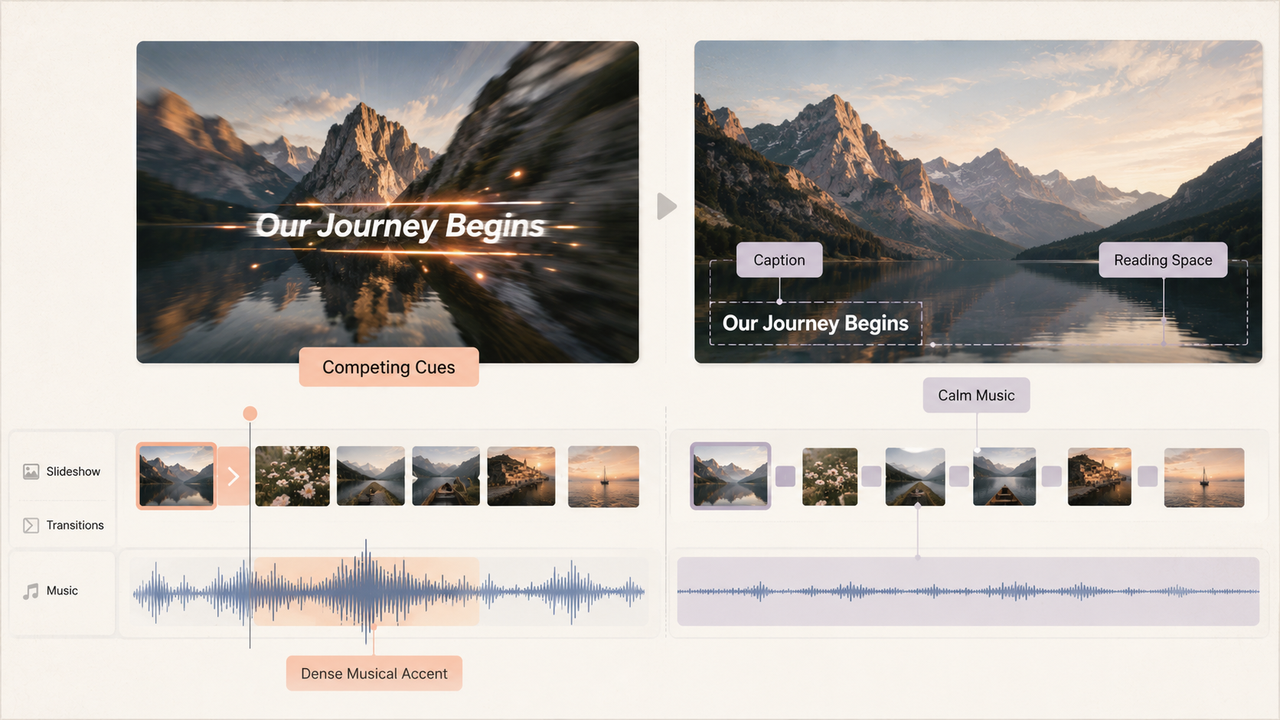
Captions change the pace because reading takes time. Keep each caption focused on information the image cannot communicate alone: a name, place, date, short context line, or quote. If the viewer has to read a paragraph, consider turning it into its own title card.
Place text consistently and check it against faces, bright areas, and mobile crops. A caption animation should not compete with an image transition or a major musical accent. When three things ask for attention at once, the viewer usually misses one.
Give text-heavy slides calmer musical space when possible. A busy fill or sudden lift can make reading feel rushed even without spoken narration. Let the soundtrack carry continuity while the caption provides the new information.
Build a Natural Final Slide and Ending
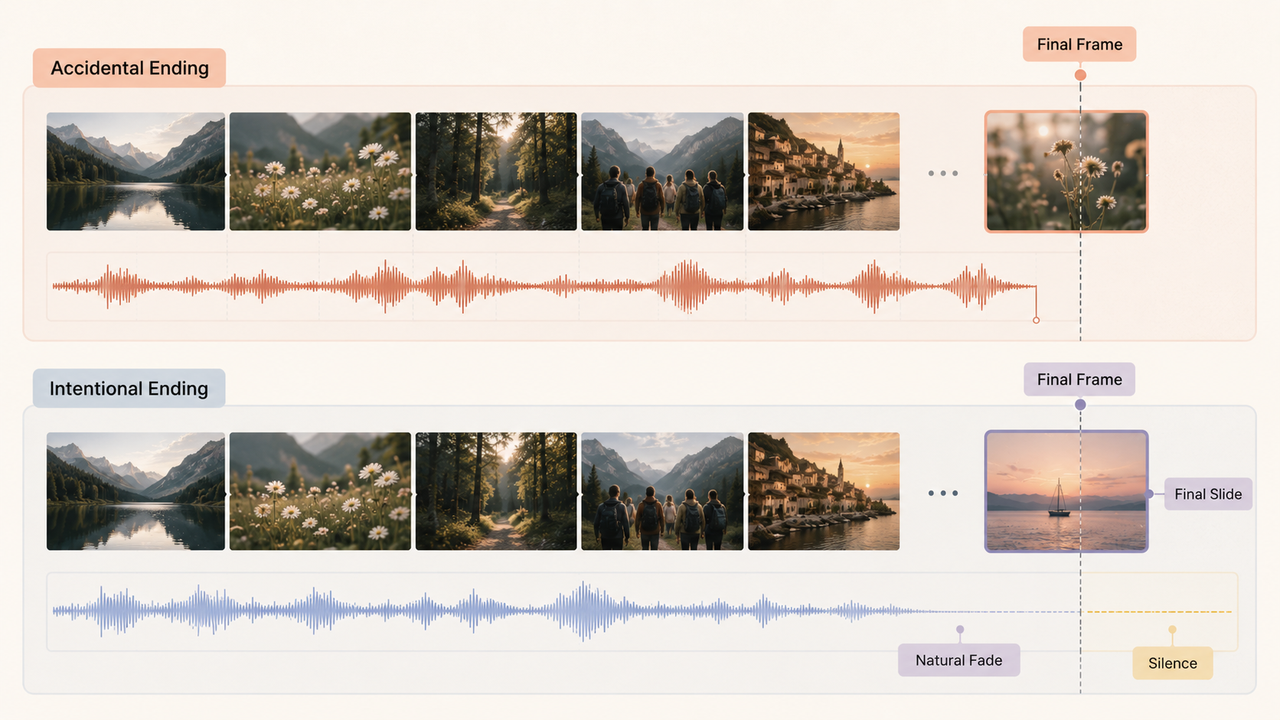
Choose the final image early enough to shape the approach to it. It might be the emotional payoff, a wide closing view, a simple thank-you, a logo, or a restrained credit slide. The last frame should close the specific story rather than merely display the final unused photo.
Then decide how the music should leave. It may resolve with the final image, fade beneath a held slide, or stop before a short moment of silence. An abrupt cut can work when it is intentional; an accidental cutoff sounds like the export ended before the music did.
Avoid covering a weak musical ending with extra transitions or unnecessary slides. If the track needs substantial repair to reach the final frame, test another edit, another section, or another soundtrack. The ending is part of the selection decision, not a cleanup task.
Review the Complete Slideshow Before Export
Watch the slideshow from beginning to end without touching the timeline. Mark the moments where you feel impatient, lose track of the story, struggle to read, or notice the music more than the image. Those reactions identify pacing problems more reliably than reviewing individual transitions in a loop.
Run a second pass focused on sound. Check narration clarity, sudden level changes, musical edits, the opening, and the final fade.
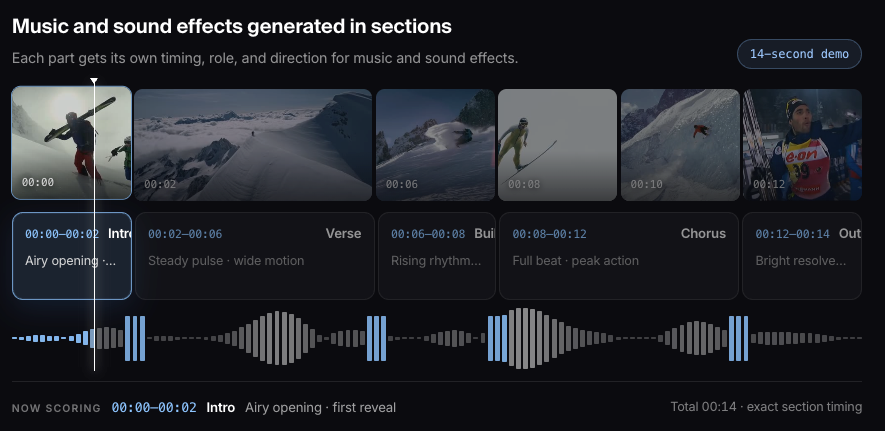
For a rough cut that already has its visual order, Sonilo’s current product page says its workflow is designed to generate music from an uploaded video and align it with cuts, pacing, reveals, and scene changes. This is Sonilo’s official product positioning rather than an independent performance result. Sonilo is a soundtrack option, not a slideshow editor: the slide order, captions, transitions, and final review still belong in your editing workflow.
Before publishing, review the current licensing information and Terms of Service for the applicable plan and intended use. Before uploading private family footage, client material, or an unreleased slideshow, confirm that you have permission and review the current Privacy Policy. Sonilo’s current terms grant broad, perpetual rights to process and use uploaded inputs, and its privacy policy states that uploaded content may be used for model training by default. Do not upload restricted or confidential material unless that use has been authorized or covered by an applicable written agreement.
Before export, save a clean project version and confirm resolution, aspect ratio, caption placement, audio levels, and ending behavior. One uninterrupted review after export is still necessary. The rendered file, not the timeline preview, is the deliverable.
FAQ
What Source Files Should Be Kept for Later Revisions?
Keep the original full-resolution images, selected edited versions, caption copy, soundtrack source file, music-use records, font names and applicable license records, logos, narration, and the editing project.
Save the final export and at least one clean project archive. Use stable filenames so a future editor can identify what was approved without reconstructing the slideshow from loose downloads. Do not redistribute font files unless the font license permits that transfer.
How Should a Slideshow Project Be Handed to Another Editor?
Create one organized package with the project file, linked media, font names, properly licensed font packages where redistribution is permitted, or documented substitutions, together with the soundtrack records, latest export, and a short readme.
Note the editing app and version, sequence settings, missing assets, pending approvals, and where music or caption changes may still occur. Open the transferred package once on another system before calling the handoff complete.
What Happens If the Editing App Is Discontinued?
Keep high-quality exports and interchange-friendly assets outside the application library. Preserve the original media, captions in a readable text format, audio as a standard file, and a reference export showing the intended timing.
If the app supports a project interchange or timeline export, archive that too, but do not assume one proprietary project file will remain usable indefinitely.
Who Should Verify Music-Use Terms Before Sharing?
Assign a named project owner to check the music provider’s current terms, the applicable plan or license, and the rules of the destination platform.
For client or commercially sensitive work, involve the person responsible for rights clearance and retain the supporting records. This is practical workflow guidance, not legal advice.
A slideshow flows when the images, reading time, and music agree about what matters next. Which part usually slows your edit down: arranging the photos, setting the timing, or finding an ending that feels natural?