Inspiration
SOUNDRAW AI Music Generator for Video Creators
- Written by
- Sonilo Team
- Published

A background track can match the requested mood and still create more work on the timeline. It may build before the visual reveal, fill every gap beneath the narration, or arrive at the final frame without a convincing ending.
That is the useful way to assess the SOUNDRAW AI music generator: not as a button that produces a finished score, but as a configurable music workflow whose output still has to prove itself inside the edit. This review focuses on the documented video-creator workflow rather than making an independent claim about sound quality.
SOUNDRAW product, plan, license, Terms, and privacy pages were reviewed on August 4, 2026. Features, account access, export formats, prices, and usage terms can change; verify the current pages for your account and intended release. The licensing discussion below is general information, not legal advice.
Disclosure: Sonilo publishes this guide and operates in AI soundtrack generation. This article evaluates SOUNDRAW's documented workflow without claiming an independent performance benchmark.
Quick Verdict: What SOUNDRAW Is Designed to Help Create

My quick verdict: SOUNDRAW is designed to help creators generate and customize background music from musical parameters, then shape the result for a project. Its current Creator page describes controls for mood, theme, and instruments, as well as a video-preview workflow that lets users upload a video and adjust track timing and beats.
That makes SOUNDRAW for video most relevant when you know the musical direction and want editable candidates without searching a fixed catalog. It does not mean each result will understand every cut, line, or reveal; fit still needs an editorial check.
How the SOUNDRAW Workflow Begins
The workflow starts with music direction rather than a completed video analysis: define the search space, generate options, and refine the closest candidate.
Choose the Initial Music Direction
Begin with the function of the soundtrack. Is it supposed to create forward motion, hold a quiet interview together, or give a product reveal a clean lift? Mood labels are more useful when they are connected to a scene job instead of treated as the entire brief.
SOUNDRAW's current pages describe controls including genre, mood, theme, tempo, length, energy, and instruments. Confirm what the current account shows rather than planning around an older tutorial.
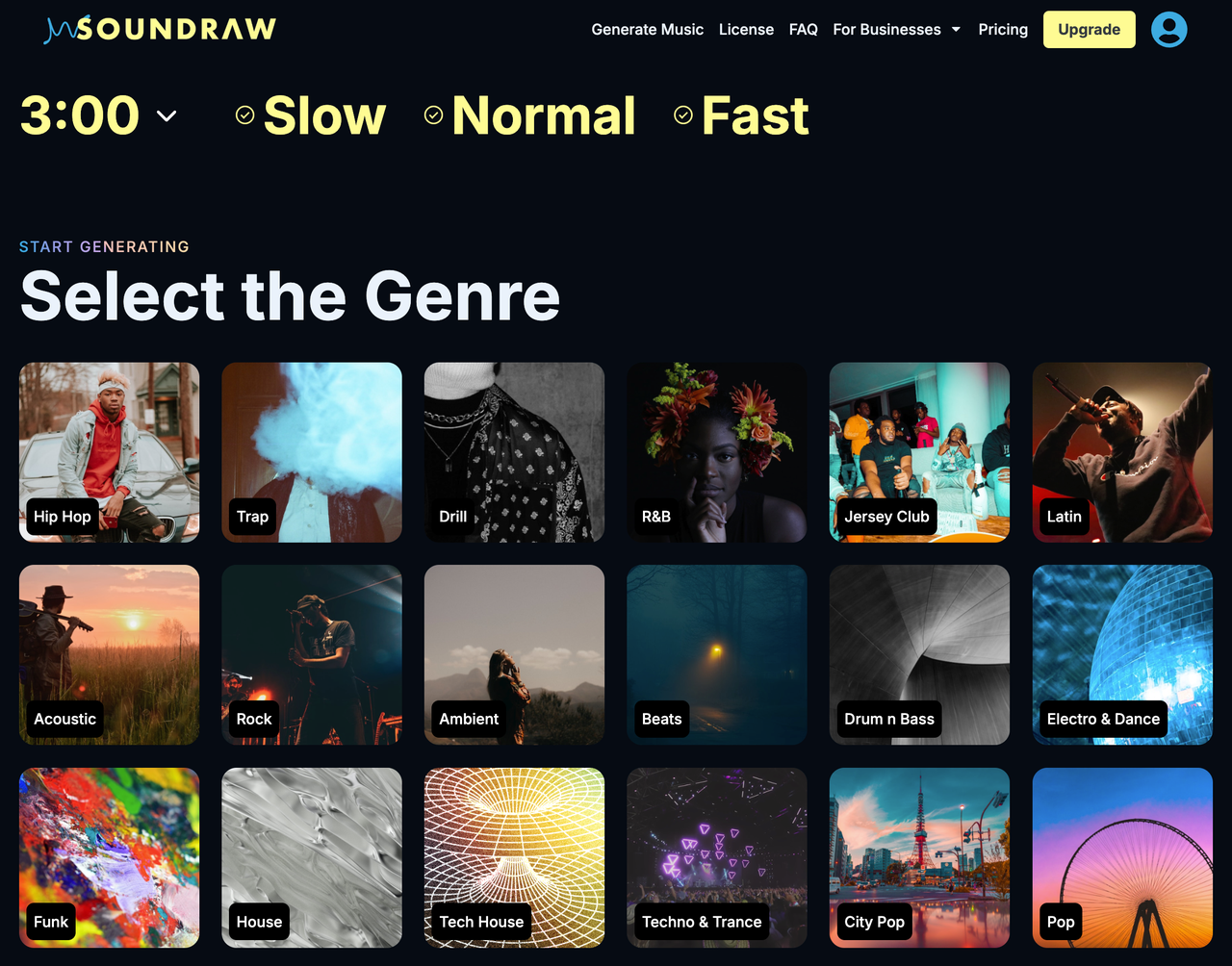
Keep the first direction broad enough to produce alternatives but narrow enough to compare them. “Warm documentary background, restrained percussion, low melodic activity” gives you a better review target than “inspiring,” because it says what should stay out of the narrator's way.
Generate and Shortlist Candidate Tracks
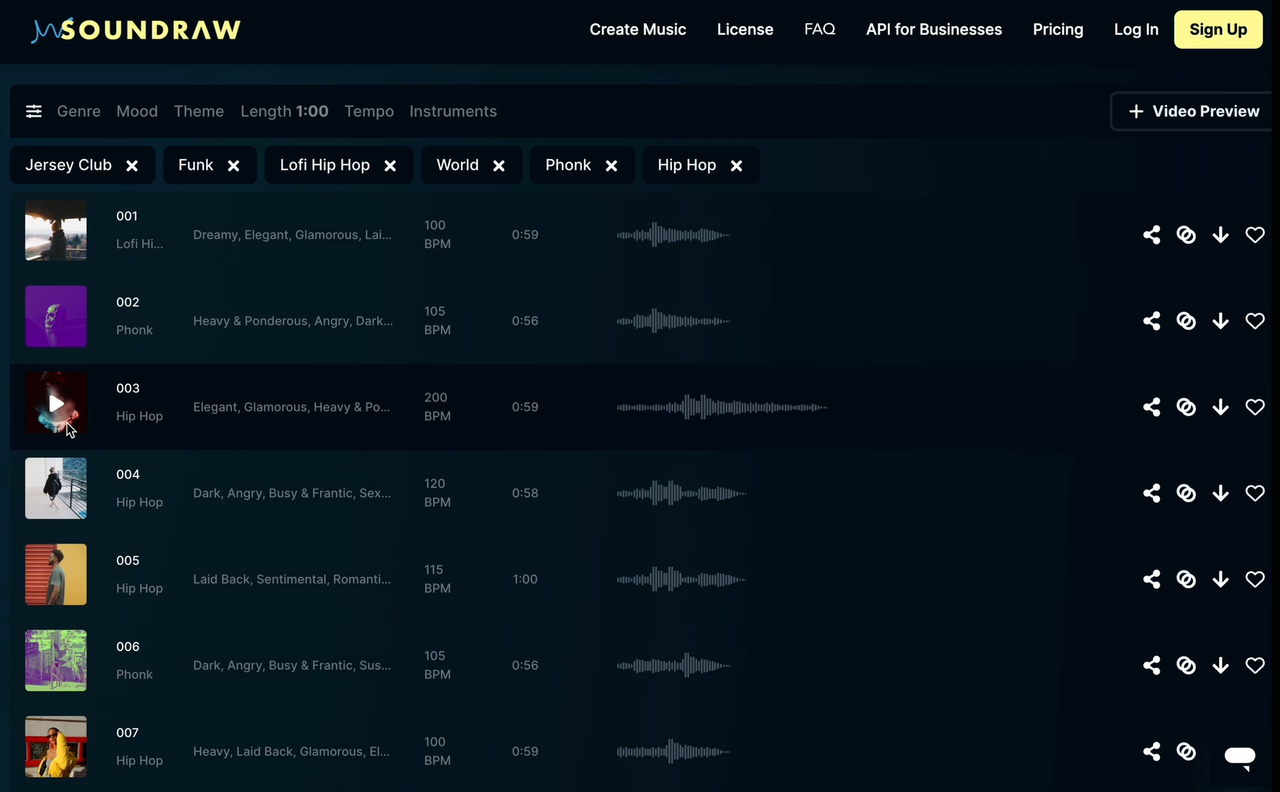
Do not start detailed editing on the first acceptable result. Generate a small set, then audition the same section of the video against each candidate: the opening, one speech-heavy passage, the main payoff, and the last ten seconds.
A practical shortlist contains different structural possibilities: perhaps a calmer opening, clearer build, or cleaner ending. Label them before feedback begins so “the second upbeat one” does not become the team's version-control system.
This is where a SOUNDRAW review should separate product capability from output judgment. The official pages can establish that generation and editing controls exist. Only your own cut can establish whether a particular result is useful.
Adjust Available Track Elements
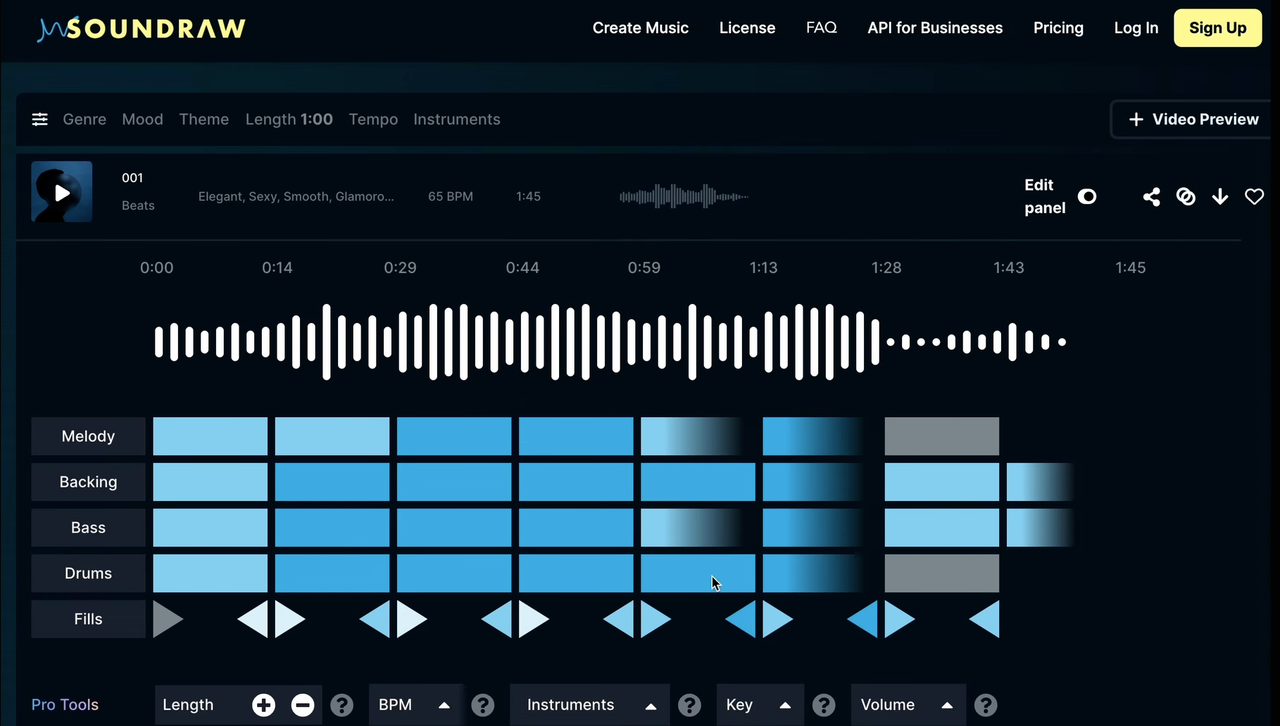
SOUNDRAW documents section-level control over arrangement intensity and musical elements in its Mixer guide. Depending on the current interface and plan, creators may be able to change length, tempo, energy, instruments, and the presence or level of elements such as melody, backing, bass, drums, and fills.
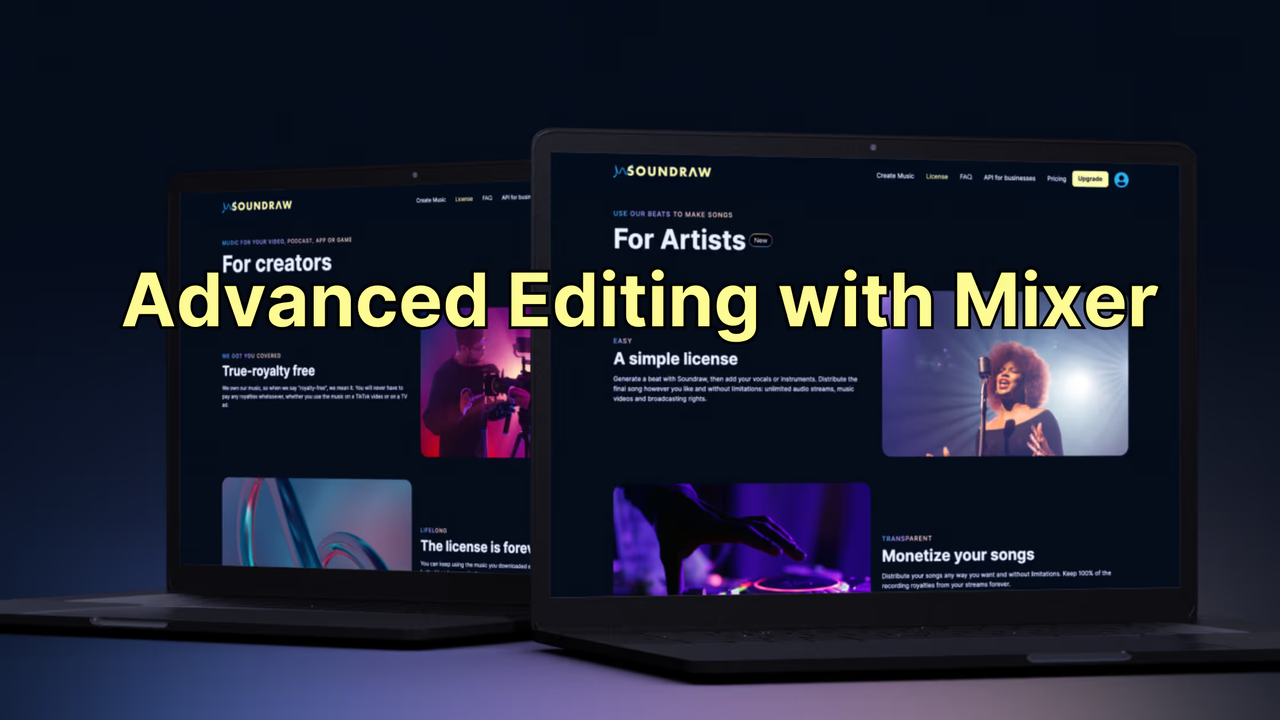
Use those controls to solve a named problem: reduce a lead that competes with dialogue, calm a title-card section, or move an energy change toward a visual payoff. Random customization can produce a different track without producing a better soundtrack.
Use Video Context Where Currently Supported
The current SOUNDRAW Creator workflow says creators can upload a video, preview it with generated music, and adjust the track's timing and beats. Treat that as a useful fitting surface, not as evidence that the system automatically identifies every edit point or narrative beat.
Before publishing or building a team process around the feature, confirm the live entry point, eligible accounts, video limits, and available adjustments. The public description does not establish that the same path appears in every plan, region, or project type.
If the video contains client, confidential, or unreleased material, confirm that you have permission to upload it and review SOUNDRAW's current Privacy Policy before sending the file. A lower-risk test is a representative cut with sensitive shots, names, and unreleased audio removed.
Test a SOUNDRAW Track Inside the Edit
Put the track under the actual picture, dialogue, ambient sound, titles, and end card. Listening to the music alone answers the wrong question.
Pacing and Duration
First check whether the soundtrack's energy curve follows the video rather than merely sharing its runtime. A track can be exactly 60 seconds long and still reach its strongest section four seconds before the product appears.
Compare important visual anchors with musical phrases and energy changes, but do not force every cut onto a beat. Speech and slower camera moves often need looser timing than a fast montage.
Space for Narration
Voice clarity is not solved by lowering the entire track until it disappears. A bright lead, frequent fill, or dense drum pattern can compete with speech even at a modest level.
Use available controls to make the SOUNDRAW background music less active during important lines. Test ordinary playback on more than one device; if the words require effort to follow, choose a sparser candidate before spending too long on automation.
Transitions and the Final Ending
Check how the track enters each new scene. Musical changes do not need to hit every transition, but a major lift should not contradict a quiet visual or arrive after the moment it was meant to support.
The ending deserves a separate pass. Review whether the generated structure resolves before the final frame, whether a fade feels intentional, and whether the end card has enough room to breathe. If the last section only works after an awkward loop or abrupt cut, regenerate or revise the arrangement rather than hiding the problem with a longer fade.
Parameter-Driven Music vs Video-First Generation
SOUNDRAW is best understood as parameter-driven generation with editing and video-preview support. It can work well when the brief is clear and the editor wants control over mood, structure, and density.
A video-first generator uses the uploaded edit's timing, pacing, or scene context as part of the brief. It may be more direct after picture lock, though manual musical control varies by product.
Neither category wins every project. To compare custom video music workflows, use the same cut and score the revisions needed for the opening, narration, payoff, and ending. That is more useful than comparing unrelated demos.
What to Verify Before Downloading or Publishing
Export access and permitted use depend on the current plan, while a platform or client workflow may add requirements.
Export Options
As reviewed on August 4, 2026, SOUNDRAW's current plan table lists MP3 for the Creator and Artist Starter tiers, while Artist Pro, Artist Unlimited, and Enterprise list MP3, WAV, and stems. Treat that as a dated snapshot rather than a permanent specification, and verify the live download screen before choosing a plan.
For video work, keep the generated master, the version placed in the timeline, and a small review file. If stems are part of the selected plan, archive them with clear names; if they are not, do not promise a collaborator that the mix can later be rebuilt element by element.
Creator and Artist Plan Differences
SOUNDRAW's current license overview positions the Creator Plan for background music in creative projects. It positions Artist Plans for musicians who modify SOUNDRAW beats and distribute the resulting songs through digital music services, subject to stated modification and use conditions.
Those are different release models. A video with background music, a client's advertisement, a standalone track, and a song distributed to a streaming service should not be treated as the same use merely because they share one audio file. Check the current plan language for the exact project, ownership arrangement, and distribution path.

Current Usage Terms
The SOUNDRAW Terms of Service say the license follows the selected plan and point to an attached schedule for its scope. They also contain restrictions involving Content ID registration and standalone sale or distribution of generated music, so the current Terms, schedule, and plan page should be reviewed together.
Save the plan name, invoice or receipt, download date, track identifier, and dated copies or links for the applicable license materials. If a marketing page and the legal terms appear to describe the same use differently, ask SOUNDRAW for written clarification before a client delivery or music release. Do not translate a broad “commercial use” label into a promise that every client, platform, or distribution route is covered.
Who Should Consider This Workflow?
The SOUNDRAW AI music generator is worth considering for video creators who can describe the musical direction, want multiple generated candidates, and are comfortable making arrangement decisions before export. It is especially relevant when background music needs to support a story rather than become the product itself.
It may be less direct when the finished cut must determine every cue automatically or the deliverable is a standalone music release. The issue is the distance between the tool's starting point and the deliverable, not necessarily music quality.
Test one representative project before committing the workflow to a team. Measure review time, revisions, voiceover cleanup, handoff, and license records. The tool earns a place only if the complete path is better for your videos.
FAQ
How should repeated generations be labeled for review?
Use a stable pattern such as project_scene_direction_v01, then increment the version without overwriting earlier files. Add a short note for the meaningful change—“lower density,” “later build,” or “cleaner ending”—and keep the SOUNDRAW track identifier where available. This makes feedback about the music reproducible instead of dependent on playlist order.
Can collaborators compare tracks without the original project file?
Yes, if the editor exports identical review videos with each candidate mixed at a comparable level. Include the version label on screen or in the filename, and provide a small timecode sheet for the opening, narration section, payoff, and ending. Audio-only previews are useful for sound, but they cannot show soundtrack fit.
What happens to approved versions after a plan changes?
Keep the downloaded file and the license records that applied when it was obtained. SOUNDRAW's public pages describe continuing rights for some downloaded uses, but the exact scope can depend on the plan and content type, and current pages include special conditions for some artist-oriented uses. Check the applicable agreement or ask support before republishing, transferring, or changing the original use.
Who should approve regeneration after picture lock?
The person who owns final editorial approval should authorize it—typically the lead editor, director, producer, or named client approver. Regeneration can alter timing, mood, and mix density even when the prompt stays similar. Preserve the previously approved version until the replacement has passed the same picture, dialogue, ending, and rights-record checks.
Where does music create the most rework in your video workflow right now: candidate review, narration, the ending, or the license record?